Passwordless Login
EnergyTrak uses a secure and convenient passwordless login system. This guide explains the process for accessing your account and provides troubleshooting steps for common issues.
How to Log In
The passwordless method provides a simple, secure, one-time login link.
- Enter Your Email: On the app or web login screen, enter the email address associated with your EnergyTrak account.
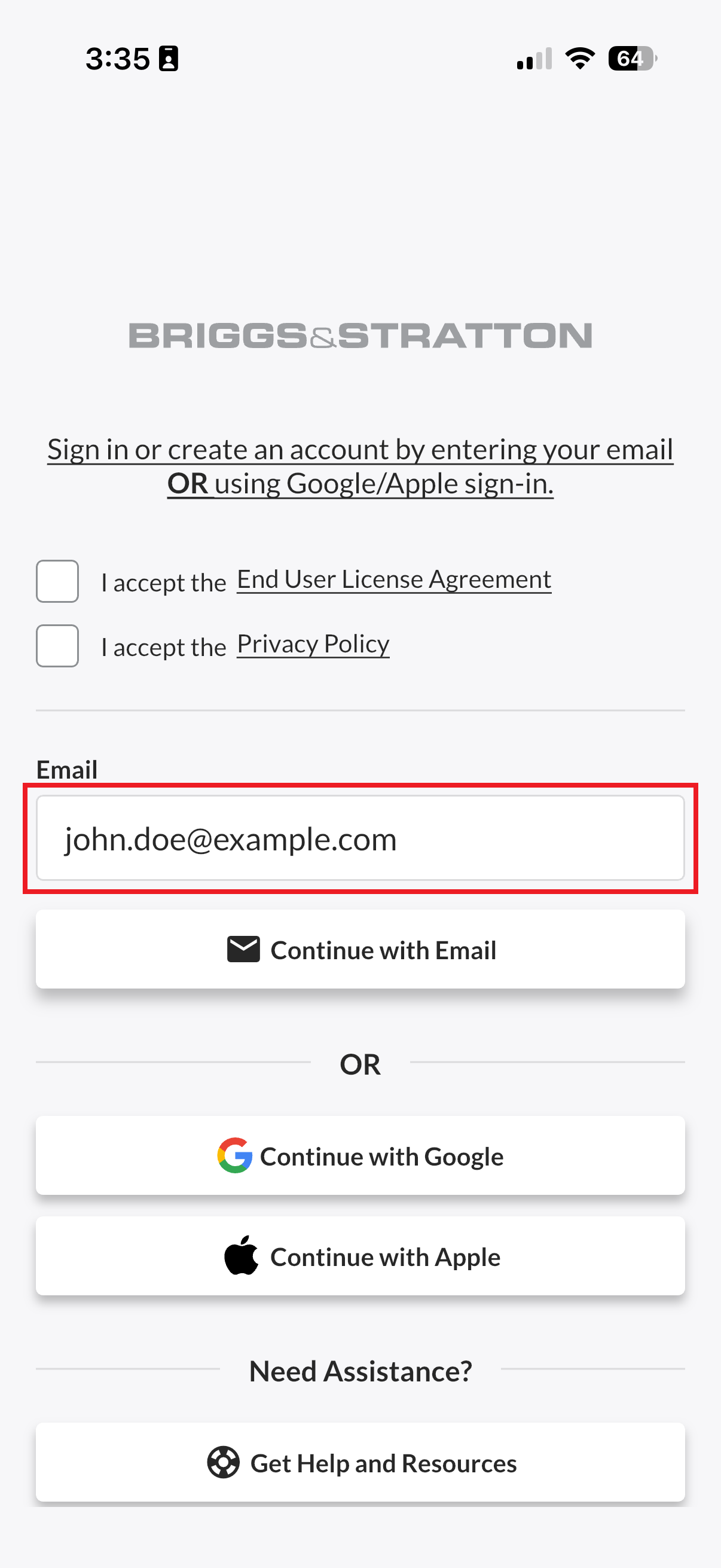
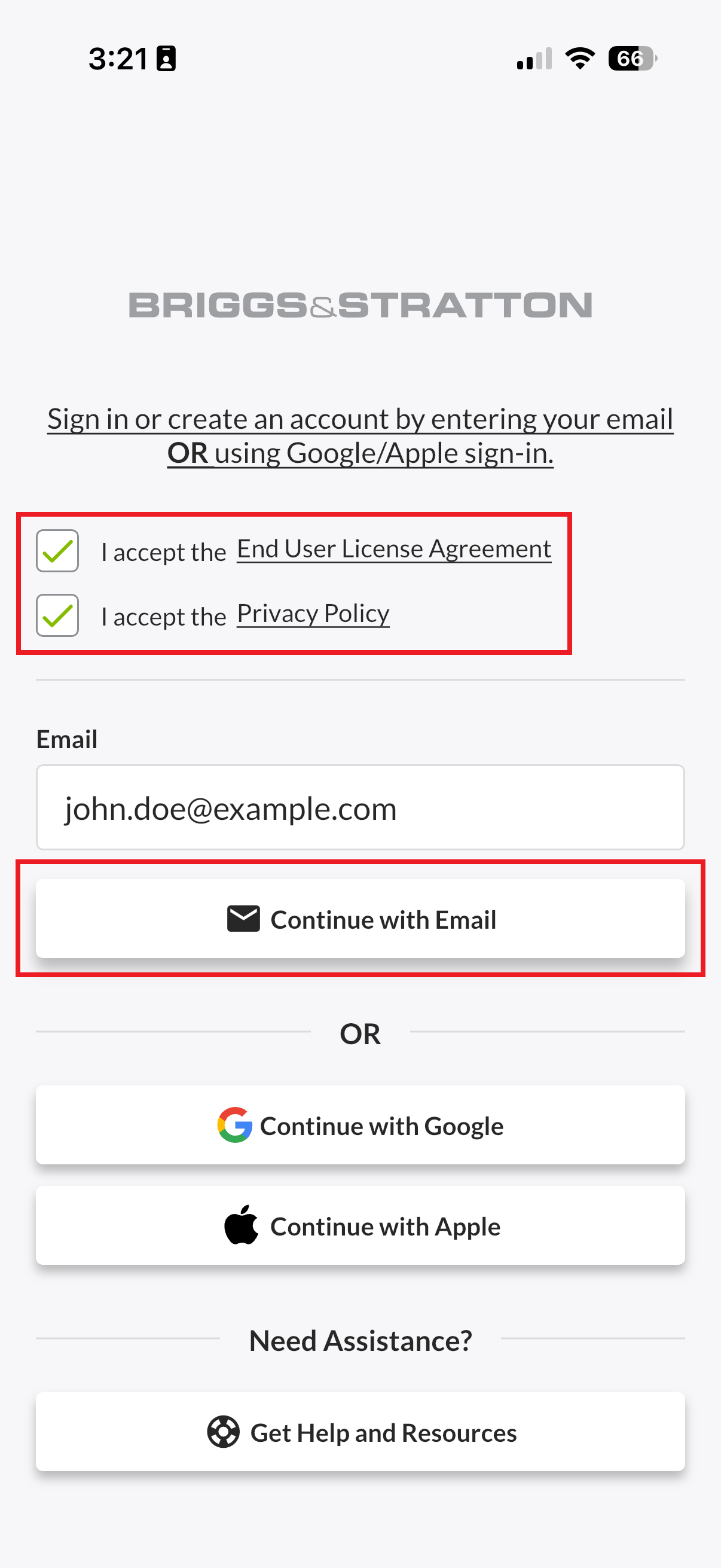
- Accept the EULA and Privacy Policy. THEN, click the "Continue with Email" button.
DO NOT click the "Continue with Google" or "Continue with Apple" buttons unless your EnergyTrak account uses the exact same email address as your Google Account or Apple ID.
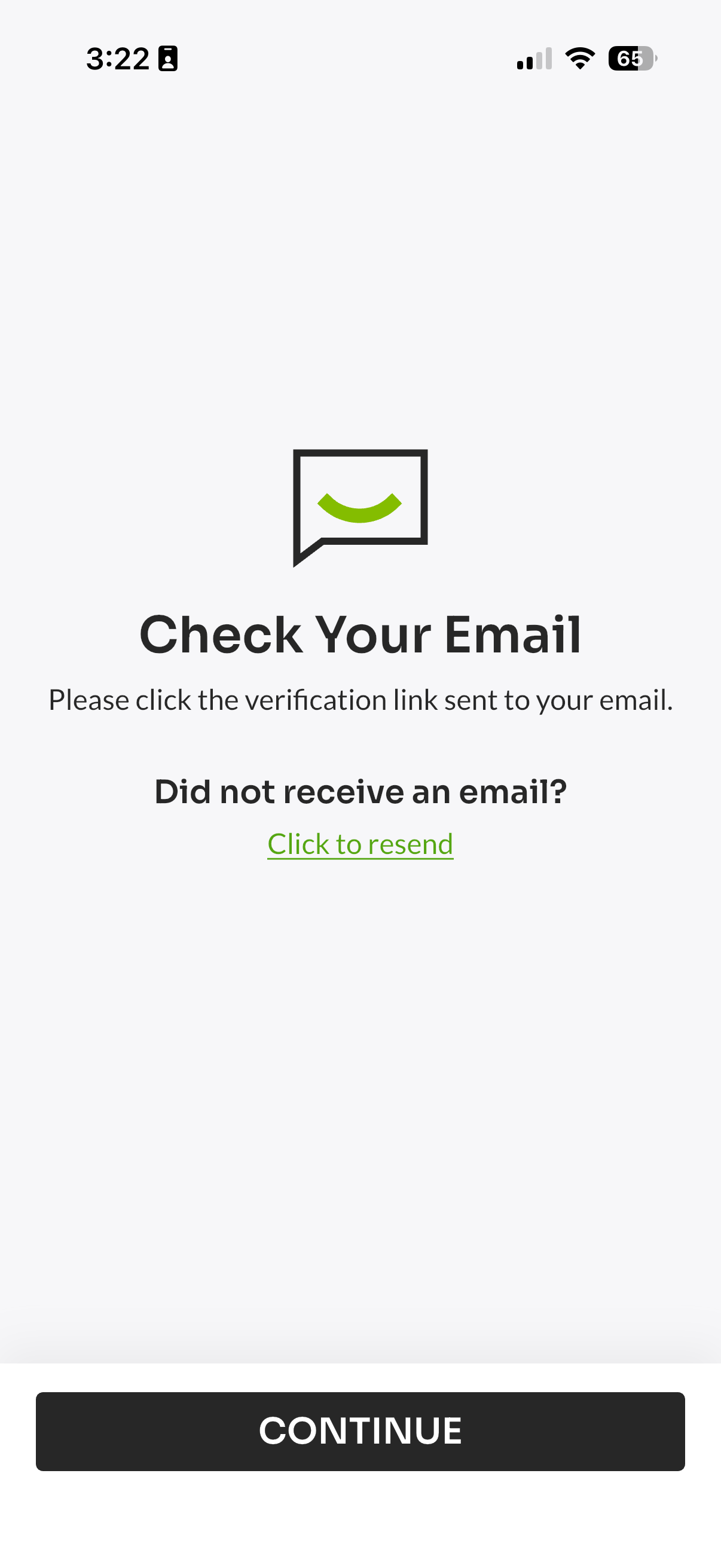
- Check Your Inbox: We will immediately send a secure, one-time sign-in link to the email address entered.
- Click the Link: Open the email and click the green "SIGN IN" button.
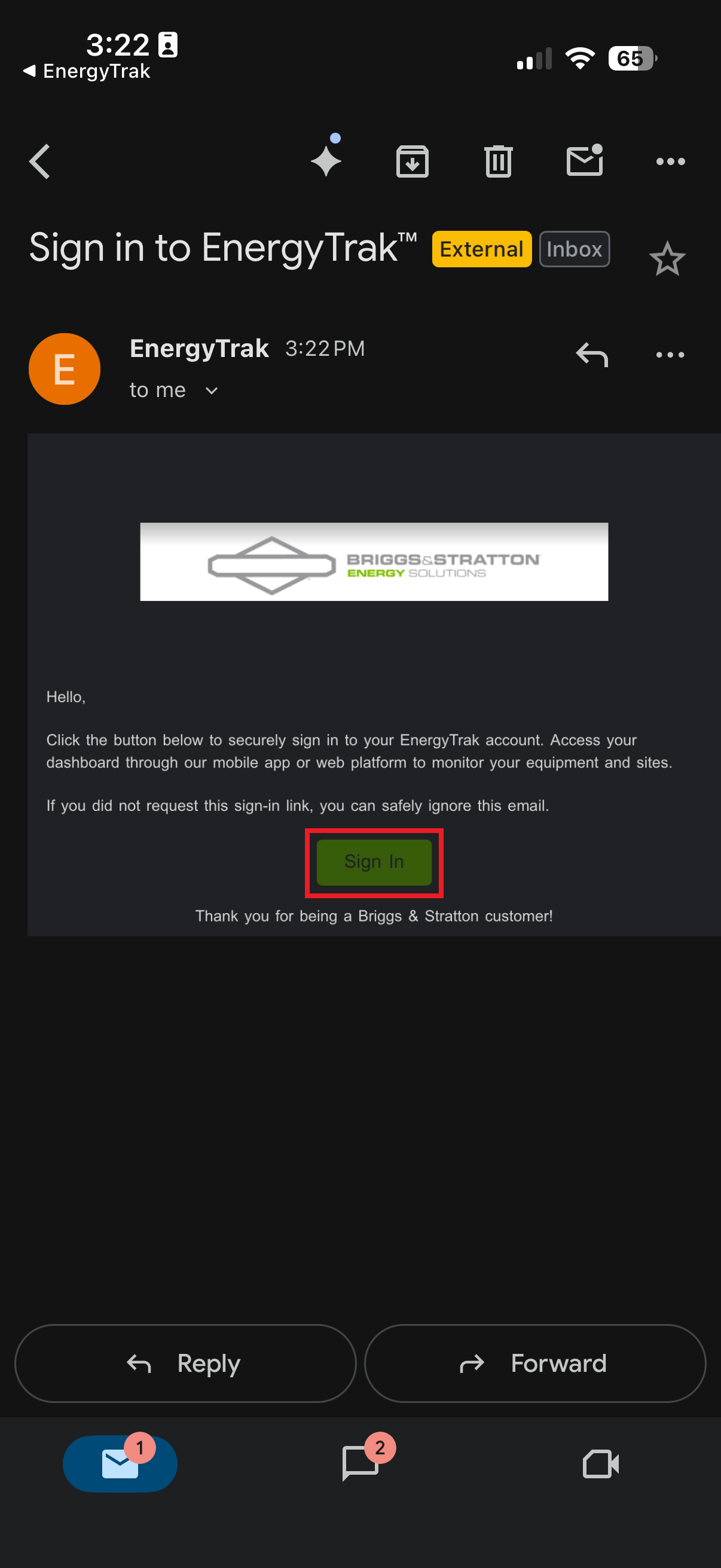
You will be automatically redirected back to the EnergyTrak application and securely logged in. The link is for single use and expires shortly for your security. Your login session will remain active until you manually log out or clear your device/browser data.
Troubleshooting Endless Login Loop
If you experience an "Endless Login Loop" and cannot log in, try the following:
- Close any other EnergyTrak tabs you have open.
- Go to your browser's settings and delete the cookies for EnergyTrak.
- Reopen energytrak.io and try signing in again.
The loop occurs when cookies are blocked or disabled (for example, when using Incognito / Private Mode), as the app cannot store session data needed to complete the email-based sign-in flow. Incognito has cookies disabled, and while you can use sign-in with Google, cookies are required for sign-in with email.
If you are attempting to create a new user, please ensure you are using the exact email address your EnergyTrak welcome email was sent to. We are working to identify the exact circumstances causing this issue and to provide a more permanent solution, such as a logout button on the affected screen.
Troubleshooting Site Visibility
Why am I not seeing my sites in the EnergyTrak app after logging in?
This issue is typically due to logging into the wrong account or having site filters enabled. Your site assignments are tied to the exact email address used in your original welcome email.
Step 1: Verify you are logged into the correct account
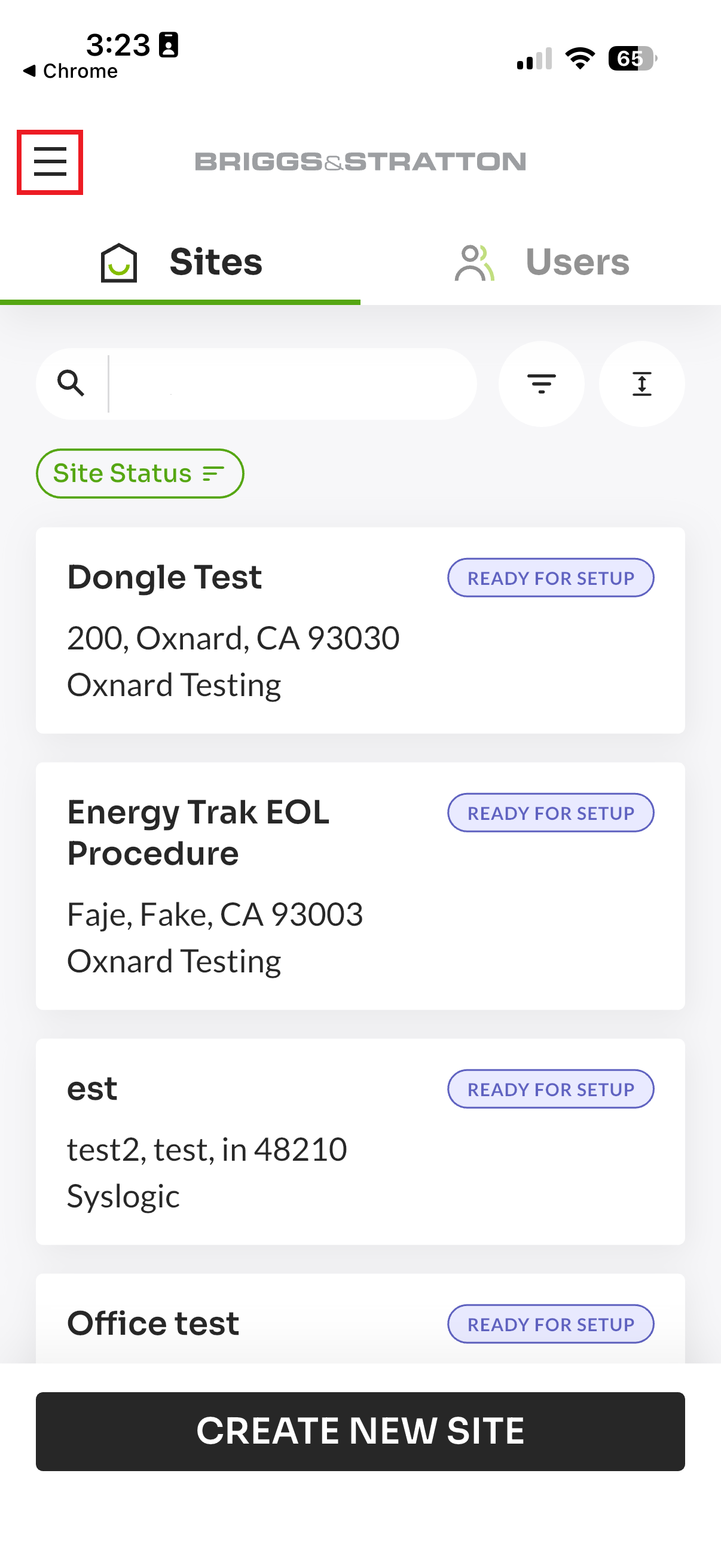
- From the sites list, tap the hamburger menu (three horizontal lines) in the top-left corner of the screen.
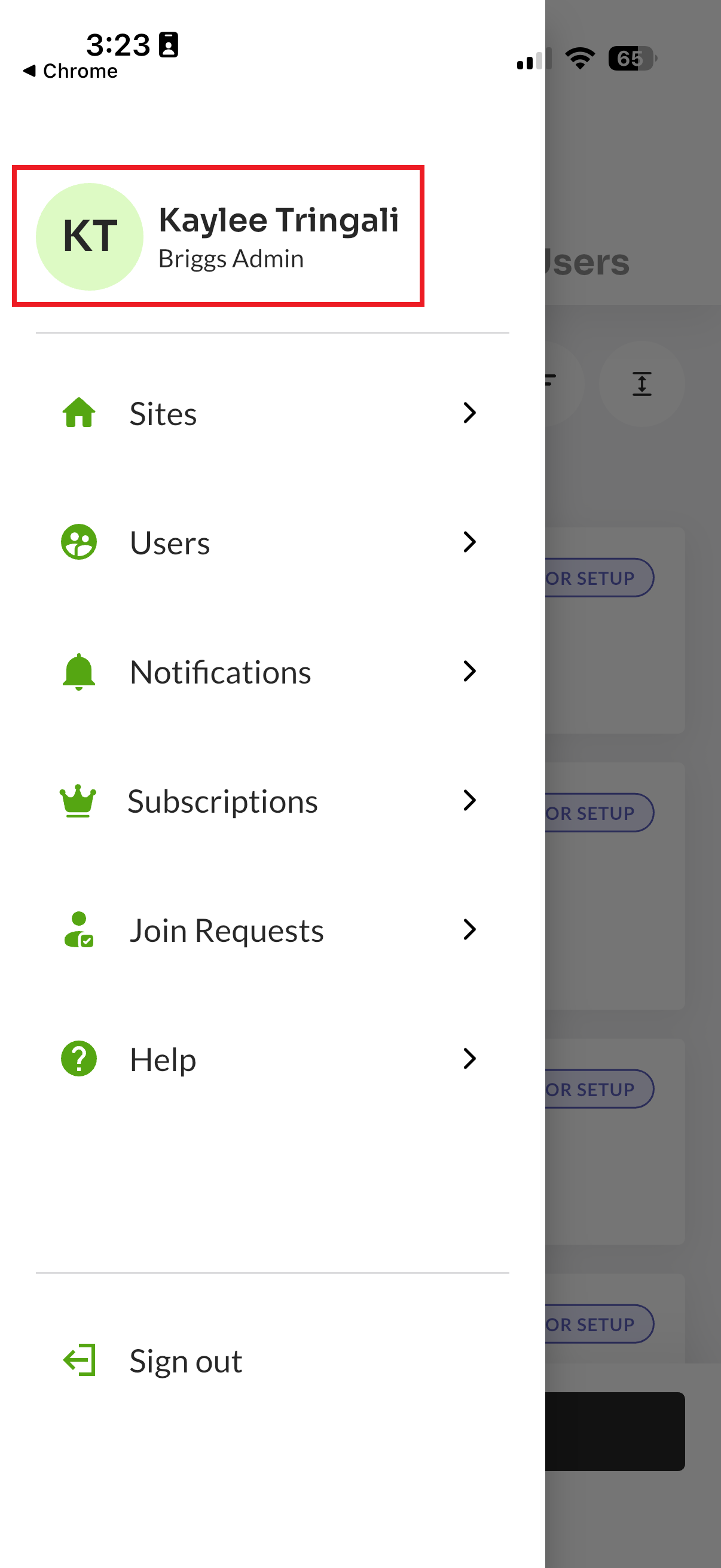
- Click the uppermost card displaying your name and business affiliation.
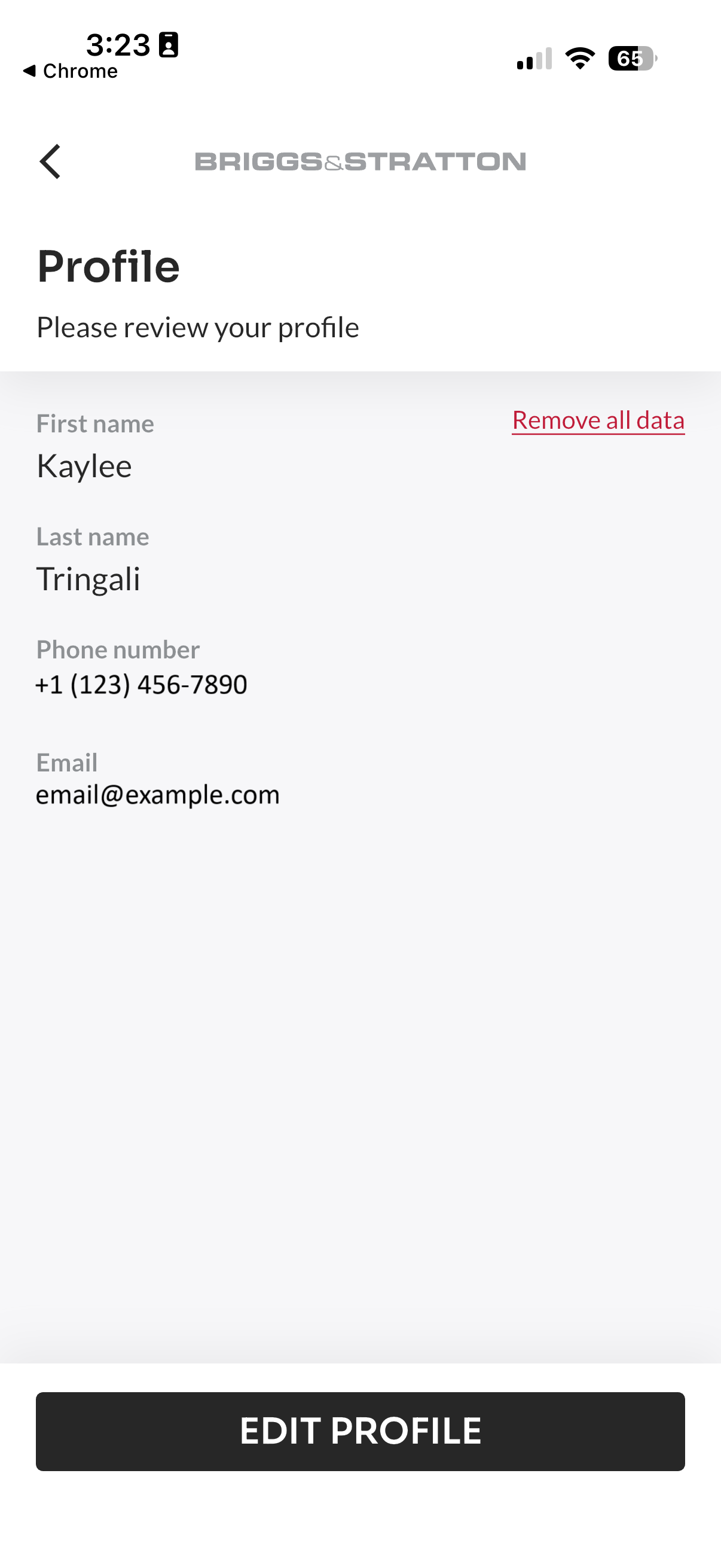
- Check the email address displayed on your profile screen.
If the email DOES NOT match your welcome email address, you are logged into a duplicate account. Please sign out and sign in using the correct EnergyTrak email address (the one that received the welcome email).
Email addresses cannot be changed from within the app. If you no longer have access to the email address associated with your EnergyTrak account, please contact support.
Step 2: Check your site filters
If the email you are signed in with matches the one that received the welcome email, you may have site filters enabled.
- Return to the main sites list screen.
- Double-check that you have no filters selected that may be hiding your active sites.
For common questions about this process, please see the Passwordless Login and Account Security FAQ.