Generator Operating Mode: Auto / Manual
EnergyTrak continuously monitors your generator's operating mode to determine whether it is ready to automatically protect your site during a power outage. The mode is detected automatically from the generator's hardware — no configuration is required in the app.
Understanding your generator's current mode is important: a generator in Manual Mode will not automatically start during a power outage, leaving your site unprotected until someone manually intervenes.
What the Modes Mean
| Mode | Badge Color | What It Means |
|---|---|---|
| Auto | Green | The generator is configured to automatically start during a power outage. Your site is protected. |
| Manual | Yellow | The generator requires manual operation. It will not auto-start during an outage. Action is recommended. |
Note: The operating mode is set physically with the generator's controller — it cannot be changed from within the EnergyTrak app at this time. If your generator is in Manual Mode unexpectedly, contact your service Pro.
Step 1: Locate the Mode Indicator
The generator's current operating mode is displayed as a colored badge on the Generator Card within your Site Dashboard.
- Open the EnergyTrak app and navigate to the Sites screen.
- Tap the site you want to check.
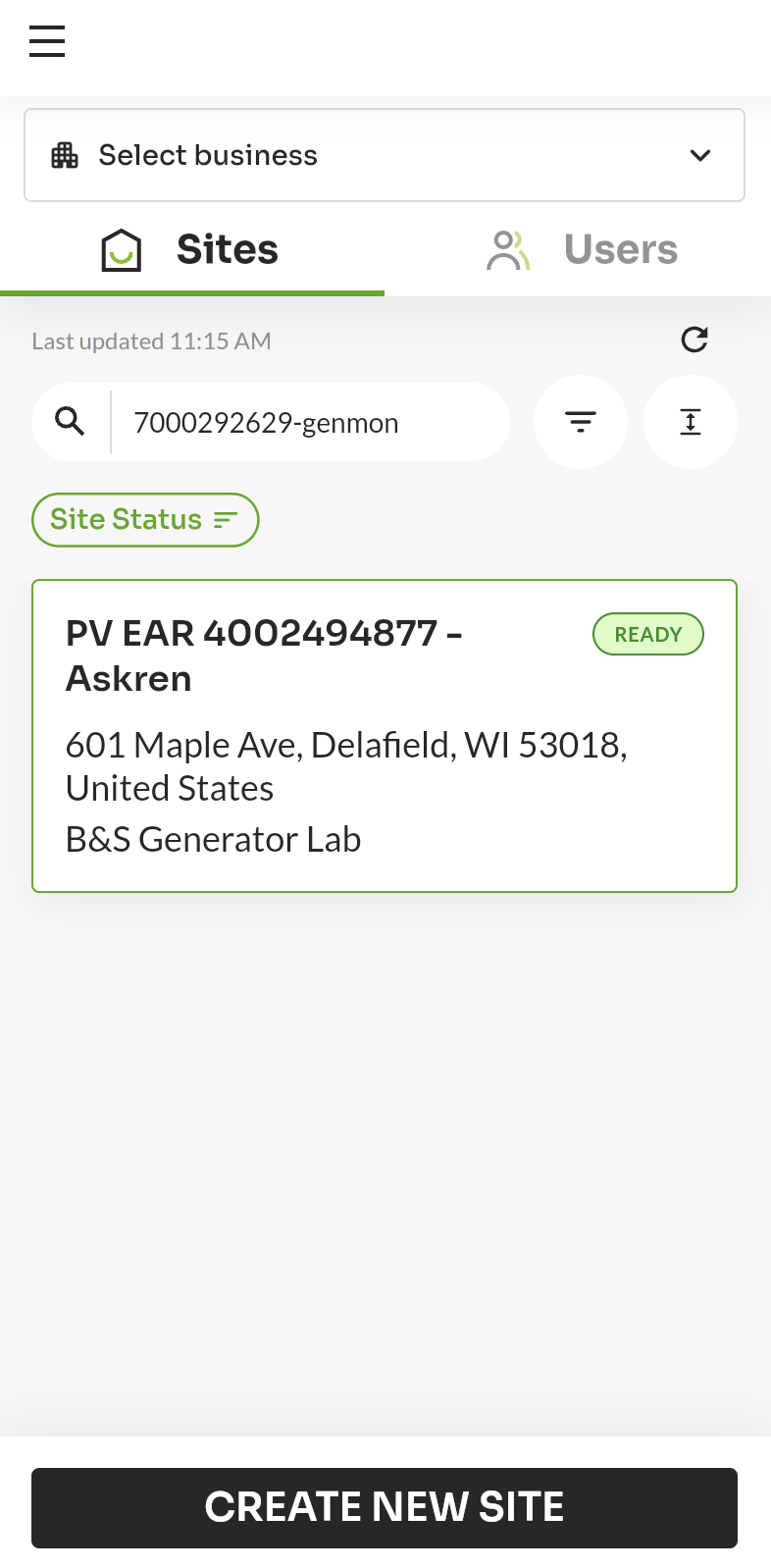
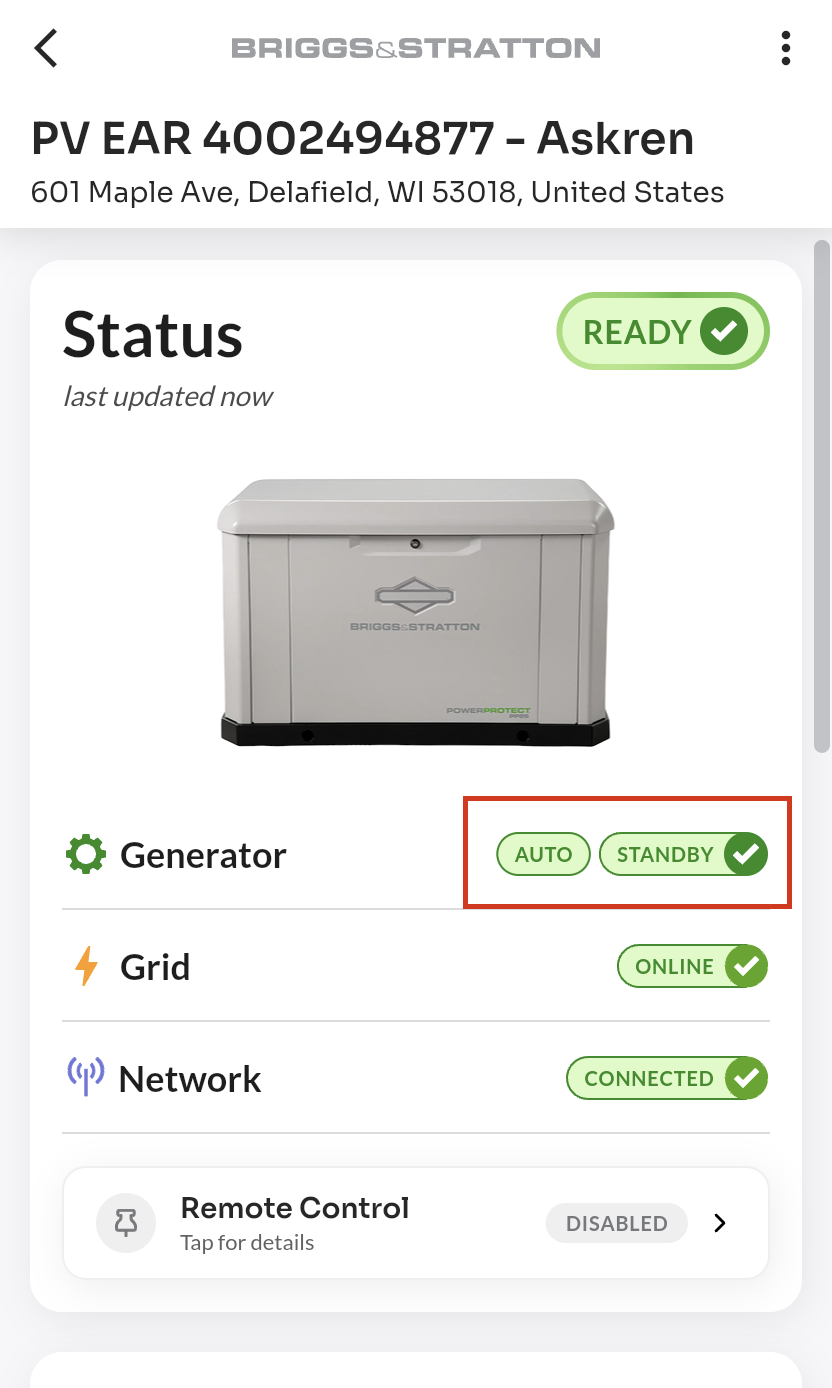
- On the Site Dashboard, find the Generator tile. The operating mode badge is displayed on the right side of the tile, alongside the device health indicator.
Step 2: Understand the Mode Badge
Auto Mode (Normal / Protected)
When the badge displays "Auto" in green, the generator is in automatic mode. It will start on its own if grid power is lost and your site is fully protected.
Manual Mode (Degraded / At Risk)
When the badge displays "Manual" in yellow, the generator has been switched to manual operation — either intentionally by a technician on-site or due to a configuration change at the physical unit.
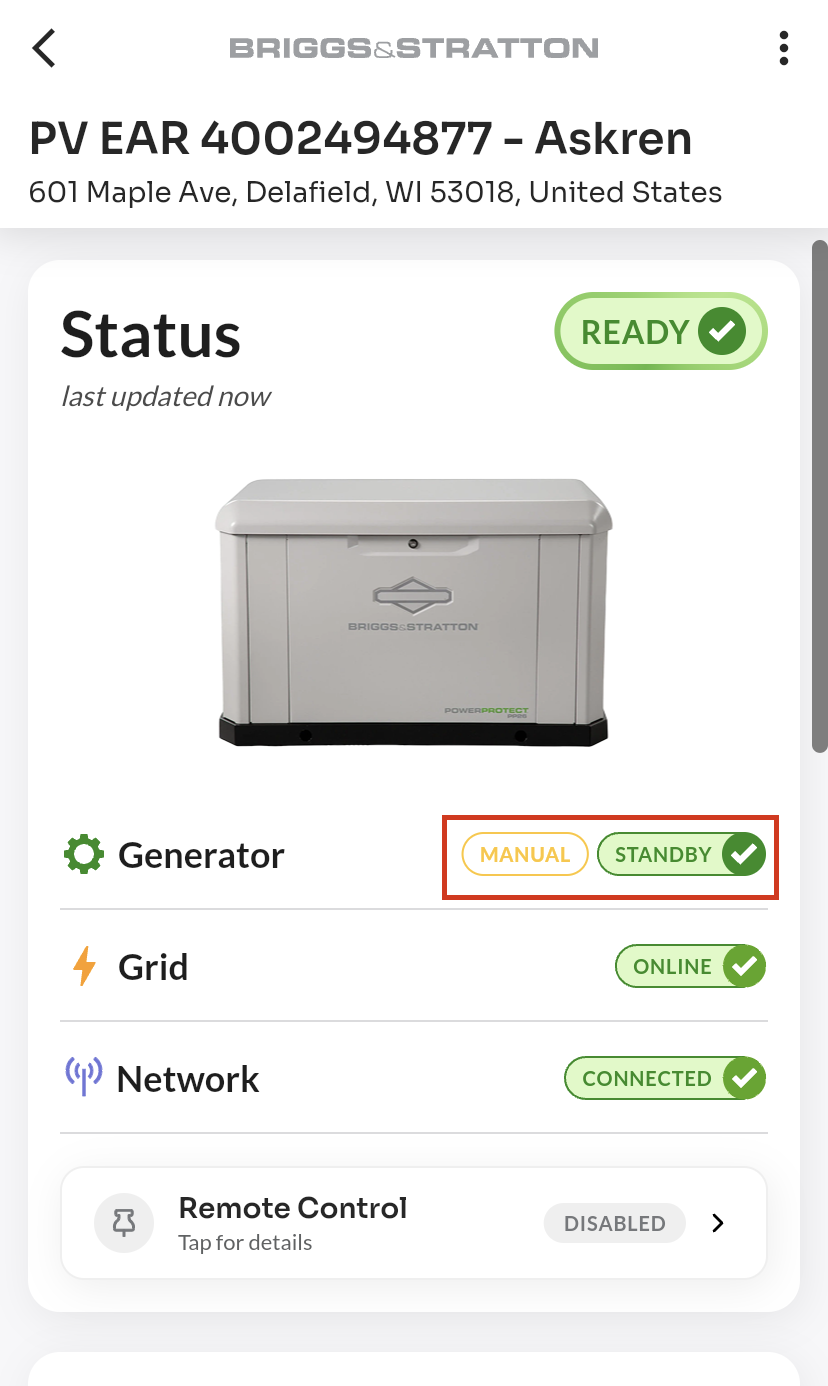
In this state:
- The site's overall status changes to "Manual" (yellow)
- The generator will not auto-start during a power outage
- Remote Start/Stop controls in the Generator Toolbox are disabled
- A system event is logged to the site's event history
What to do: If you see a Manual Mode badge and no maintenance work is in progress at your site, contact your service Pro to have the generator switched back to Auto Mode.
Step 3: Review Site Status When in Manual Mode
When the generator enters Manual Mode while on standby and grid power is present, the site's status changes to reflect the degraded protection state.
You may also see a system event notification indicating that the mode changed. To review it:
- From the Site Dashboard, navigate to the System Events or Activity section.
- Look for an event such as "Generator in Manual Mode" — this records the exact time the change was detected.
Step 4: Confirm Return to Auto Mode
When a technician switches the generator back to Auto Mode, the badge automatically updates to green and the site status returns to "Ready".
A corresponding "Generator in Auto Mode" event is logged in the system event history, confirming the change and the time it occurred.
Mode Behavior Reference
| Scenario | LED Signal | App Badge | Site Status | Generator Health | Auto-Start on Outage? |
|---|---|---|---|---|---|
| Generator standby, grid online, Auto mode | Solid ON | Auto (green) | Ready | Healthy (green) | Yes |
| Generator standby, grid online, Manual mode | Solid OFF | Manual (yellow) | Manual | Notice (yellow) | No |
| Generator running during outage, Auto mode | Solid ON | Auto (green) | Running | Healthy (green) | — |
| Generator running during outage, Manual mode | Solid OFF | Manual (yellow) | Running | Notice (yellow) | — |
| Grid offline, generator not running, Manual mode | Solid OFF | Manual (yellow) | Stopped | Notice (yellow) | No |
| Generator fault detected | Flashing | — | Fault | Critical (red) | No |
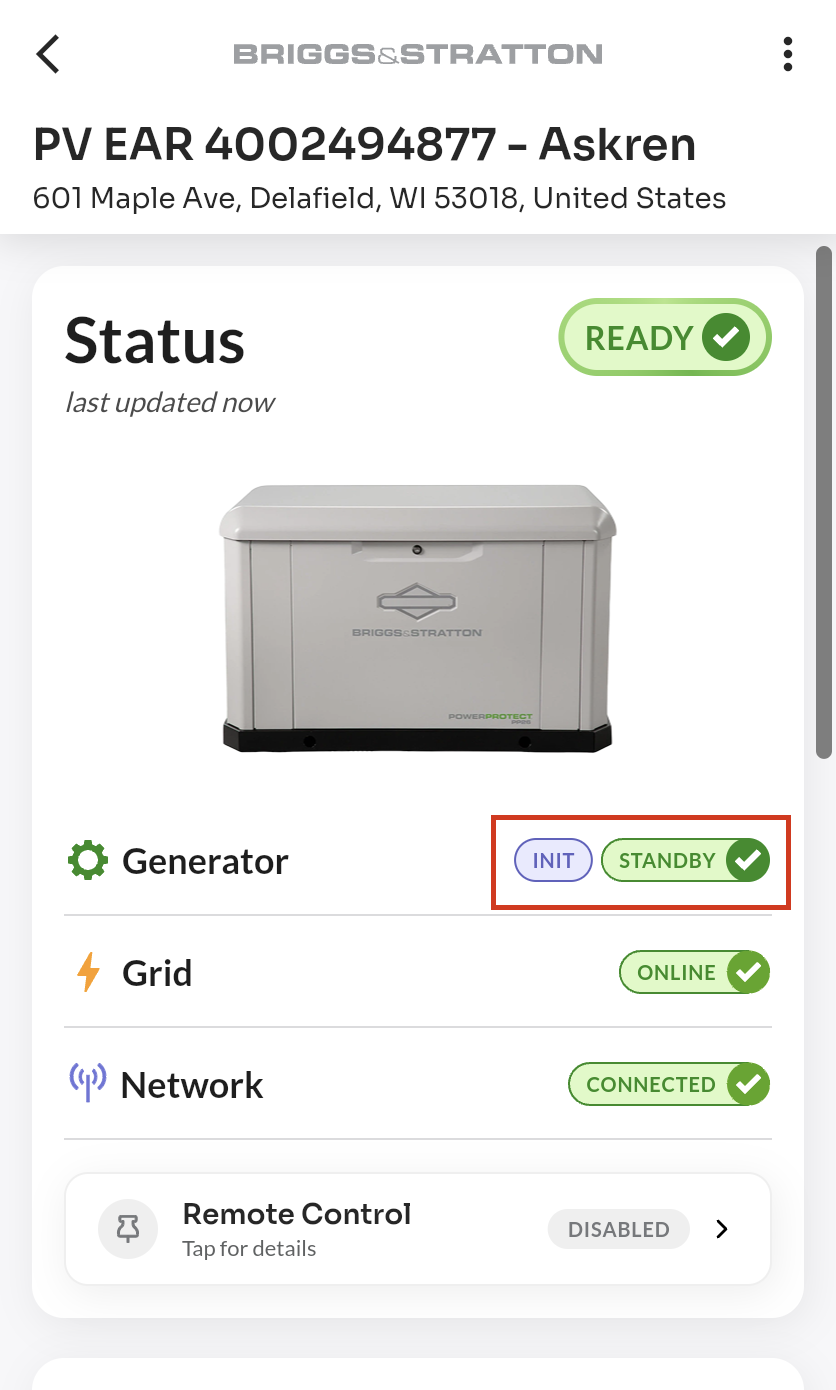
Initializing State
Immediately after a monitoring device is powered on or reconnected, the mode may briefly show as "Init" (displayed as a purple badge) while the device synchronizes its status. This is temporary and will resolve automatically within a few minutes.
Important Notes
- Mode is hardware-controlled. Auto or Manual mode is determined by a Briggs & Stratton GC controller. It cannot be changed from the EnergyTrak app at this time.
- Remote controls follow mode. When the generator is in Manual Mode, the Enable Generator and Disable Generator buttons in the Generator Toolbox are disabled. See Generator Toolbox: Remote Start/Stop, Fault Clear for details.
- Smart Mode Detection must be enabled. The Auto/Manual badge only appears on sites where Smart Mode Detection is active. If you do not see a mode badge on your Generator tile, the feature may not be enabled for your device. Contact your Pro for assistance.
- Battery voltage affects detection. If the monitoring device's battery voltage drops critically low, the mode may temporarily show as unknown until power is restored.
For information on remotely controlling your generator, see Generator Toolbox: Remote Start/Stop, Fault Clear.
For information on user roles and site access, refer to the Users page.
For subscription requirements, refer to the Subscription Management page.