Users
This guide explains how to create and manage users in the EnergyTrak app. The system is built on a foundation of defined User Roles, which determine what each person can see and do.
Here you will learn about:
- The different User Roles and their specific permissions.
- The Pro Business hierarchy that organizes all users and sites.
- Where to add, edit, and manage users within the application.
User Roles
Users can be created and managed in the EnergyTrak app, and each user has a defined User Role:
- Pro Admins: Pro Admins have full control over business and user management with the most permissions available to Pro users.
- Pro Technicians: Pro Technicians focus on installations and site work with a streamlined feature set for daily customer product tasks.
- Pro Support (in development): Pro Support users monitor fleets with view-only access, without making changes that affect customer systems.
- System Owners: System Owners purchase and install EnergyTrak for Generator Monitoring products, gaining control and information over their site and products.
| User Role | Can Create New Users? | Can Manage Existing Users? | Can Manage Pro Access to Site? | Can Manage System Owner Access to Site? |
|---|---|---|---|---|
| Pro Admin | ✅ | ✅ | ✅ | ✅ |
| Pro Technician | ✅ (System Owner only) | ❌ | ❌ | ✅ |
| System Owner | ✅ (System Owner only) | ✅ (System Owner only) | ✅ | ✅ |
Only System Owners not managed by a dealer (Pro Business) can create and manage other System Owners at the site level. If a System Owner is assigned to a site managed by a Pro, all new user creation and site access requests must be initiated or approved by the Pro Admin.
Pro Admins
With the most permissions available to Pro users, Pro Admins have full control over business and user management.
Key Permissions:
- View, create, and manage all customer sites associated with their business.
- Create and manage all users associated with their business, including Pro Admins, Pro Technicians, Pro Support, and System Owners.
- Add or remove site assignments to Pro Technician users.
- Setup new EnergyTrak devices.
- Control or reconfigure connected devices and systems under their business.
- Configure fleet- and site-level notifications.
- Manage fleet subscriptions and payments.
Pro Technicians
Designed for Pro users who are working with customer products everyday, Pro Technicians have a streamlined feature set to help them focus on installations and site work.
Key Permissions:
- View assigned customer sites.
- Create new sites.
- Create new System Owner users.
- Setup new EnergyTrak devices.
- Control or reconfigure connected devices and systems on assigned sites
- Configure fleet- and site-level notifications.
Pro Support
This role is currently in development.
Designed for Pro users who need to monitor a fleet without the ability to make changes that would impact system operations. Pro Support users have view-only access to key information.
Key Permissions:
- View all customer sites associated with their business.
- View all users associated with their business (including Pro Admins, Pro Technicians, Pro Support, and System Owners).
- Configure fleet- and site-level notifications.
System Owners
For users purchasing an EnergyTrak Generator Monitoring-enabled product and installing it at their site, System Owners get the information and control they ned over their site and installed products.
Key Permissions:
- Monitor and control their system.
- Configure notifications.
- For independently managed sites only: Create and manage other System Owner users only at the site-level (cannot create or manage Pro roles).
- Control and manage Pro Monitoring access to their site.
If a site is managed by a Pro Business, System Owners or new users requesting site access must contact their assigned Pro Admin to be added to the site.
Pro Business Hierarchy
All users are organized into a hierarchy based on their assigned business entity. This entity represents a single company that provides related services, such as a Briggs & Stratton Authorized Dealer. Users and sites are each assigned to a business, which determines access to shared features. Users who are not associated with a Pro Businses are orgnized into an independent entity to keep their site and information private. Pro Admins can view and manage all aspects of a business and its related entties.
User Management
Users can be created and managed from:
- the Users screen,
- during new device setup, and
- from the Site Access menu on the Site Dashboard.
Whenever a Pro user creates a new user, it automatically assigns them to the same Pro Business.
Assigning Users to an Existing Site
Pro Users and existing System Owners can assign users to an existing site from the Site Access menu on the Site Dashboard. The process varies slightly based on whether the user already has an EnergyTrak account or if they are a brand new user.
Accessing the Assignment Tool
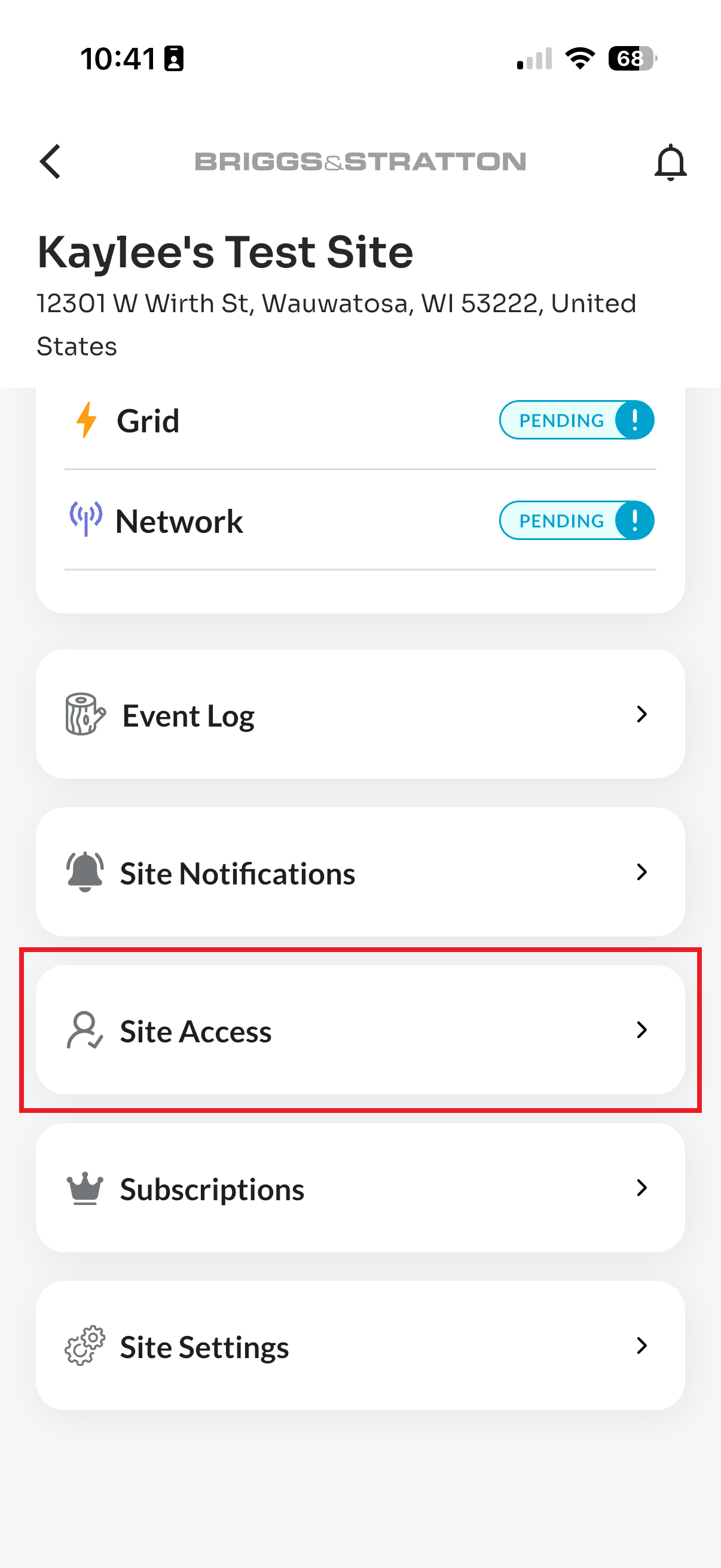
- Navigate to the Site Dashboard.
- Select the Site Access menu.
- Click the "Assign User" button.
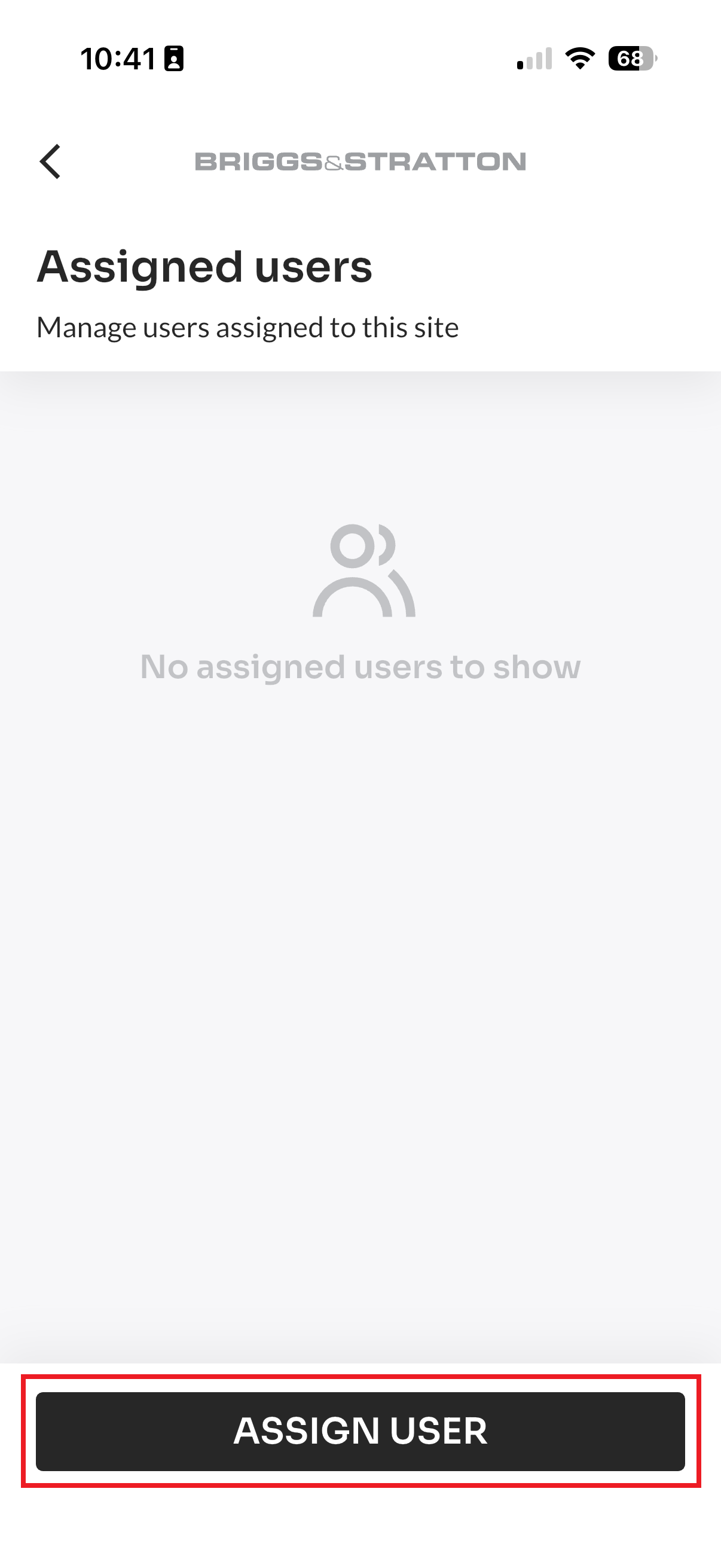
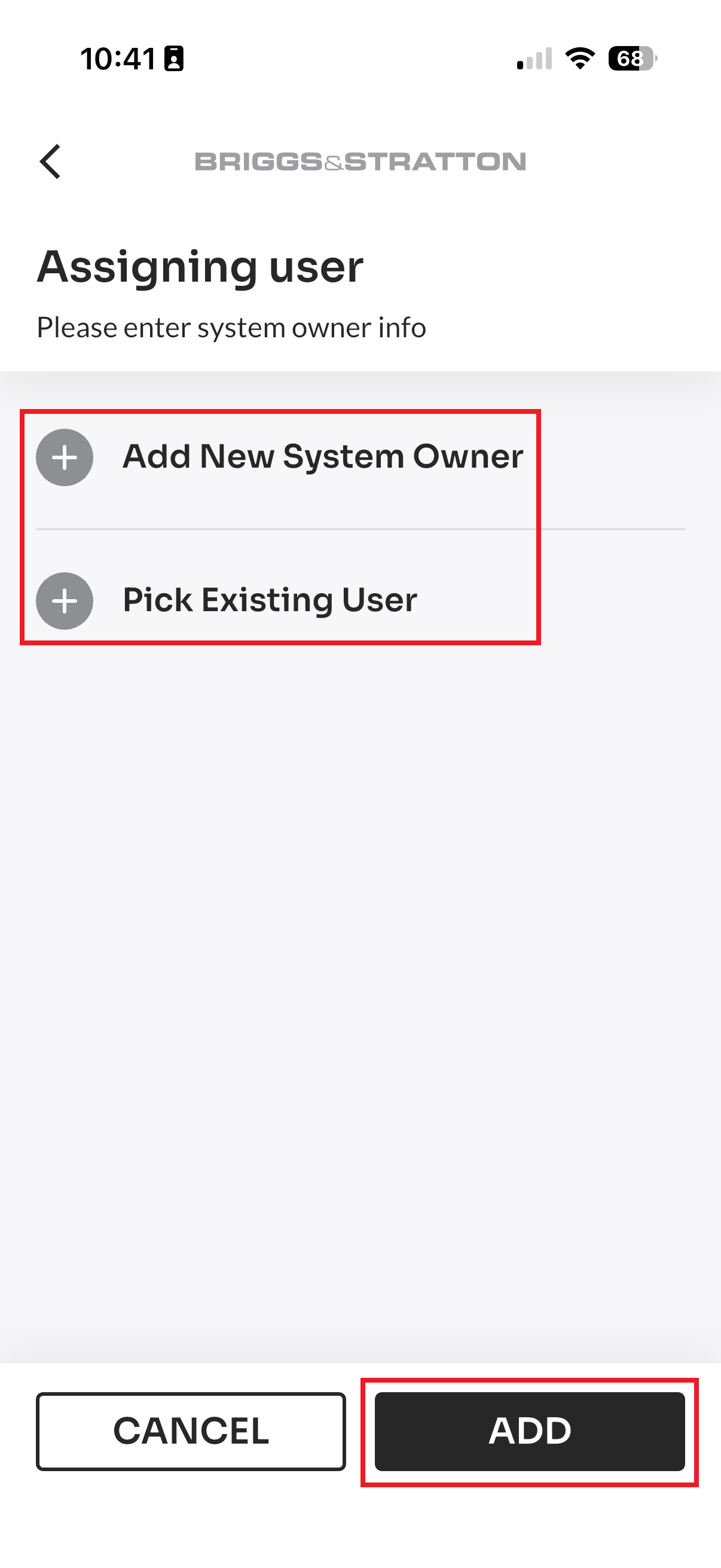
- Decide whether you are assigning an existing user or a brand new user.
Adding an Existing User
This method is used when the individual you want to add already has an EnergyTrak account.
- From the "Assign User" screen, select "Pick Existing User."
- For Pro Admins: Select a user from a searchable list of users already associated with your business, or find them manually by entering their email address.
- For System Owners (Independently Managed Sites Only): Manually find the user by entering their email address.
Approval Requirements for Existing Users
- Same Business: If the existing user’s business entity already matches yours (or they are not associated with a business), the assignment is immediate upon confirmation.
- Different Business: If the existing user is associated with a different business, an invitation is sent. The user must approve the invitation to gain access to their site. Their status will show as “Pending Approval” until they respond.
If the site is Pro-managed, the Pro Admin must be contacted to finalize site access.
Creating a New User
If the individual does not yet have an EnergyTrak account, Pro Users and existing System Owners can create a new account for them directly from the app.
- From the "Assign User" page, select "Add New System Owner."
- Fill out the simple form (e.g., First Name, Last Name, Email Address).
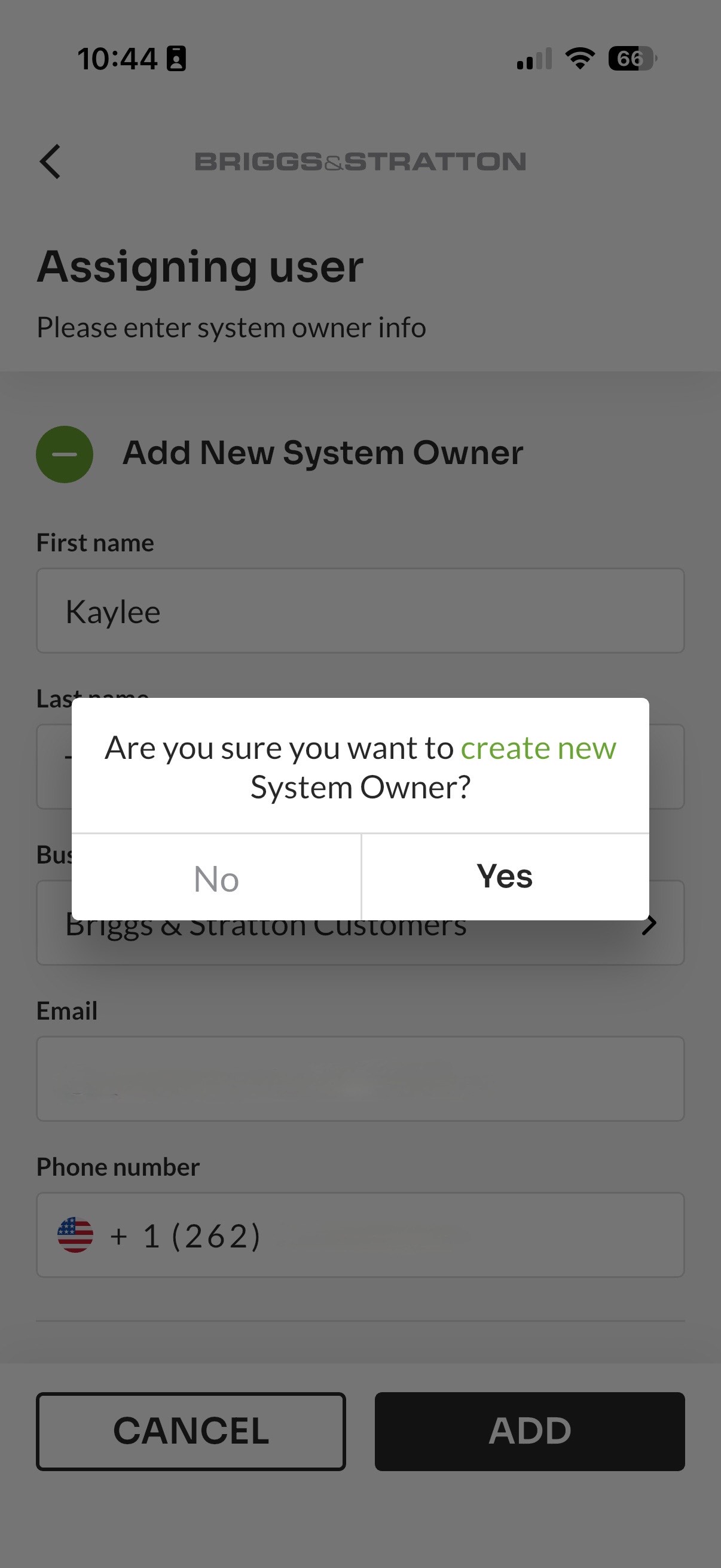
- A new System Owner user account is created, automatically associated with your business, and assigned to the current Site.
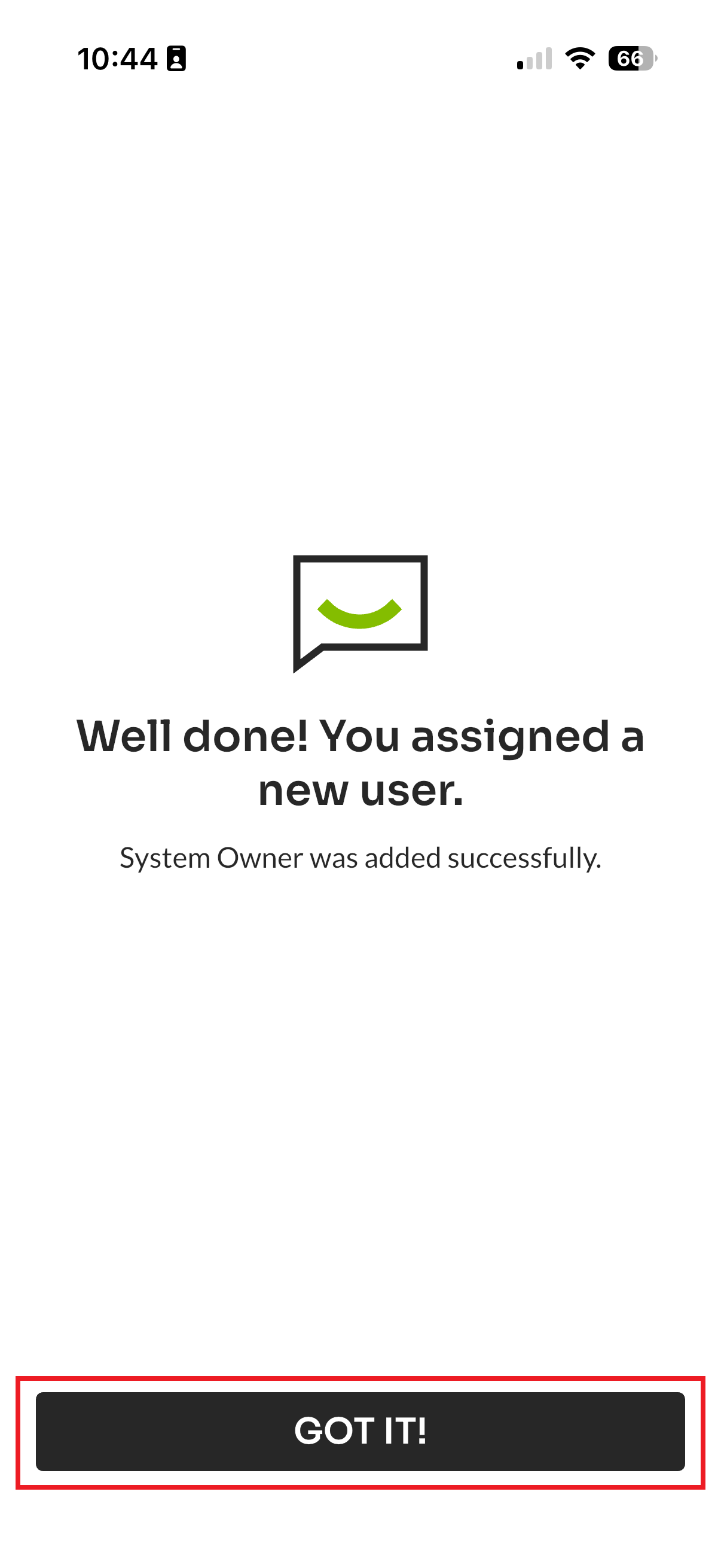
- A Welcome Email is immediately sent to the new user with instructions to log in.
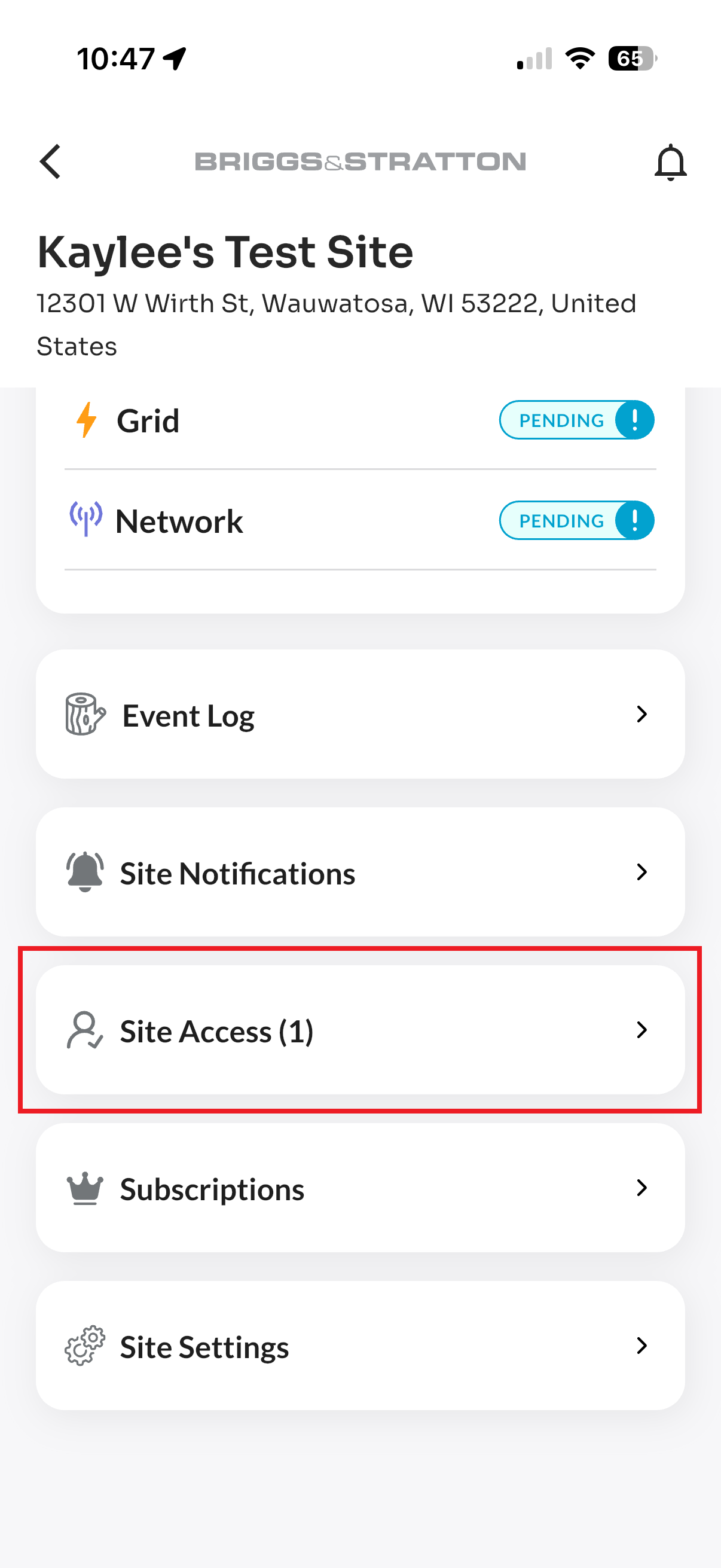
- You can confirm the new assignment by returning to the Site Dashboard and viewing the user count on the Site Access card. Click this card to view or edit the details of assigned users, or to add additional System Owners to the site.
Properly setting up Pro user accounts is CRITICAL to ensure sites and users are shared and accessible to all team members. A Pro Admin user should invite team members to EnergyTrak from the Users screen, automatically associating new users with the business. Individuals can also independently create an account from the login screen and request to join the business, which must be approved by a Pro Admin.
Sharing an EnergyTrak account is HIGHLY discouraged. We designed EnergyTrak to easily add and manage individual users at no additional cost, and security measures will make it difficult to do this. Having an individual account for each team member enhances control over sensitive access while improving security.