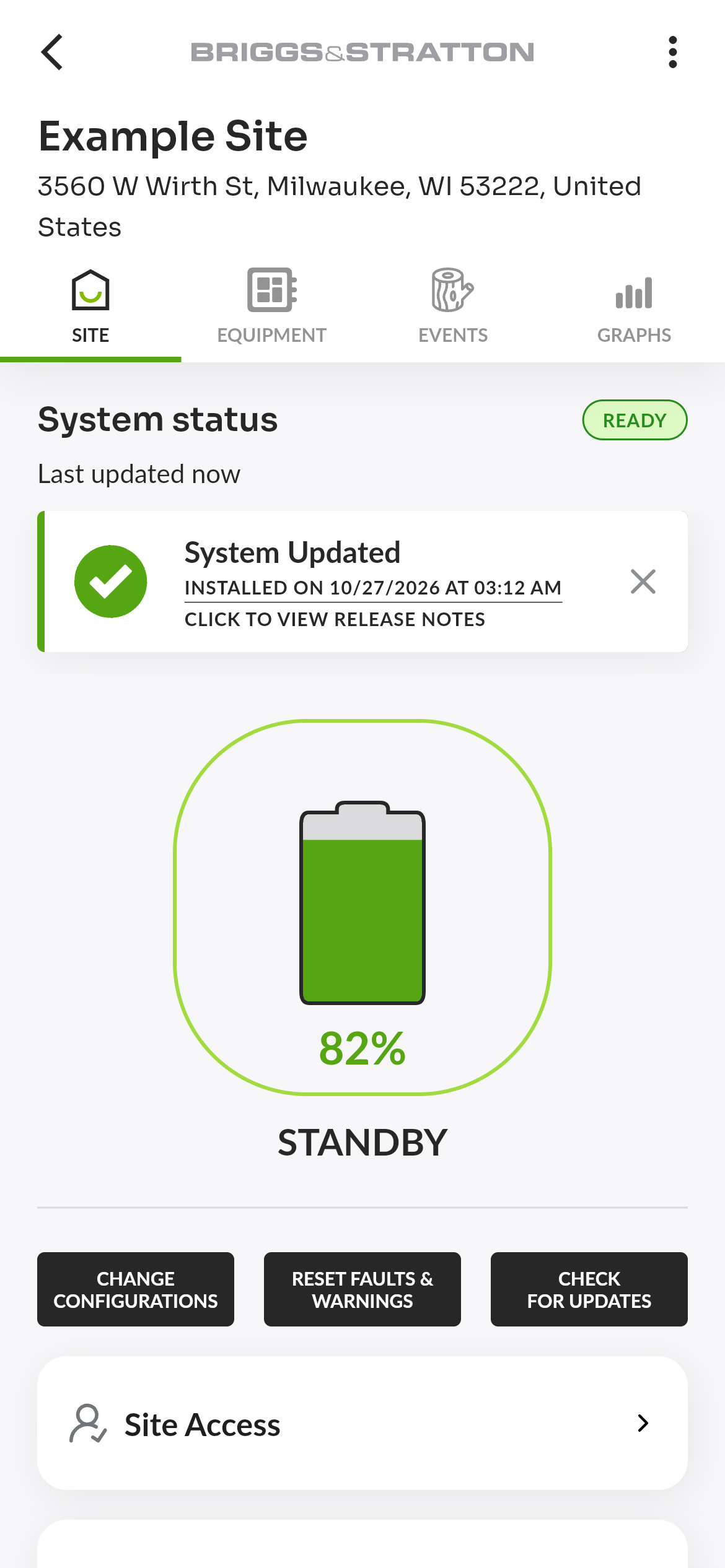
Site Banners
Banners appear at the top of a site's dashboard when something on the site needs your attention: a fault, a system update, an equipment check or a missing subscription. Each banner states the problem in its title, and most of them open more detail or a next step when you tap them.
Which Banners Your Site Can Show
The banners a site can show depend on the device that monitors it.
| Banner | Battery sites | Generator sites |
|---|---|---|
| Fault and Warning | EnergyTrak Gateway 2.0 | — |
| Subscription | — | All generator devices |
| Equipment Check Needed | Set by support only | All generator devices; see Messages Set by EnergyTrak for each message |
| System Update | EnergyTrak Gateway 2.0 | — |
Generator devices are the InfoHub Universal (6574), InfoHub Briggs (6517), EnergyTrak Universal (6943), Factory Installed GMCM-A, Factory Installed GMCM-B and the Amplify Gateway (6520). Battery sites do not need a subscription, so they never show the Subscription banner. See Subscription Management for why.
More Than One Banner
When a site has several active banners, they share one row: swipe left or right to move between them, and the dots under the row show how many there are and which one you are viewing. The active dot takes the color of the banner on screen.
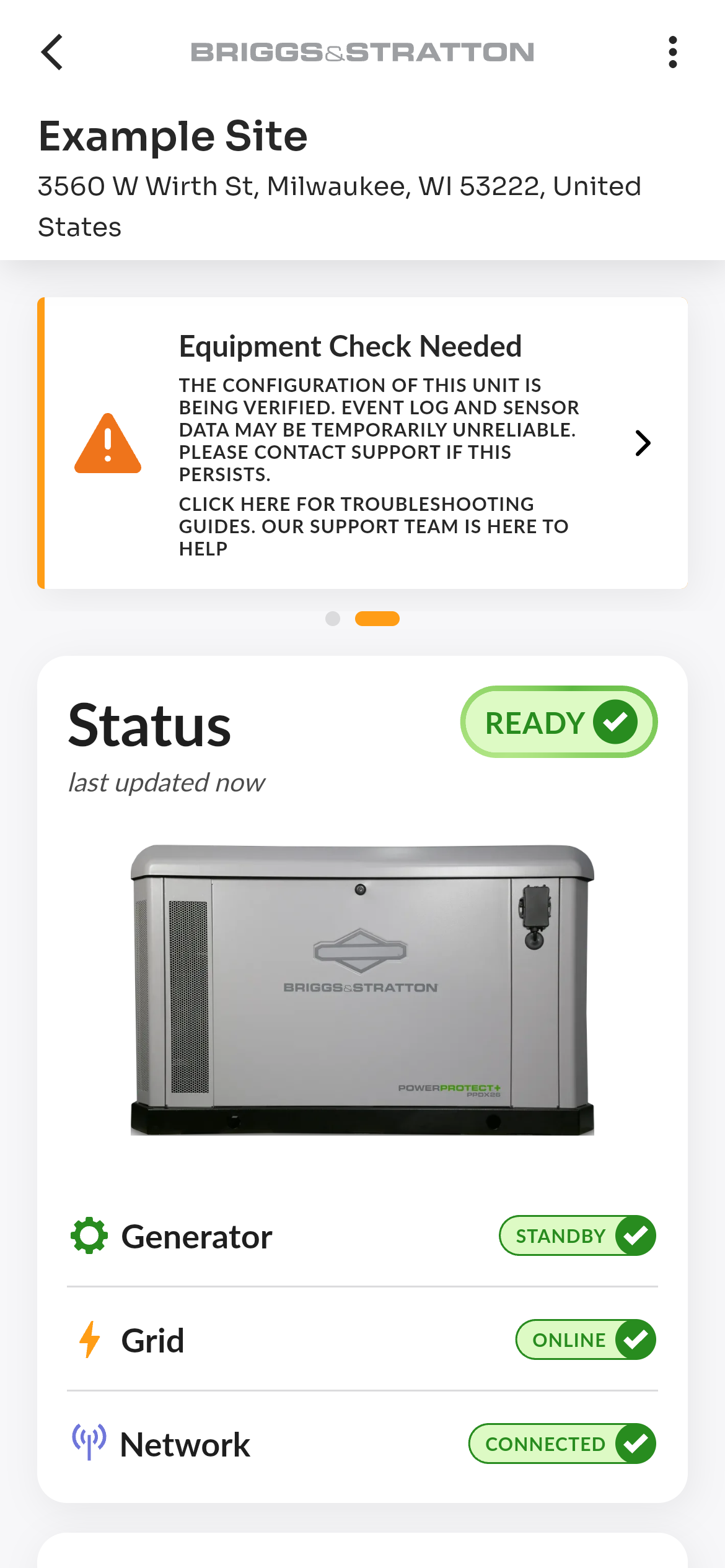
Banners are always in the same order, most urgent first:
- Battery sites: Fault and Warning, then Equipment Check Needed, then System Update.
- Generator sites: Subscription, then Equipment Check Needed.
Fault and Warning
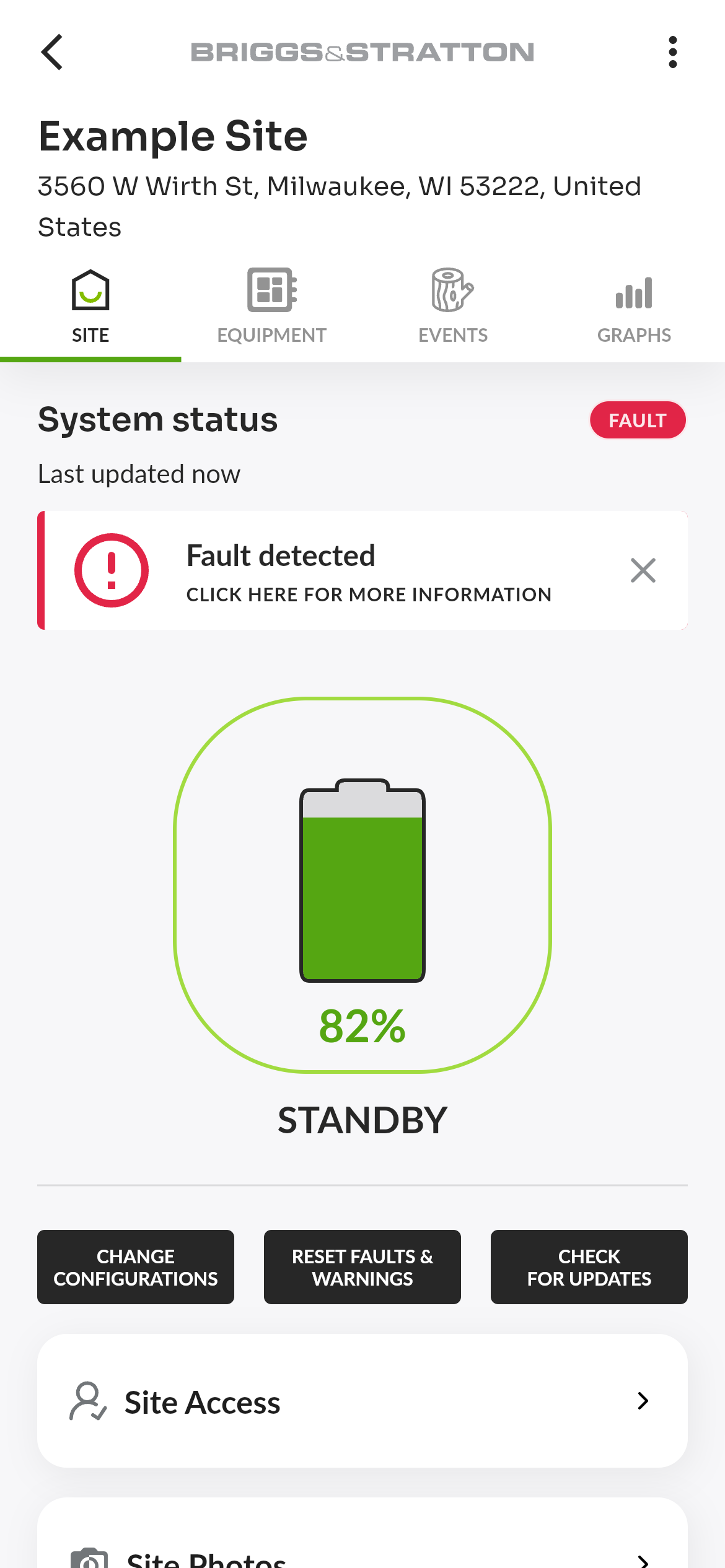
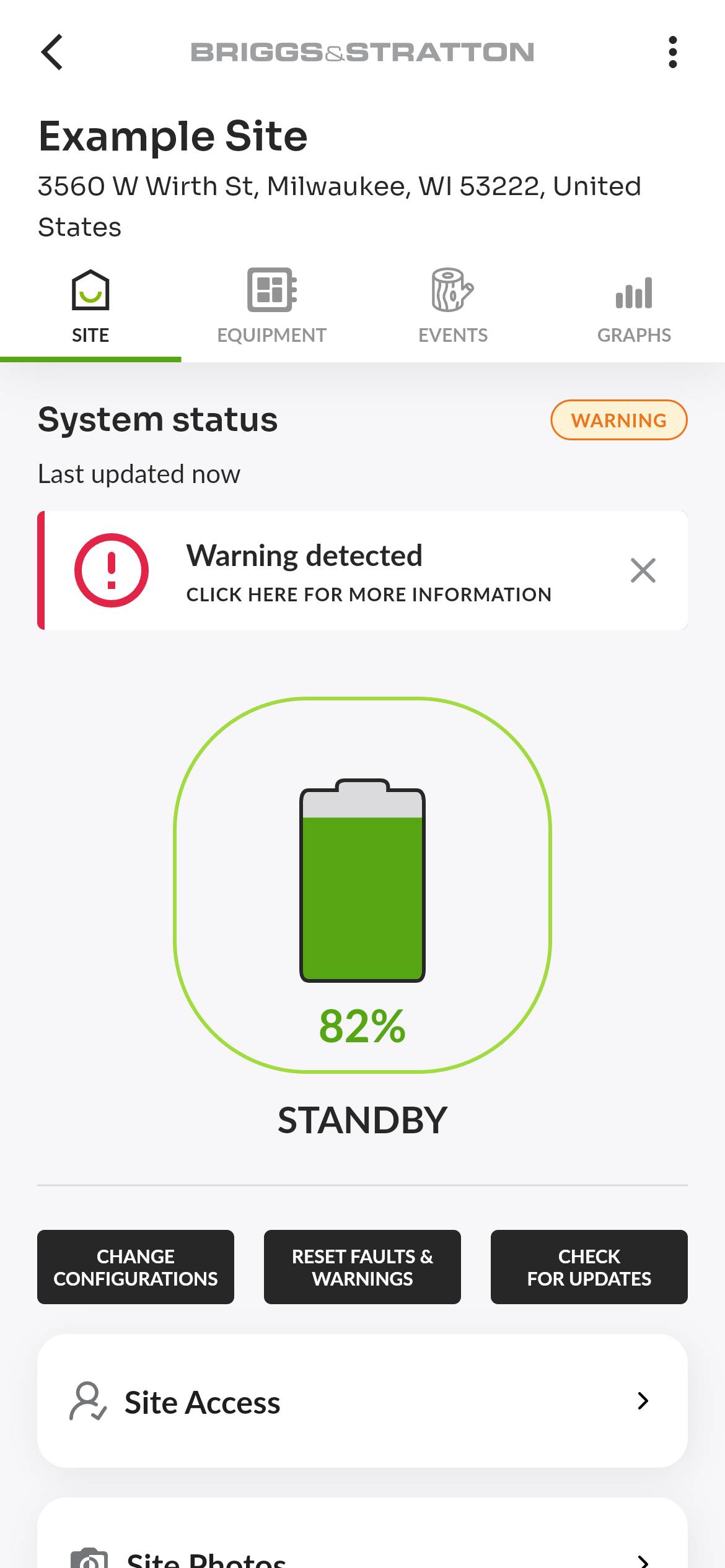
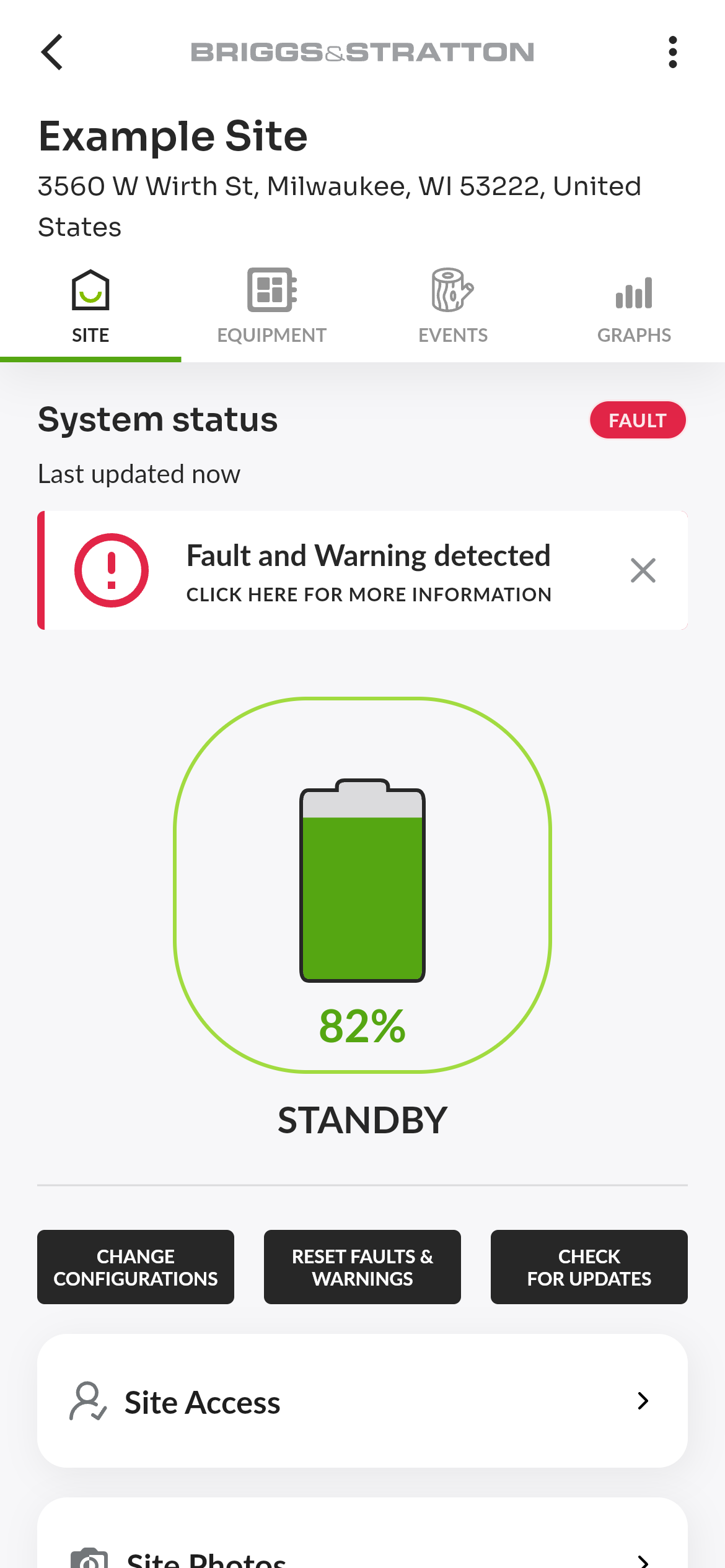
Shown on a battery site while its system status reports a fault or a warning. The title tells you which kinds of problems are active:
| Title | Shown when |
|---|---|
| Fault detected | Only faults are active. |
| Warning detected | Only warnings are active. |
| Fault and Warning detected | Both faults and warnings are active. |
The second line always reads CLICK HERE FOR MORE INFORMATION. Tap the banner to see the list of faults and warnings. Tap X to hide the banner; it comes back when the system status or the list of faults and warnings changes, or when you open the site again.
Subscription
Shown on a generator site while its device has no active subscription. What the banner says, and whether it has a button, depends on who pays for the subscription and who is viewing the site.
| Title | Message | Button | Who sees it |
|---|---|---|---|
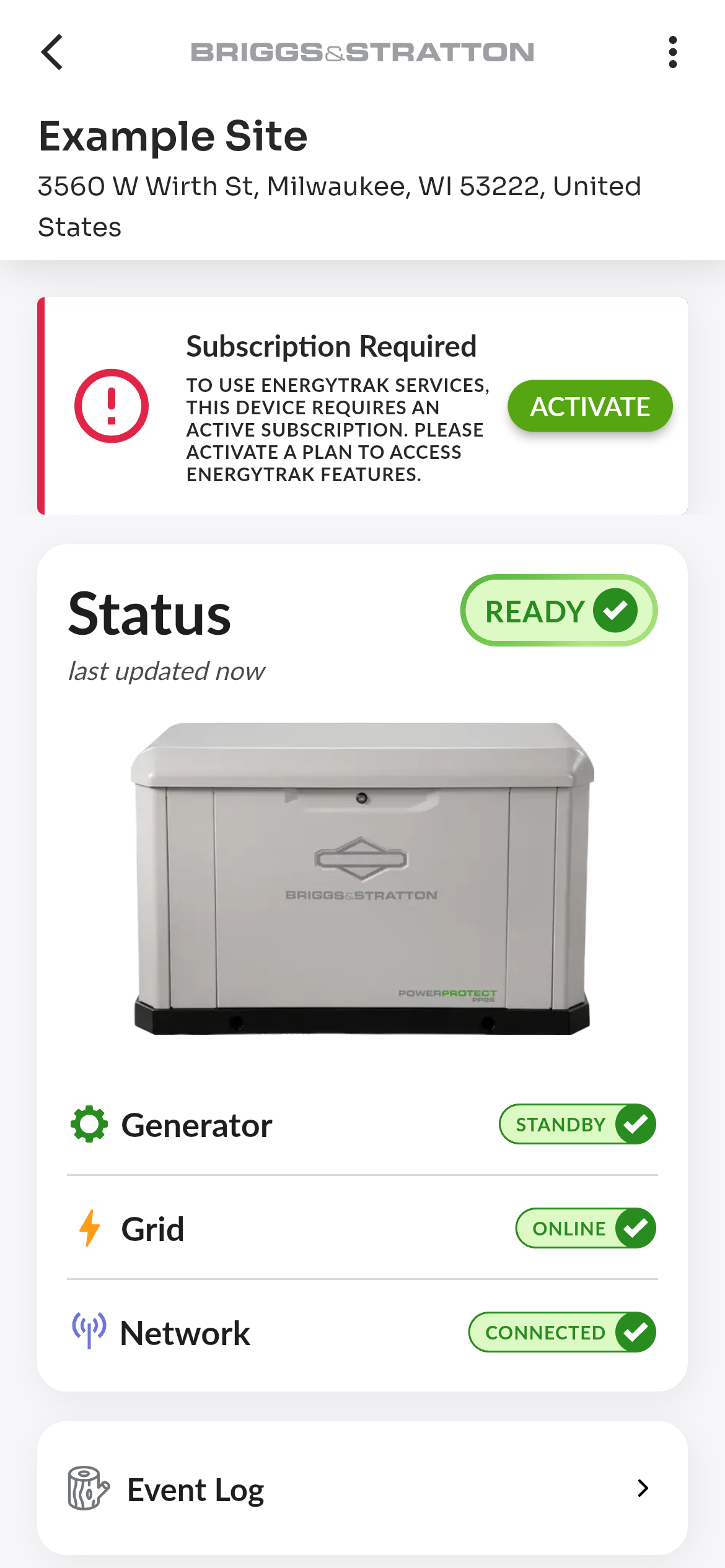
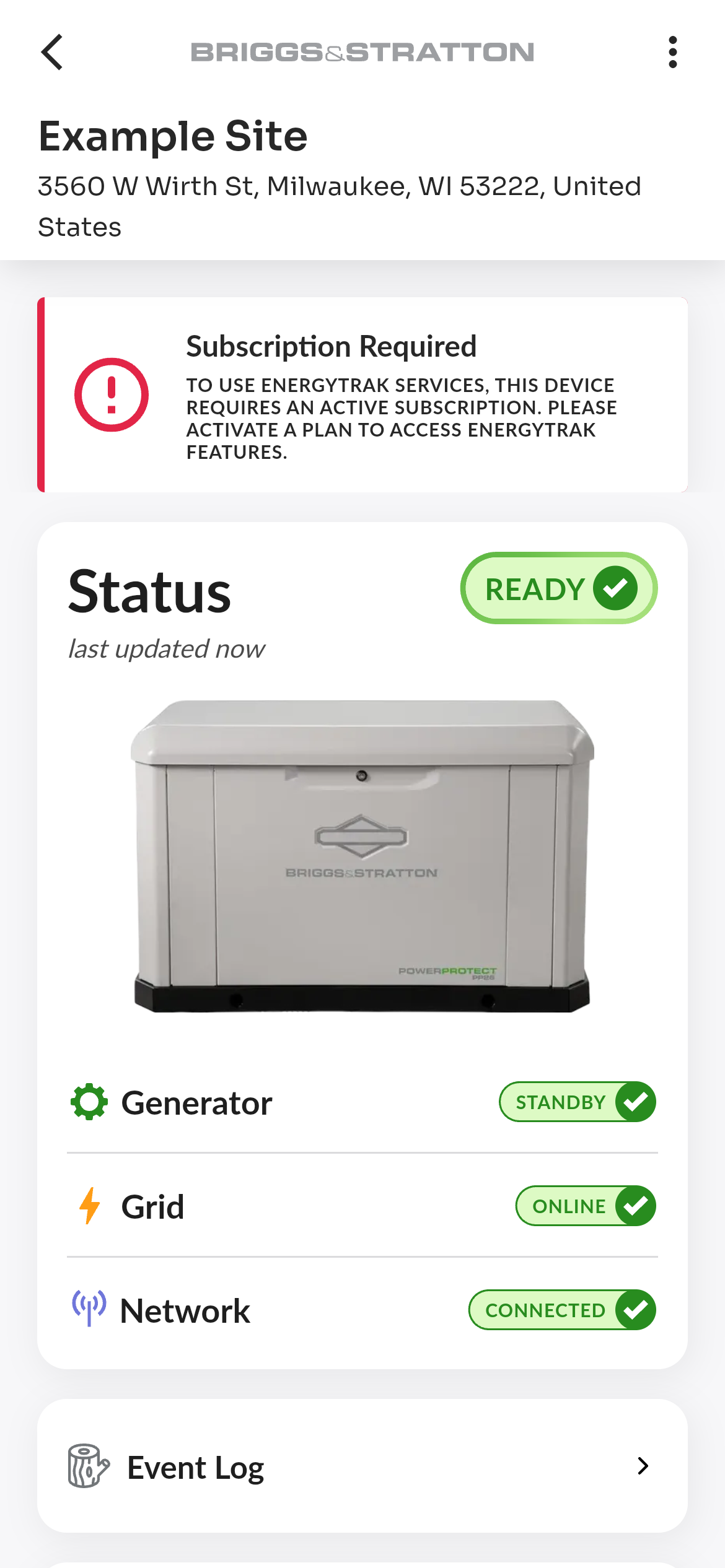
| Subscription Required | To use EnergyTrak services, this device requires an active subscription. Please activate a plan to access EnergyTrak features. | ACTIVATE | The user who pays: a Pro Admin with billing access on a dealer-managed subscription, or the site's System Owner on a customer-managed subscription. |
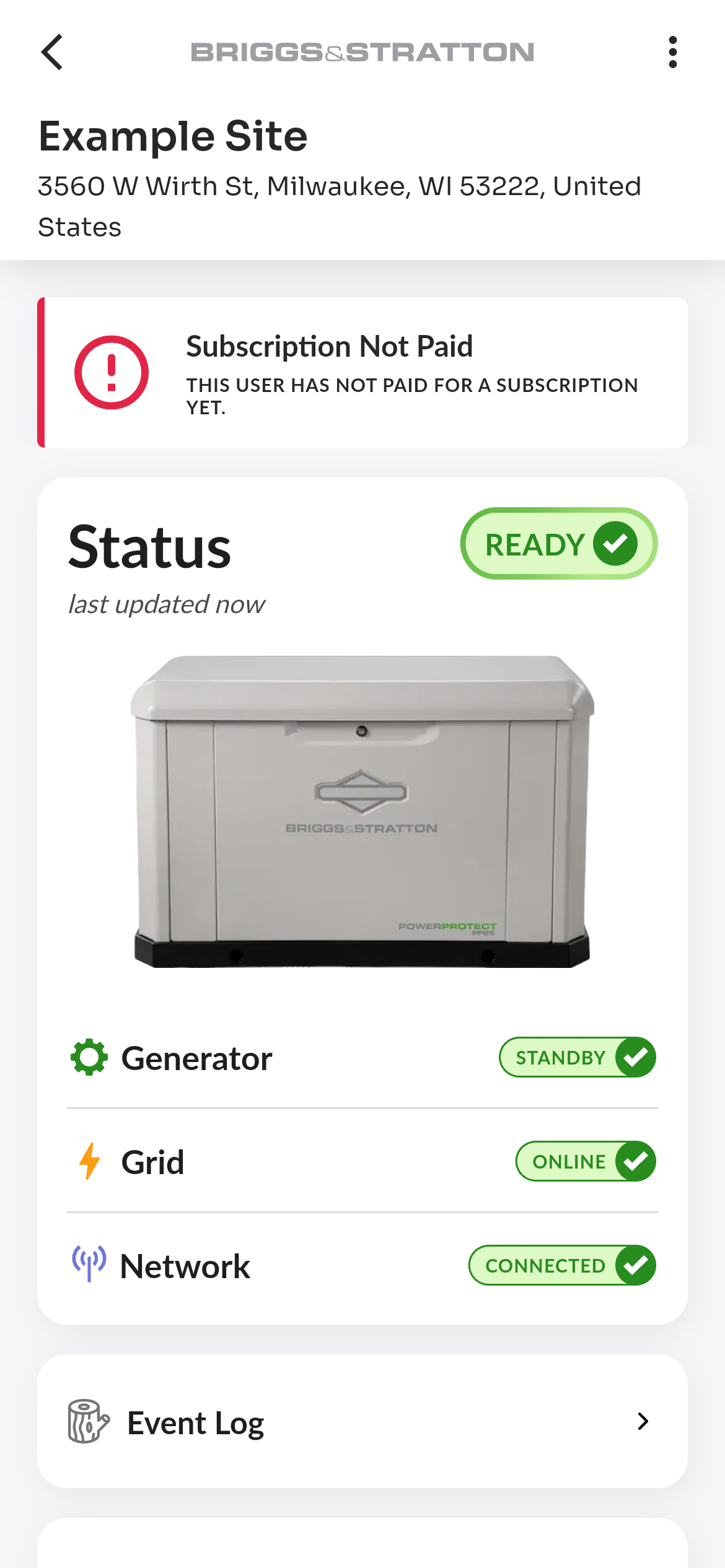
| Subscription Not Paid | This user has not paid for a subscription yet. | — | A Pro Admin, on a customer-managed subscription the customer has not paid. |
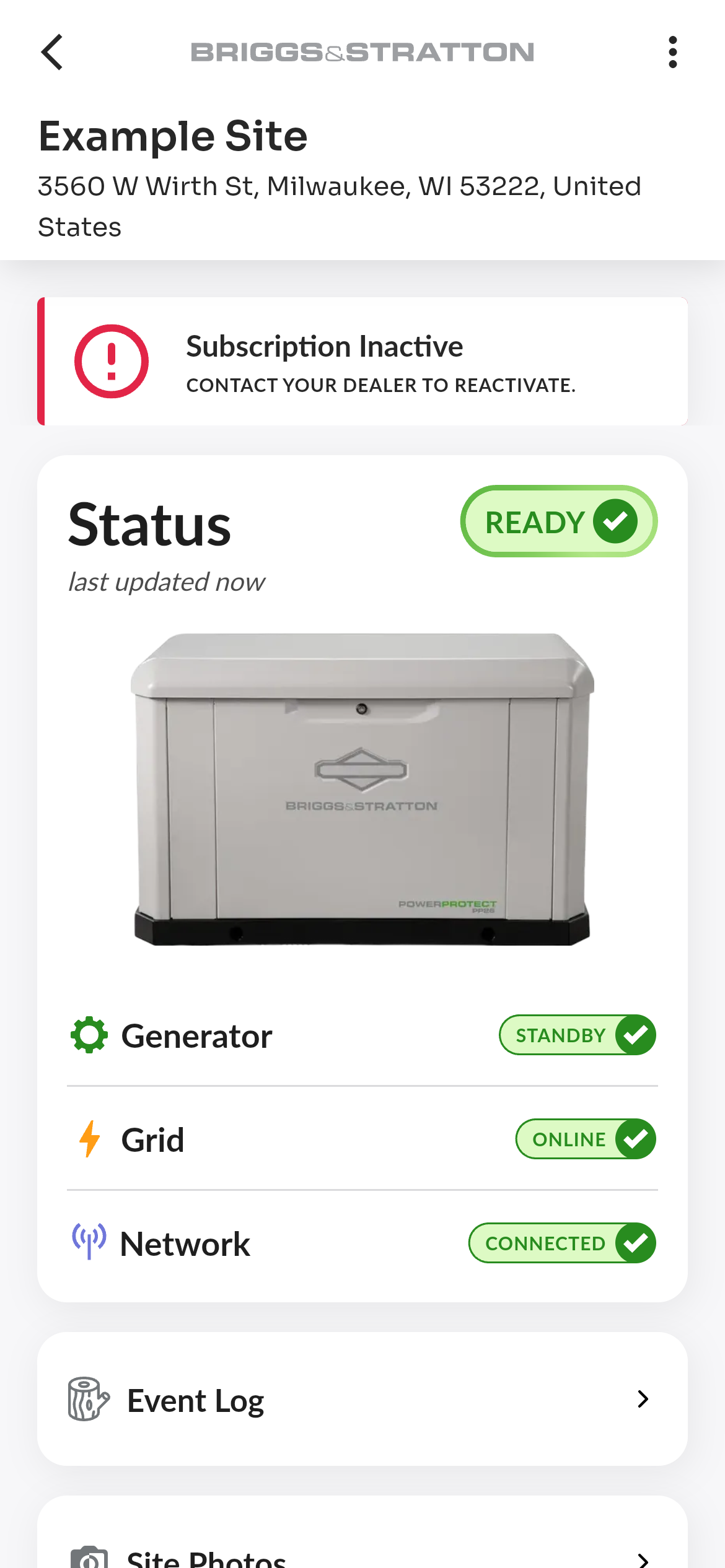
| Subscription Inactive | Contact your dealer to reactivate. | — | A System Owner, on a dealer-managed subscription. |
| Subscription Required | To use EnergyTrak services, this device requires an active subscription. Please activate a plan to access EnergyTrak features. | — | Any other user, for example a Pro user without billing access. |
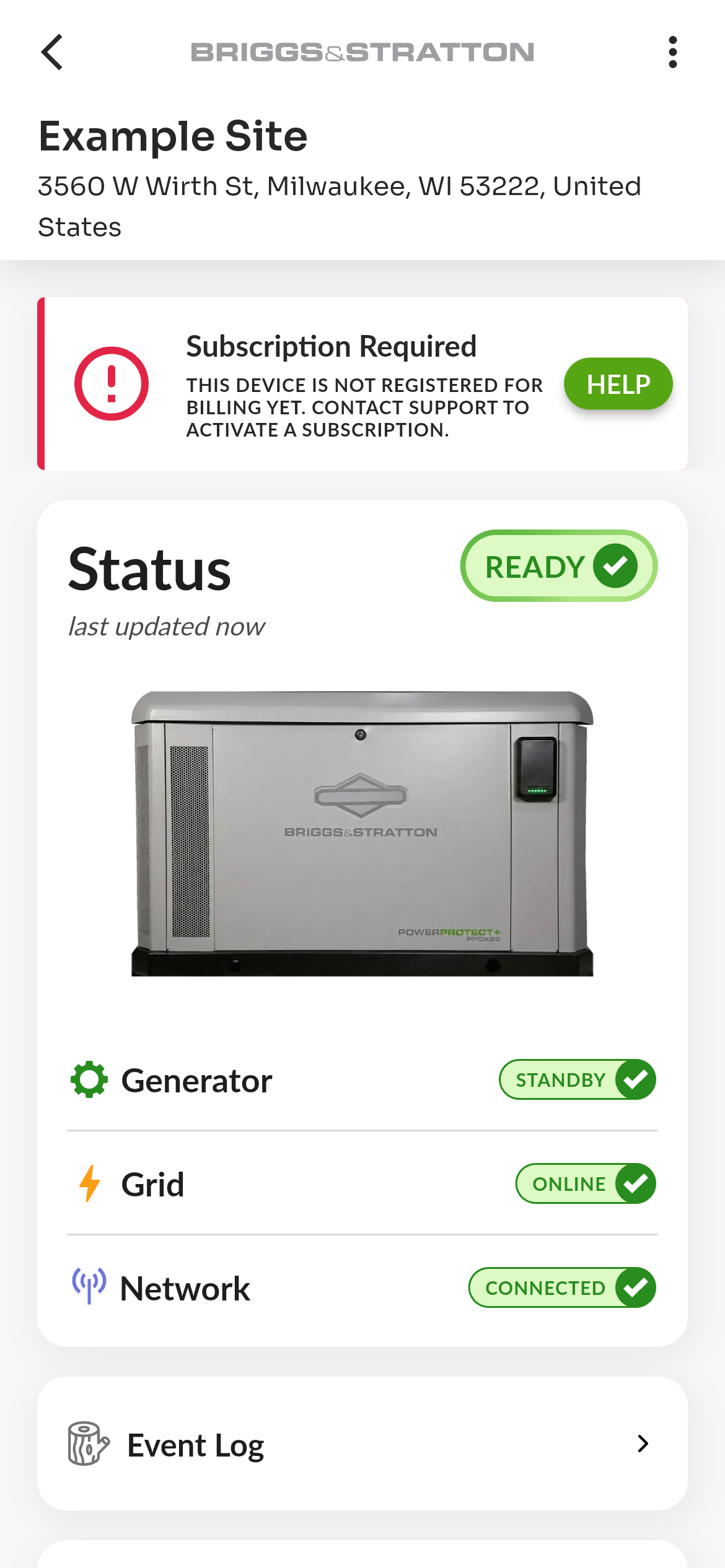
| Subscription Required | This device is not registered for billing yet. Contact support to activate a subscription. | HELP | Anyone, while the device is not yet registered for billing. |
Tap ACTIVATE to start the subscription setup for the device. Tap HELP to see why activation is not available and how to reach support. See Navigating Subscriptions for the full activation flow.
Equipment Check Needed
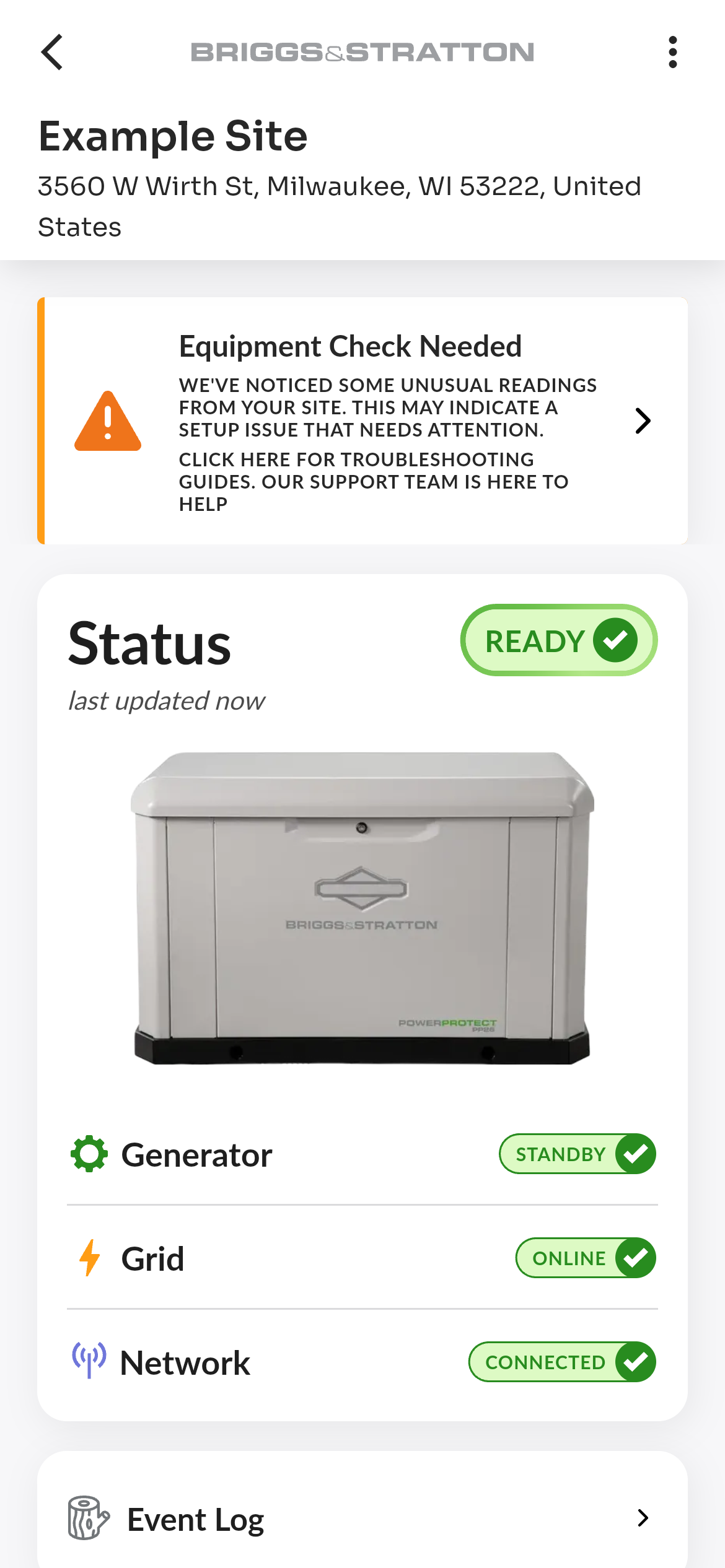
Shown when a site has been flagged with an active issue. The flag is set either automatically by EnergyTrak, from the device's data, or by support when a site needs attention.
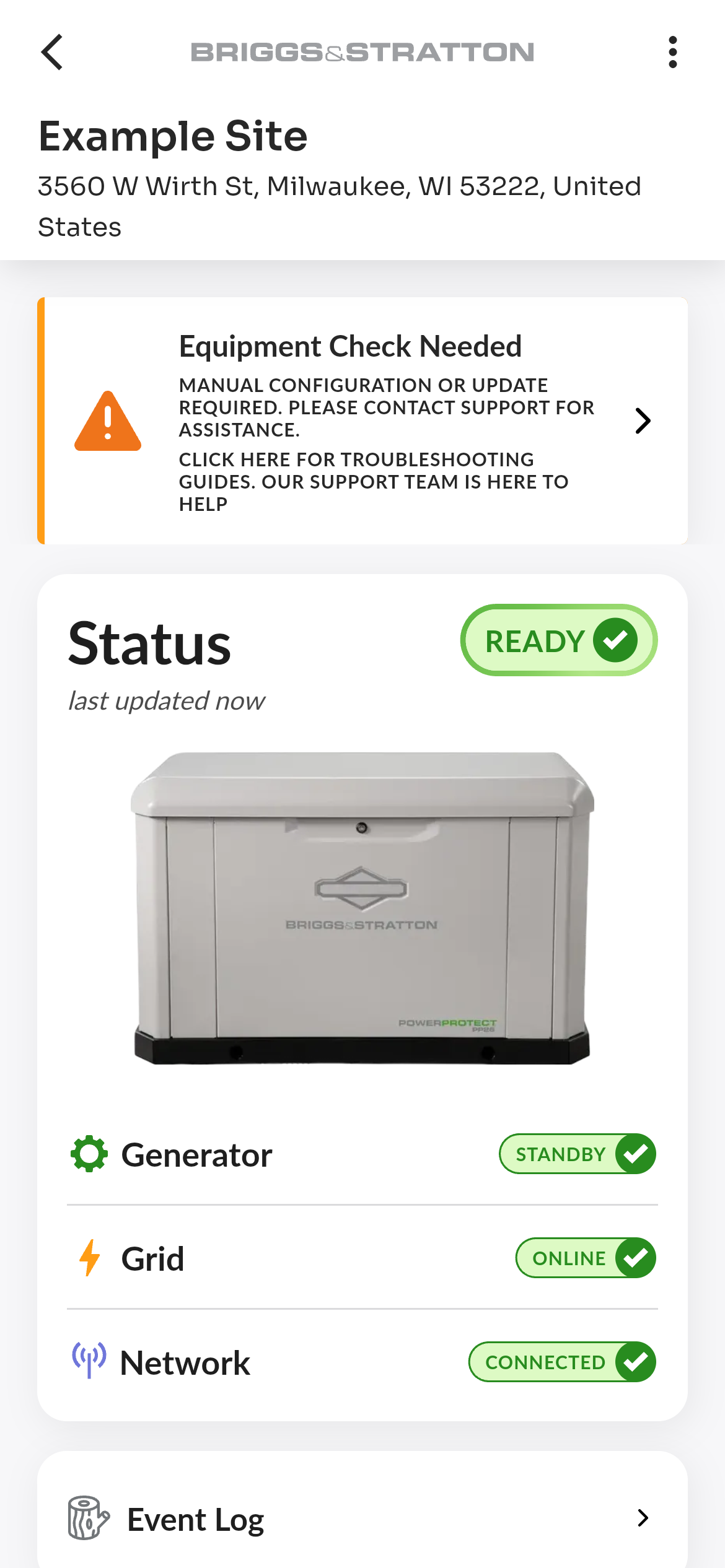
The banner is titled Equipment Check Needed and shows the message of the flag. A flag without a message shows: "We've noticed some unusual readings from your site. This may indicate a setup issue that needs attention." Every banner ends with "Click here for troubleshooting guides. Our support team is here to help"; tap it to open the troubleshooting guides.
Messages Set by EnergyTrak
EnergyTrak sets and clears these messages on its own; none of them can be dismissed from the app.
| Banner message | What it means | Devices | Clears when |
|---|---|---|---|
| Manual configuration or update required. Please contact support for assistance. | EnergyTrak could not resolve a problem automatically. Contact support. | InfoHub Universal, InfoHub Briggs, EnergyTrak Universal, Factory Installed GMCM-A | The device reports the problem is gone. |
| Smart Mode Detection configuration mismatch. The configured setting does not match the device reported status. | The Smart Mode Detection setting in EnergyTrak does not match what the device reports. Contact support. | InfoHub Universal, InfoHub Briggs, EnergyTrak Universal, Factory Installed GMCM-A | The setting and the device agree again. |
| Unable to detect the wiring harness type. | The device needs a firmware update. Contact support. | InfoHub Universal, InfoHub Briggs, EnergyTrak Universal, Factory Installed GMCM-A | The device reports its wiring harness. |
| The configuration of this unit is being verified. Event log and sensor data may be temporarily unreliable. Please contact support if this persists. | EnergyTrak is still confirming how the unit was installed. Until it does, the event log and sensor readings may be wrong. | Factory Installed GMCM-A | The installation is confirmed. |
| Device setup is incomplete: it has not come online to receive its configuration. Please make sure the device is powered on and has cellular signal, or contact support. | The device has not connected in the 14 days since its cellular service was activated, so it never received its setup. | InfoHub Universal, InfoHub Briggs, EnergyTrak Universal, Factory Installed GMCM-A | The device comes online. |
| This unit has been remotely disabled by support. Please contact support for assistance. | Support turned off the unit's monitoring. | InfoHub Universal, InfoHub Briggs, EnergyTrak Universal, Factory Installed GMCM-A | Support turns monitoring back on. |
| This unit has been automatically disabled due to a communication issue. Please contact support for assistance. | EnergyTrak turned off the unit's monitoring because of a communication problem. | InfoHub Universal, InfoHub Briggs, EnergyTrak Universal, Factory Installed GMCM-A | Support turns monitoring back on. |
| We are experiencing a cloud server outage affecting Wireless Gateway (6520) monitoring. This is a system-wide issue, not a problem with your local system—do not troubleshoot or contact support. Amplify Power Management remains fully functional. We are working to restore EnergyTrak service now. | A service outage affects every Amplify Gateway site. Nothing needs to be done on site. | Amplify Gateway (6520) | The outage is over. |
Messages Set by Support
Support can flag any site, battery sites included, with a message written for that site. Read the message for what to do next, and contact support if you need help. Only support can clear these flags.
System Update
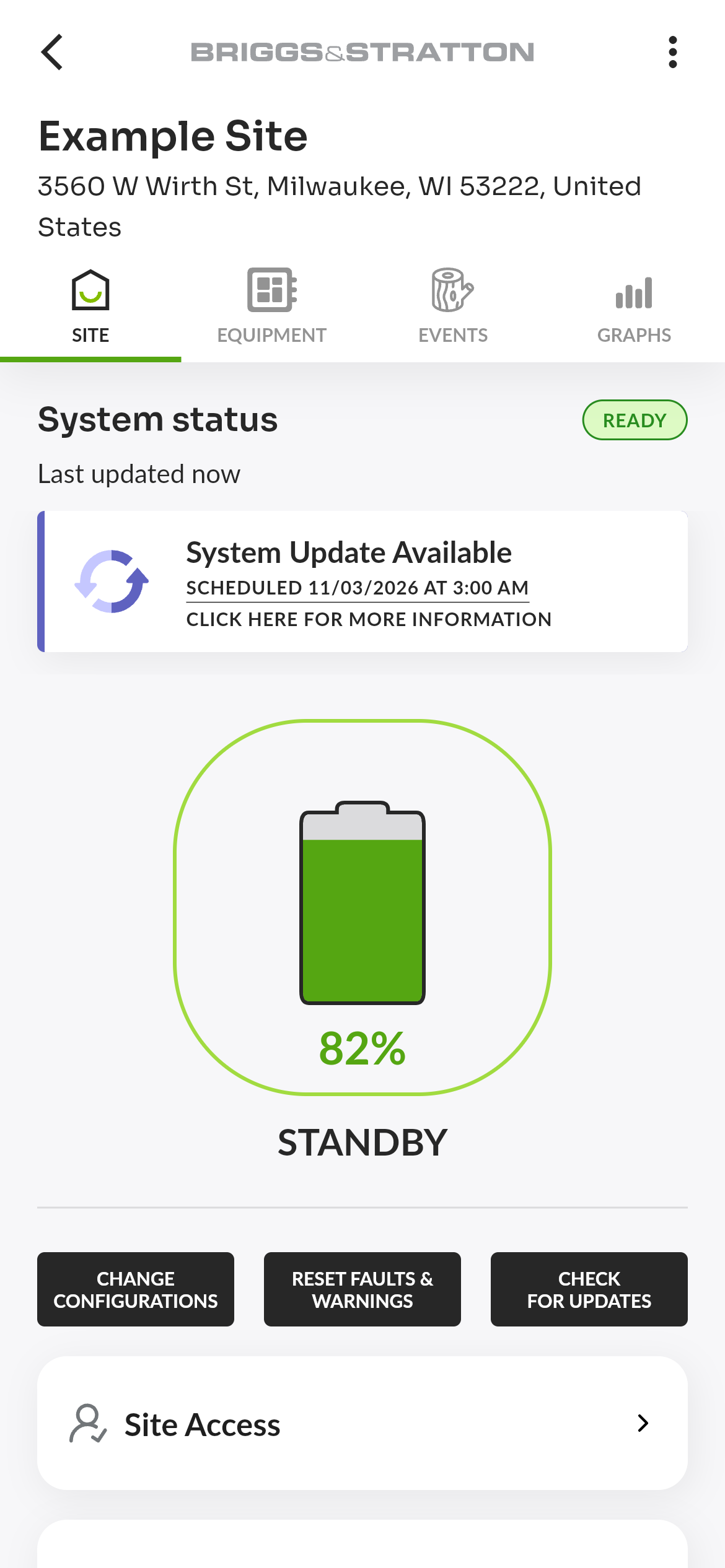
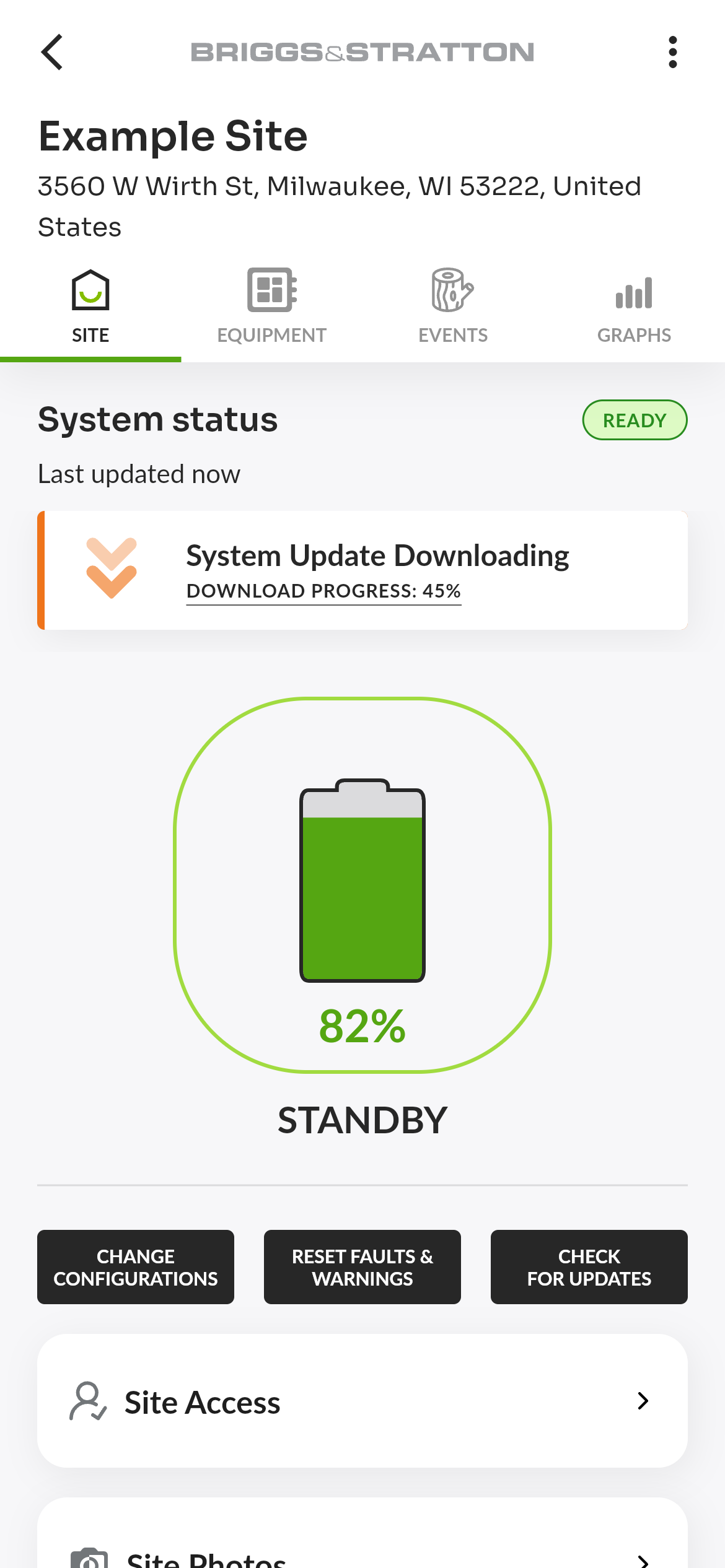
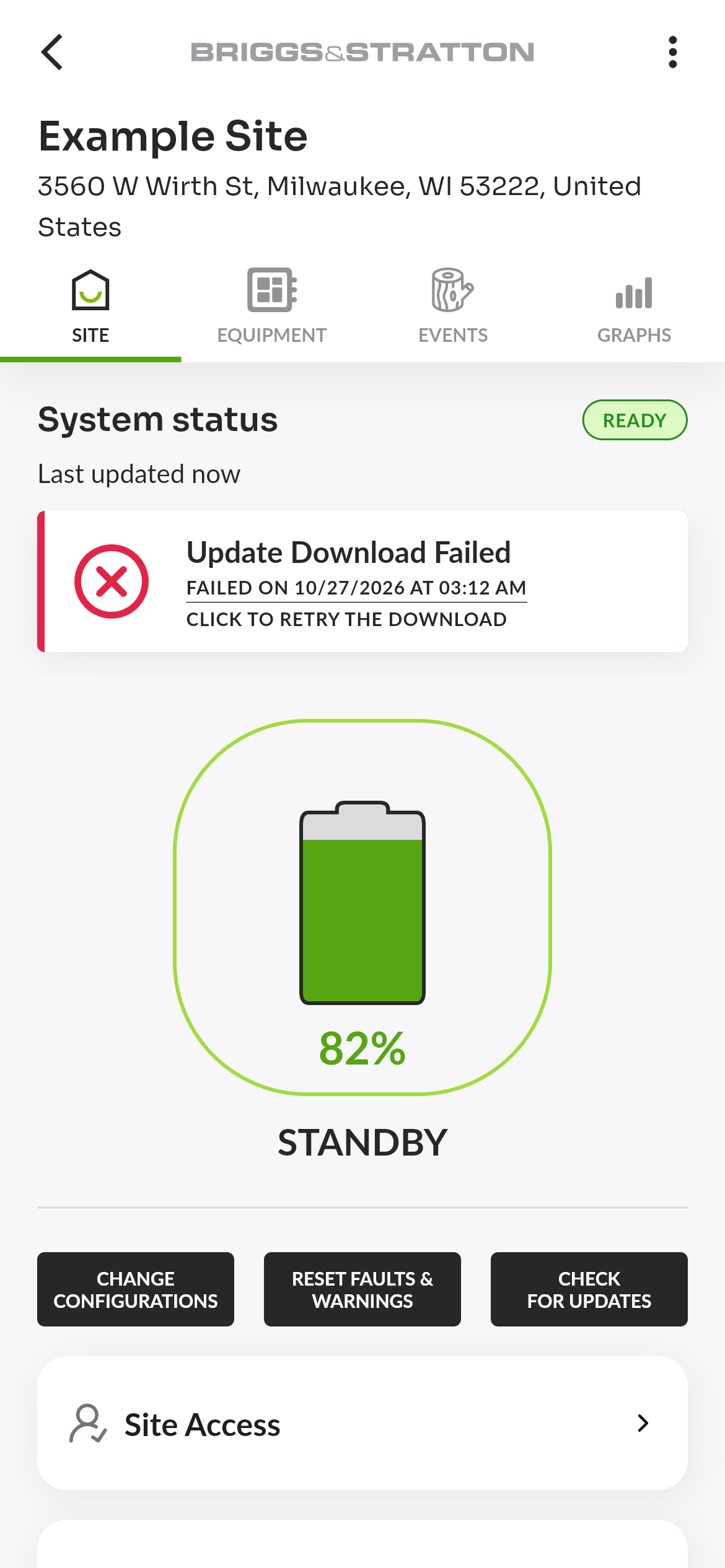
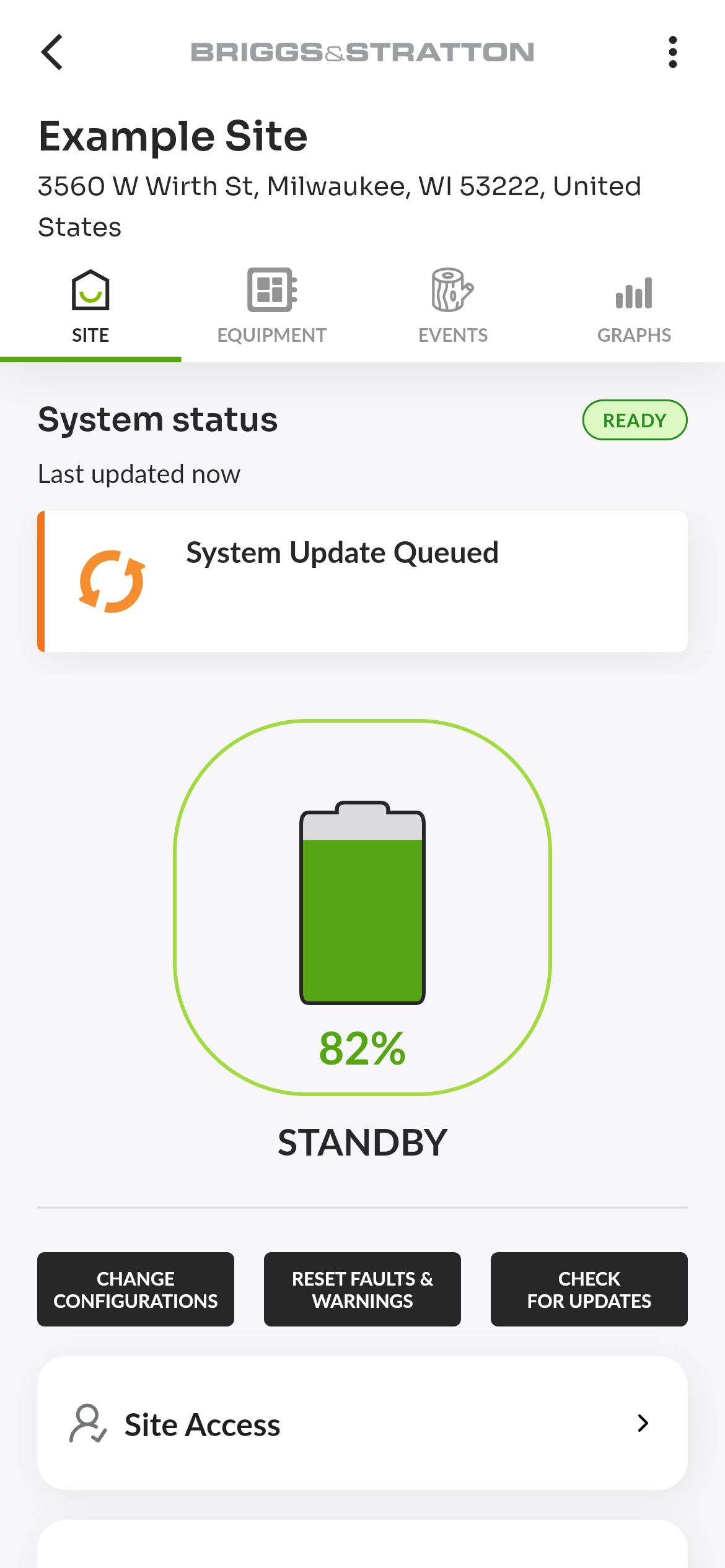
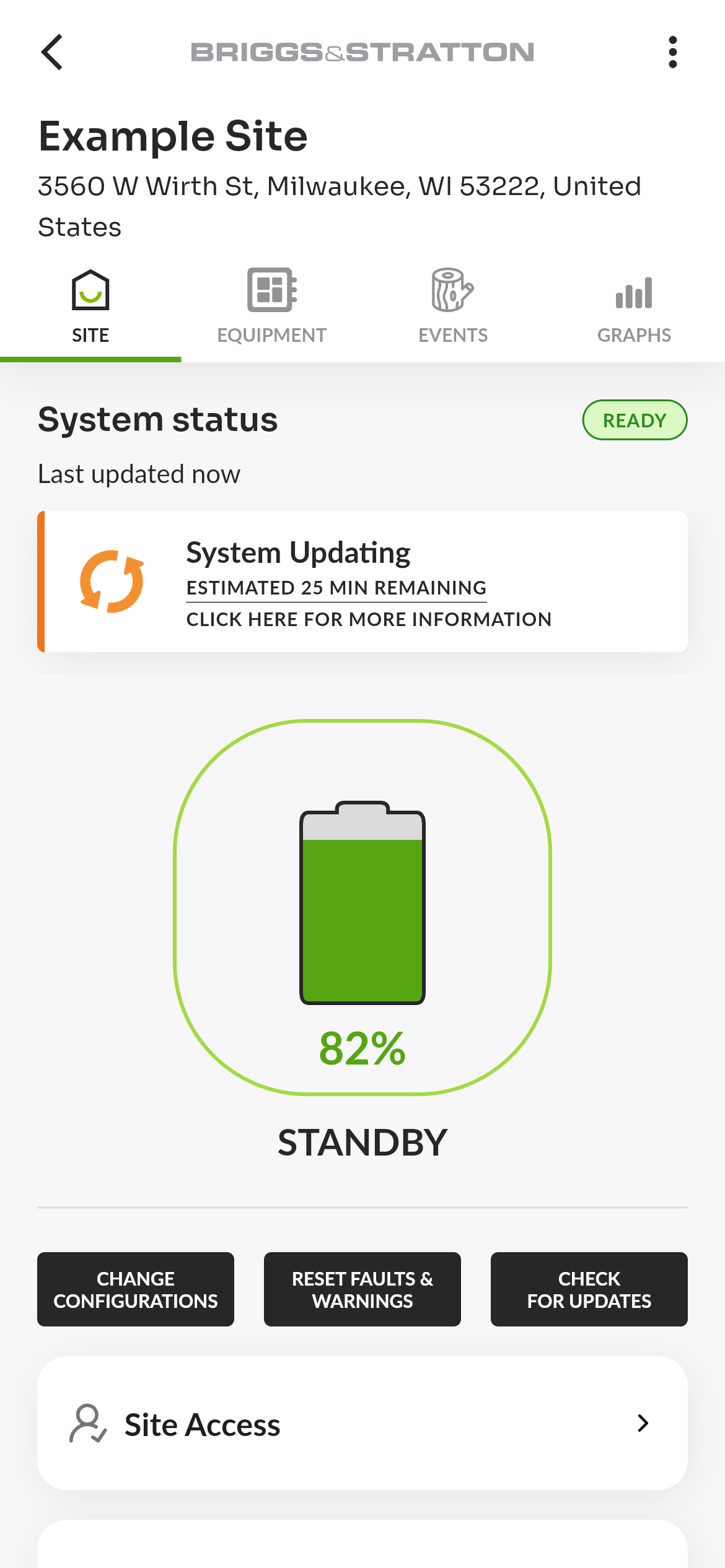
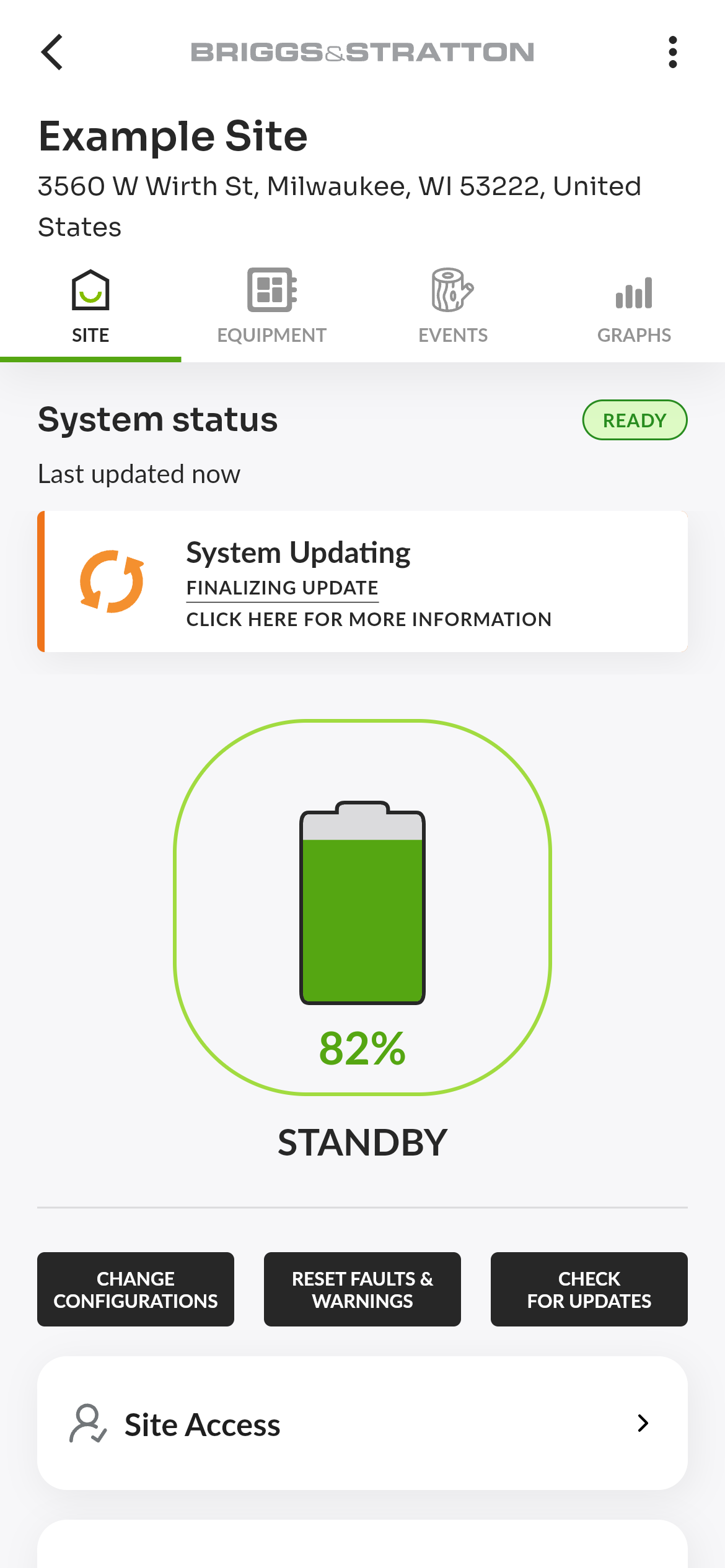
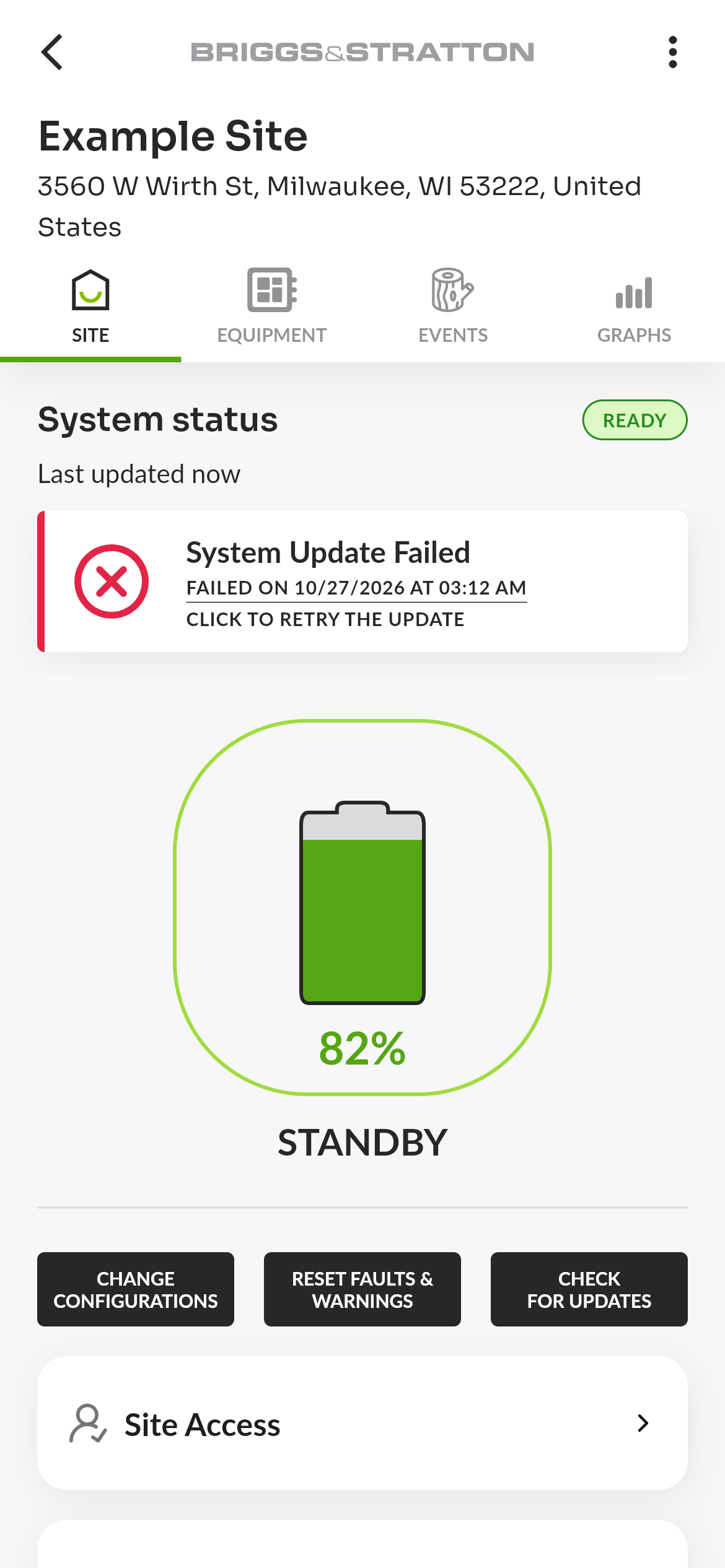
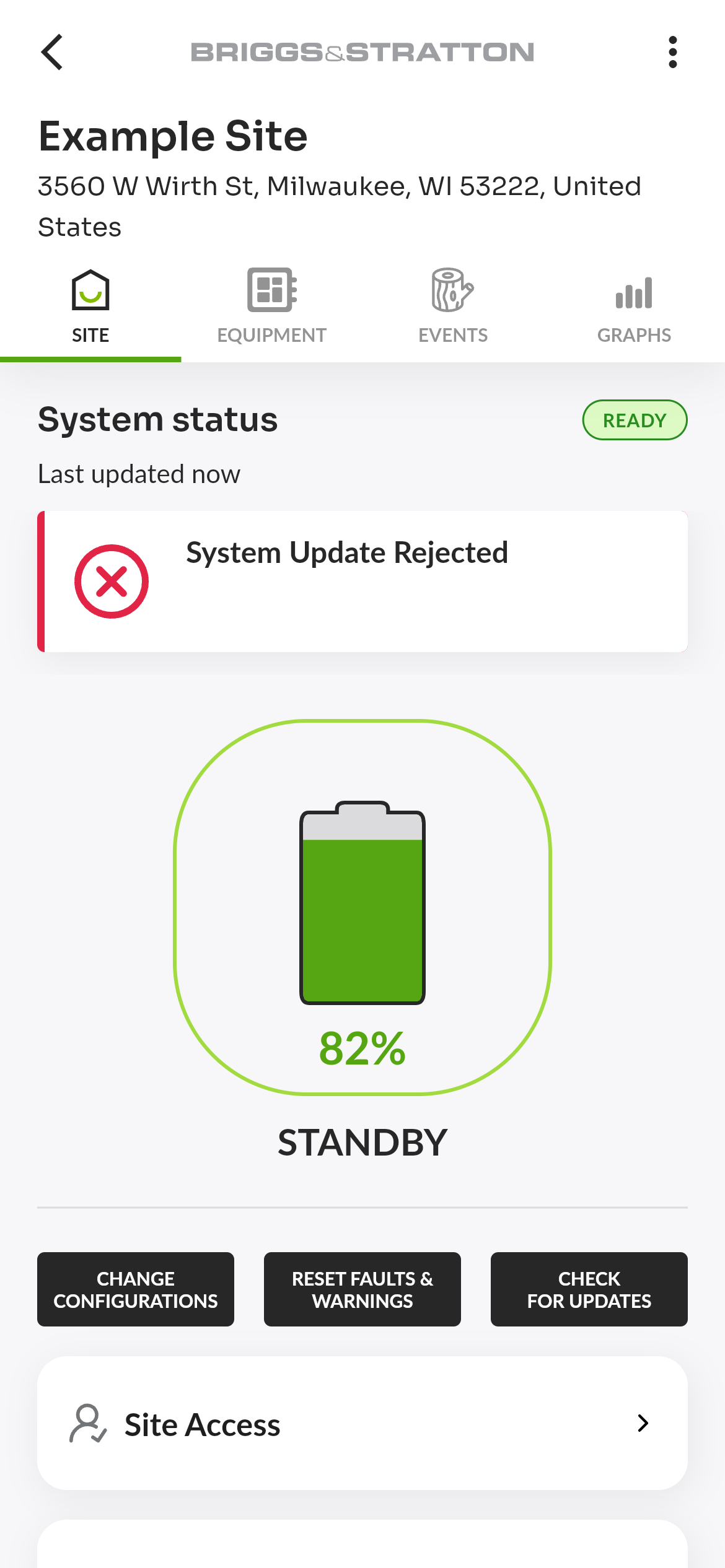
Shown on a battery site while a firmware update for the EnergyTrak Gateway is available, in progress, finished or failed. The left border and icon change color with the update's progress. Tap the banner to open the system update details.
| Title | Second line | Third line |
|---|---|---|
| System Update Available | SCHEDULED date AT 3:00 AM | CLICK HERE FOR MORE INFORMATION |
| System Update Downloading | DOWNLOAD PROGRESS: n% | — |
| Update Download Failed | FAILED ON date AT time | CLICK TO RETRY THE DOWNLOAD |
| System Update Queued | — | — |
| System Updating | ESTIMATED n H n MIN REMAINING | CLICK HERE FOR MORE INFORMATION |
| System Updating | FINALIZING UPDATE | CLICK HERE FOR MORE INFORMATION |
| System Update Failed | FAILED ON date AT time | CLICK TO RETRY THE UPDATE |
| System Update Rejected | — | — |
| System Updated | INSTALLED ON date AT time | CLICK TO VIEW RELEASE NOTES |
An available update is scheduled for the next Tuesday at 3:00 AM. System Updating shows FINALIZING UPDATE in its last minute. Only the System Updated banner has an X: tap it once you have seen the result, and the banner closes.