InfoHub Migration for Pros
Welcome to EnergyTrak! This guide provides a summary of the key steps required to get started with the new monitoring platform and mobile app, replacing the legacy InfoHub system.
This page is intended for Pros. For System Owners, please visit InfoHub Migration for System Owners.
Access, Download, and Login
EnergyTrak is now your central hub for monitoring and managing generator installations. You can access the platform in two primary ways: the Mobile App (for on-the-go monitoring, fleet management, and new device setup) and the Web App (required for some advanced features).
App Download & Installation
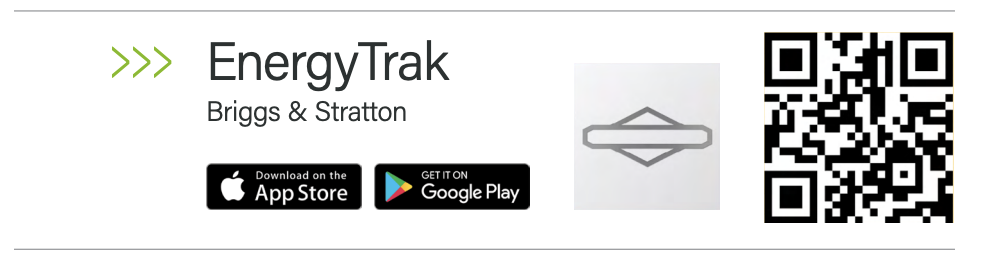
- Mobile app: On your mobile device, search for "EnergyTrak" directly on the Apple App Store (iOS) or Google Play Store (Android). You can also locate the mobile app by:
- Scanning the QR code below with your mobile device for easy access, or
- Navigate to www.energytrak.app/mobile in your mobile device's browser to be redirected to the appropriate app store.
- Web app: Accessible via your browser at https://energytrak.io/.
First Time Login
Existing InfoHub users will automatically be registered under the same email address used on their InfoHub user account. Each user will receive a Welcome Email from EnergyTrak once their account is ready for access. Simply follow the login instructions in the Welcome Email to access your InfoHub devices in the all new EnergyTrak app.
Critical Setup: User Access and Payments
Before you begin an installation, you must confirm your business setup is complete.
User Roles and Business Access
Ensure you have created your EnergyTrak account and are able to successfully log in to the app. Pro users should verify they are assigned to the correct business or dealer entity to ensure proper team access.
User Assignment to Sites
Site access in EnergyTrak is controlled by user assignment, a feature available to Pro Admins, Pro Technicians, and System Owners. The app allows Pro Users to assign existing System Owners to a site or create new System Owner accounts during device setup or via the Site Dashboard. For detailed steps on user roles, permissions, and the user assignment process, please refer to the Users page.
Fleet Subscriptions Setup
Payment methods from InfoHub carry over to EnergyTrak. Check the Subscriptions page in the main menu to confirm your settings are correct. A key improvement of in-app subscription management is the ability to enroll all new devices under your default payment method in bulk on the 15th during setup, making device and subscription management simpler.
Migration Status
- Customers who have InfoHub active at the time of migration were automatically migrated to EnergyTrak, including any active subscription terms.
- Users retain access to EnergyTrak until their migrated InfoHub subscription expiration, at which point renewal options are limited to those available in EnergyTrak.
Recurring Billing and Payments
- The standard recurring billing date for all subscriptions is the 15th of the month.
- Migrated subscriptions have been adjusted to align with this schedule.
- Your subscription will automatically renew at the end of each billing cycle using the payment method on file.
For more details on Subscription Management, please visit our Subscription Management page.
Pre-Installation Checklist
Gathering this information prior to installation will prevent errors and minimize setup delays on-site. For each site, you will need the following information:
- Site Name and Site Address: The full physical address and site name as it should appear in the shared EnergyTrak fleet view.
- Owner Details: First name, last name, email address, phone number (to create their EnergyTrak account).
- Premium Payment Responsibility: Confirm if the Pro or System Owner will be responsible for the Premium subscription payment.
- Owner User Creation (optional): Before set up, you may optionally create new System Owner user accounts and assign them proactively to the site.
Installation & Site Creation
- Site Creation: Create a new site in the EnergyTrak app and enter the information gathered in the checklist above.
- Device Installation: Follow the corresponding physical installation manual for the EnergyTrak device.
- Device & User Setup: Use the EnergyTrak app to finalize device, subscription, and user setup.
For a full, detailed guide on the device setup process, please refer to the Device Setup page.
Reviewing Your Fleet
You can access your generator fleet from the Sites screen in EnergyTrak.
- Site Definition: Sites in EnergyTrak represent the physical installed location of a system.
- Site Dashboard: Access this by selecting a site from the Sites screen. Click the cards for more details on the system.
- System Status: Health and State in EnergyTrak serve as the primary means of interpreting the system's status. See the Site Health and State page for more details on system status.
Notifications Setup
Notifications are one of the primary features which customers use. EnergyTrak offers a number of general and equipment-specific notifications delivered via email or push notification. As of r5.0.0, Pro Admins and Pro Technicians can manage notification settings on behalf of assigned System Owner users directly from the app for Pro Monitored sites.
Refer to the Notifications page for more details and helpful information, including a notification setup guide.