Generator Toolbox: Remote Start/Stop, Fault Clear
The Generator Toolbox is a control panel within the EnergyTrak app that lets you remotely start or stop your generator and clear active faults — without being physically present at the site. Commands are sent directly to the monitoring device and tracked in real time so you always know the outcome.
Who can use Generator Toolbox: Pros and System Owners with an active EnergyTrak Premium subscription. Users with read-only access can view the toolbox but cannot issue commands — buttons will appear greyed out.
Step 1: Navigate to the Site
Open the EnergyTrak app and go to the Sites screen. Tap the site whose generator you want to control.
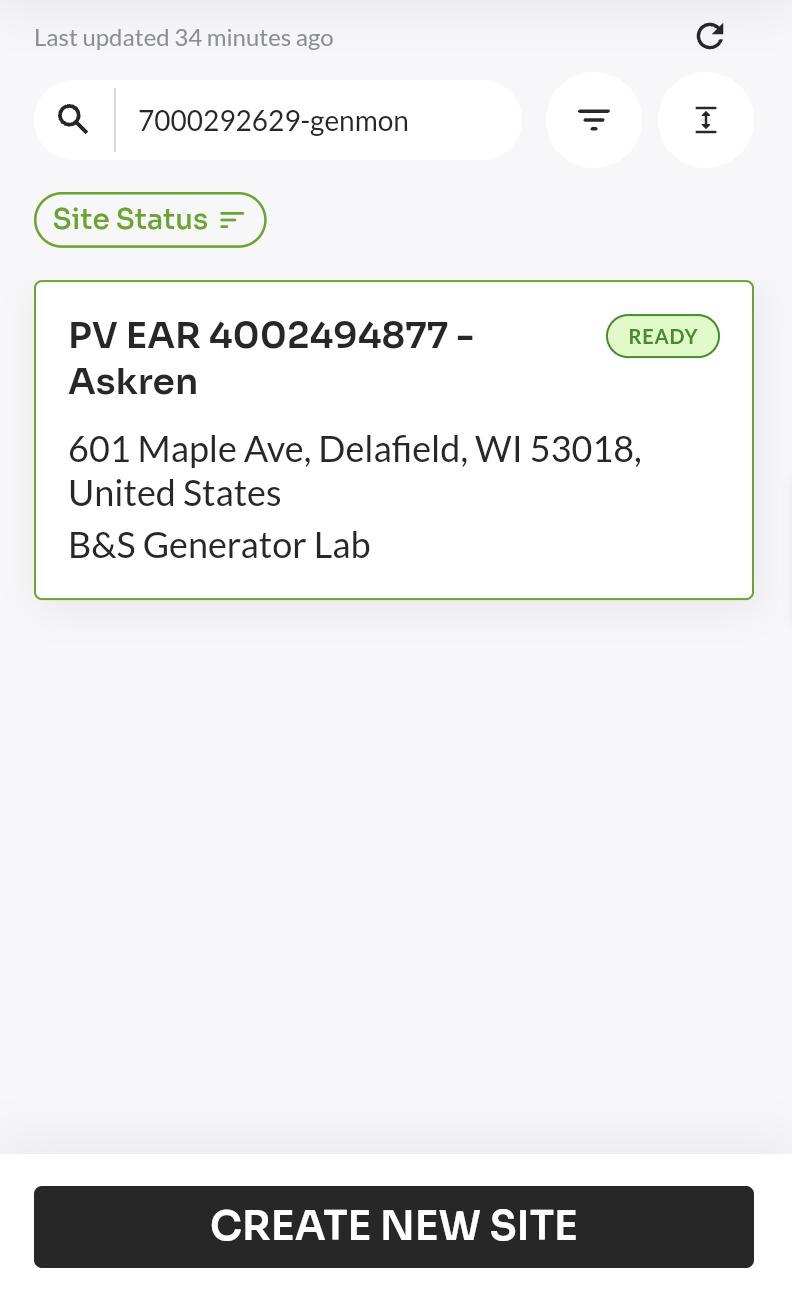
This opens the Site Dashboard for that site.
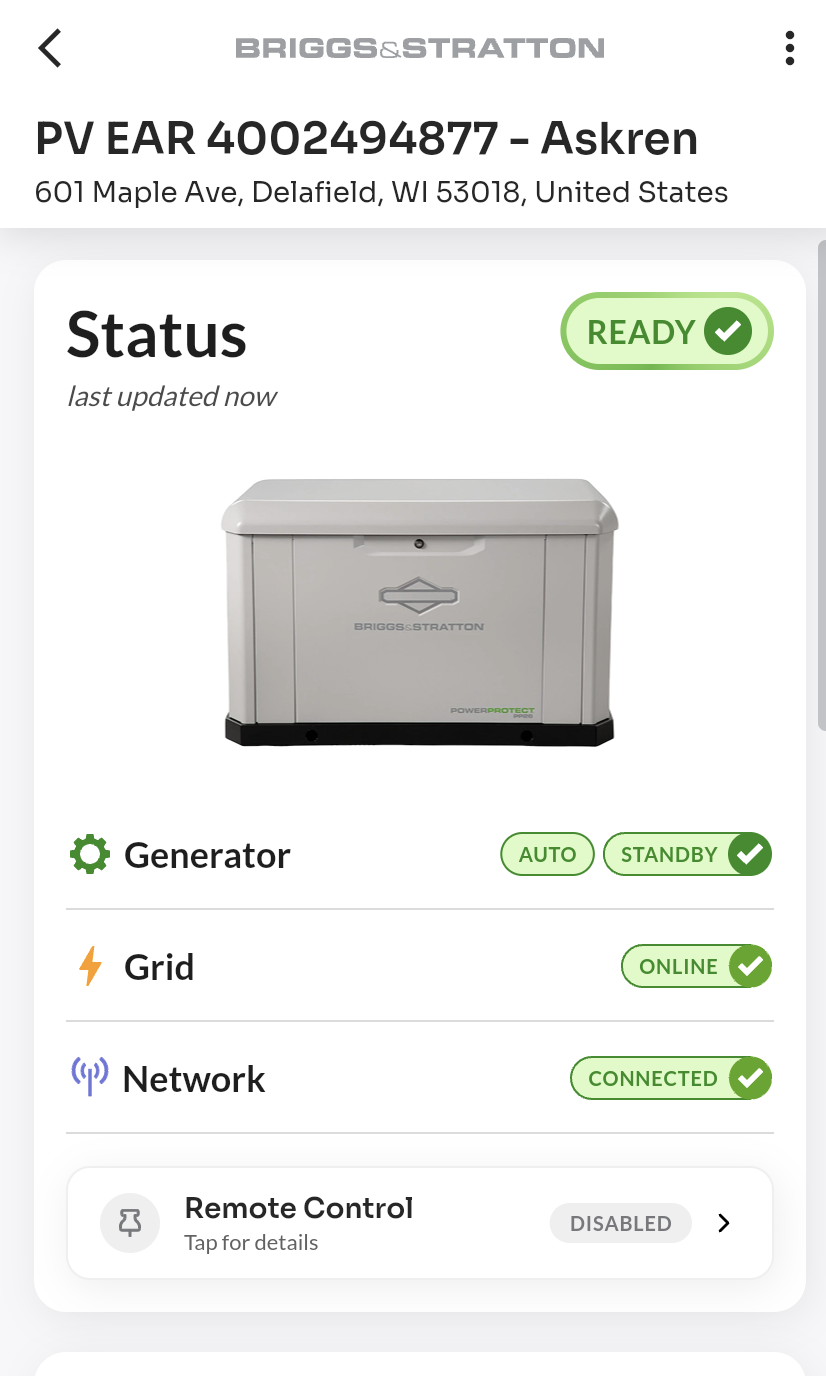
Step 2: Open the Generator Toolbox
On the Site Dashboard, scroll down to the Generator section. You will see a collapsible panel labelled "Generator Toolbox" with a gear icon (⚙) on the left.
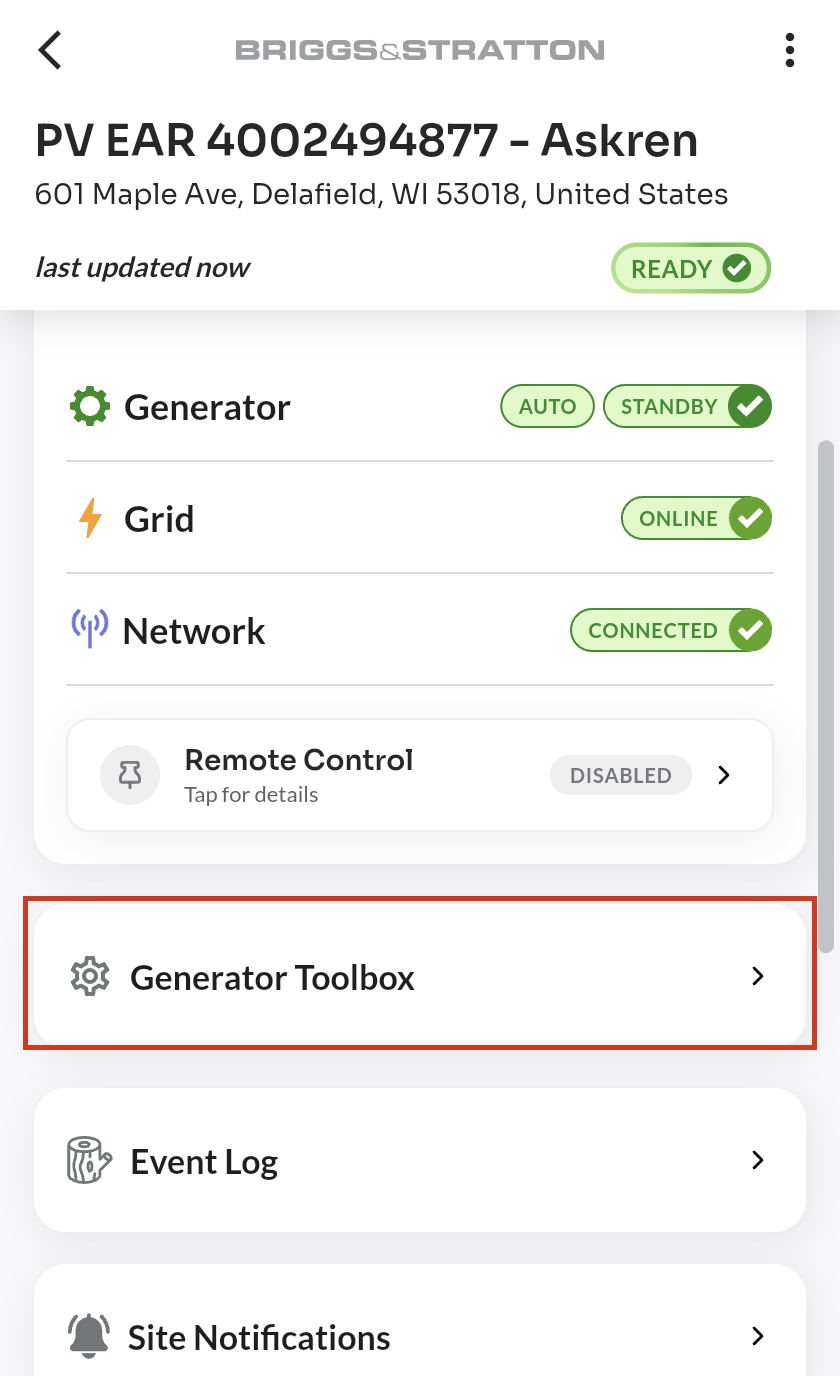
Tap anywhere on the Generator Toolbox header row to expand the panel.
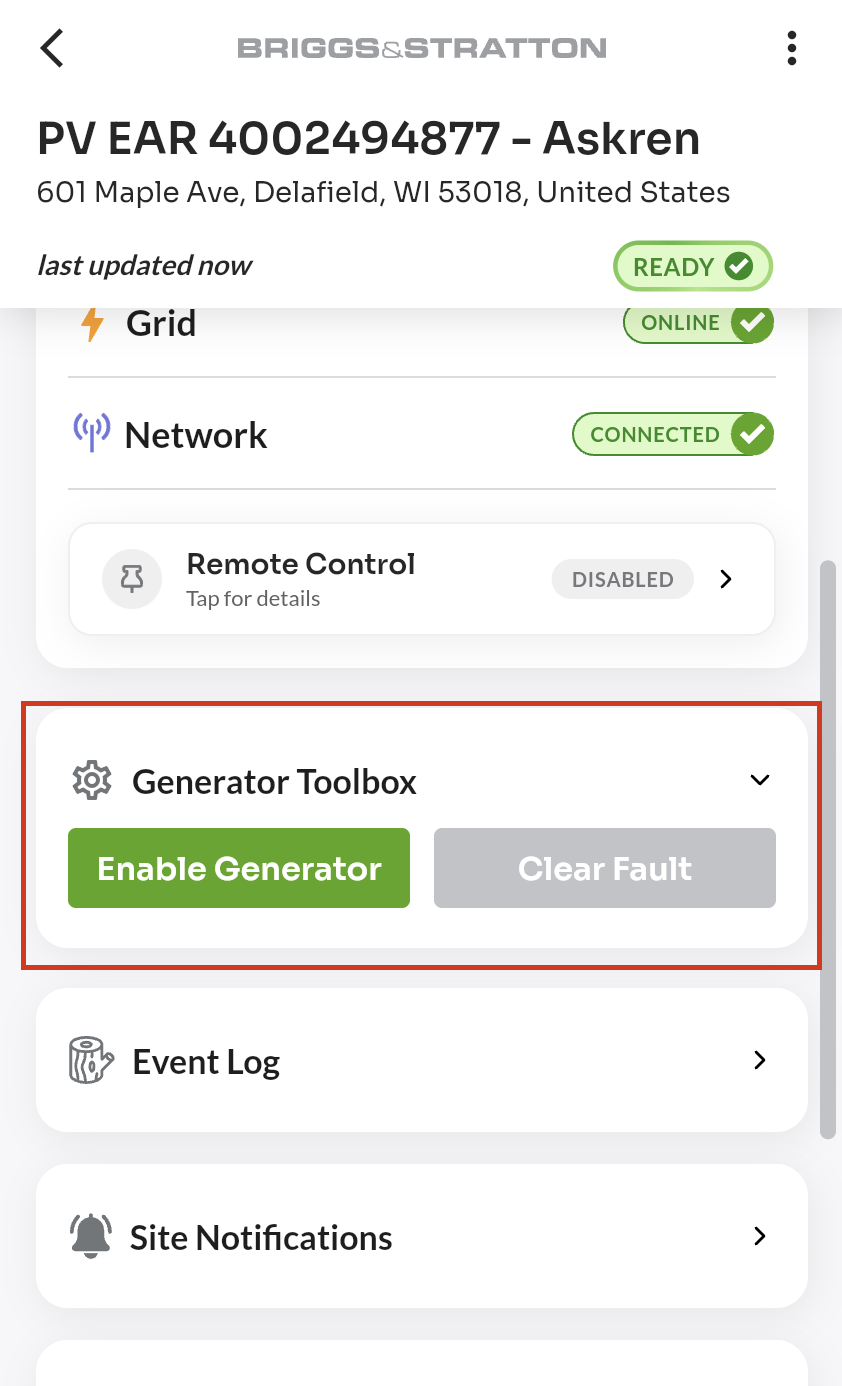
The panel reveals three action buttons:
| Button | Color | Action |
|---|---|---|
| Enable Generator | Green | Remotely starts the generator |
| Disable Generator | Red | Remotely stops the generator |
| Clear Fault | Yellow | Clears an active fault on the generator |
Note: If a button appears greyed out, the action is not currently available for this device. This may be because the generator is already in the requested state or the device is not yet ready to accept that command.
Step 3: Enable Generator (Remote Start)
To start the generator remotely:
-
In the expanded Generator Toolbox, tap the green "Enable Generator" button.
-
The button immediately shows a loading spinner, indicating the command is being sent. The button is temporarily non-interactive while processing.
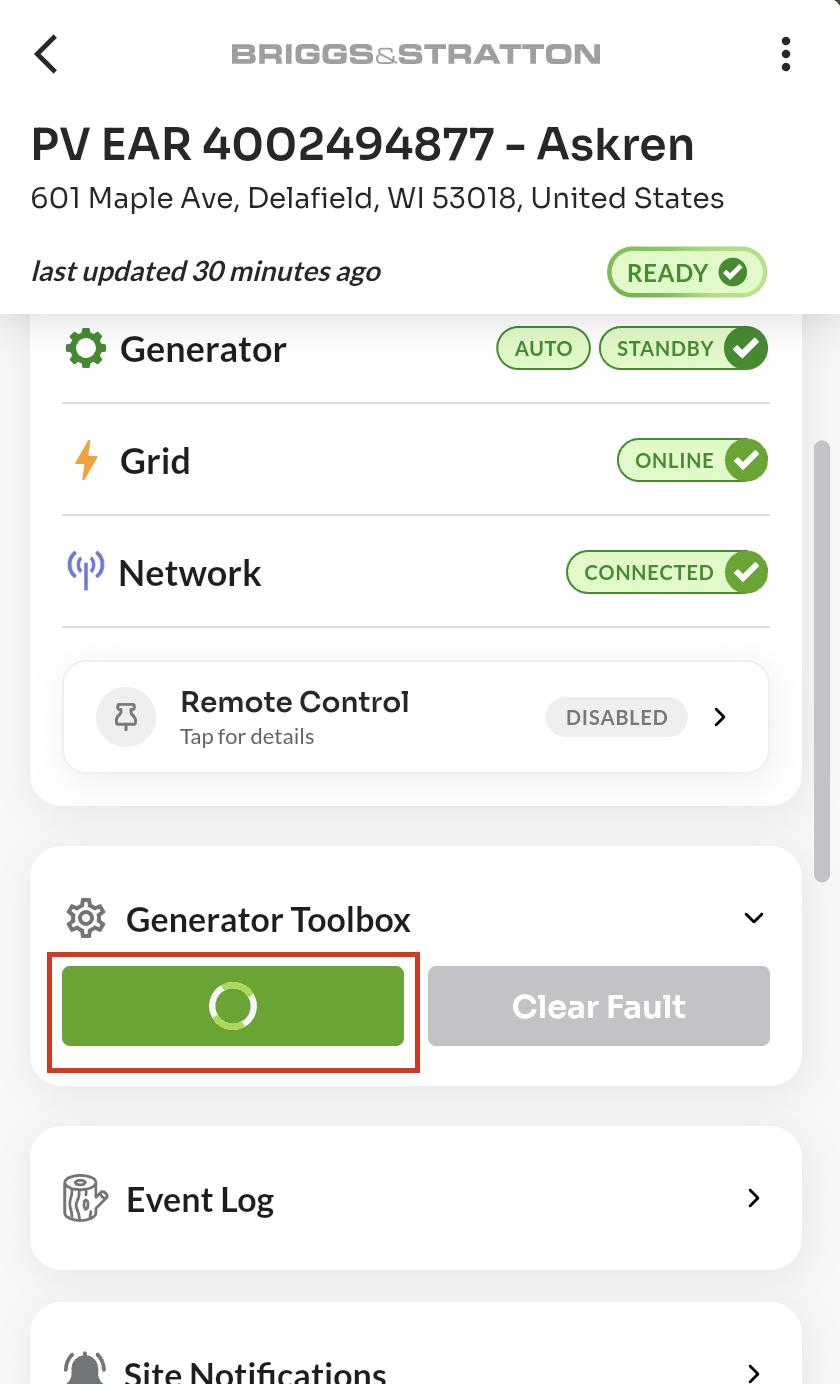
- A Recent Commands entry appears below the buttons showing the command status as it progresses.
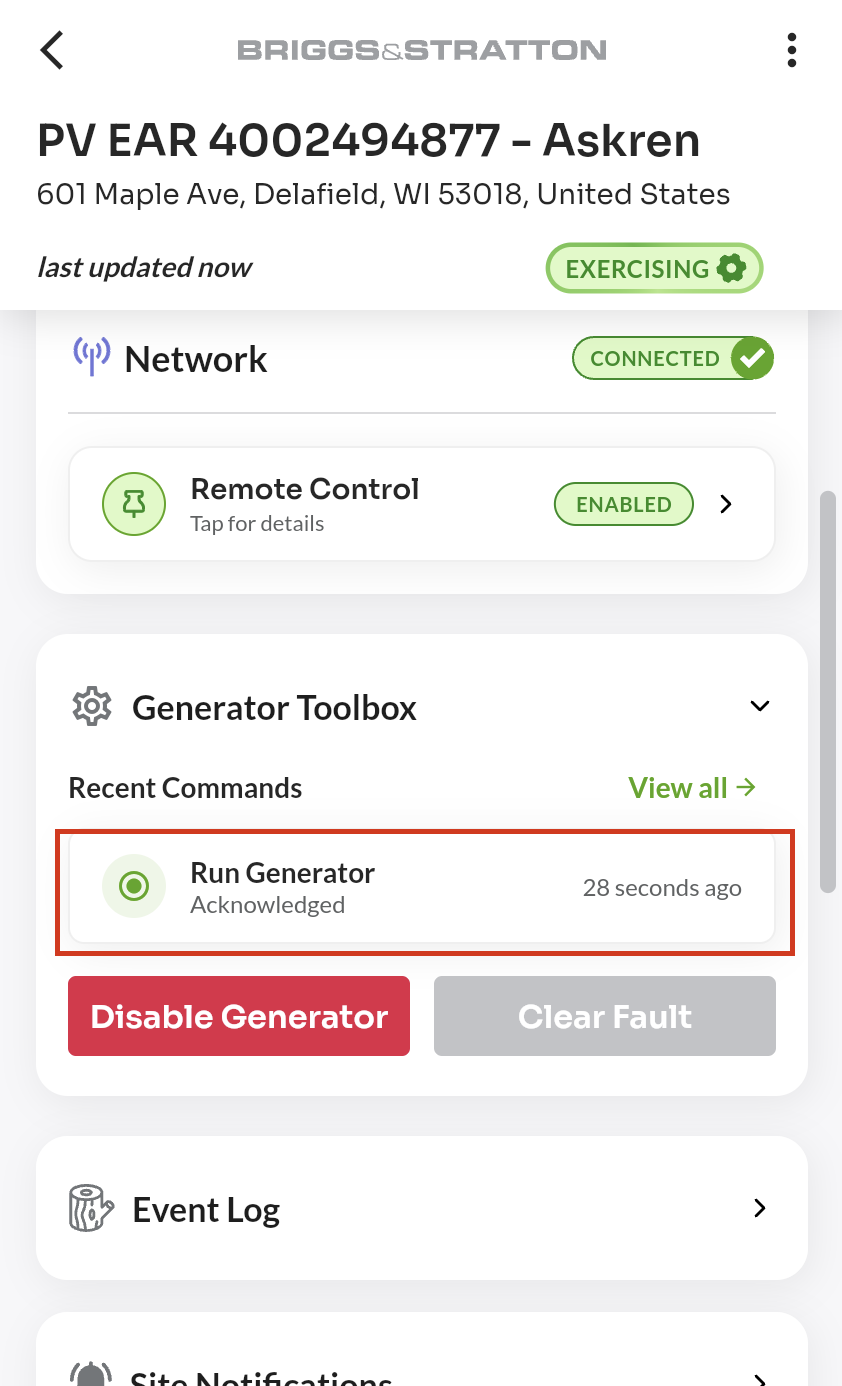
- Once the device receives and acknowledges the command, the status updates to Acknowledged and the generator begins running.
Note: After starting the generator remotely, the generator run status in the app may take a short time to update.
Step 4: Disable Generator (Remote Stop)
To stop the generator remotely:
- In the expanded Generator Toolbox, tap the red "Disable Generator" button.
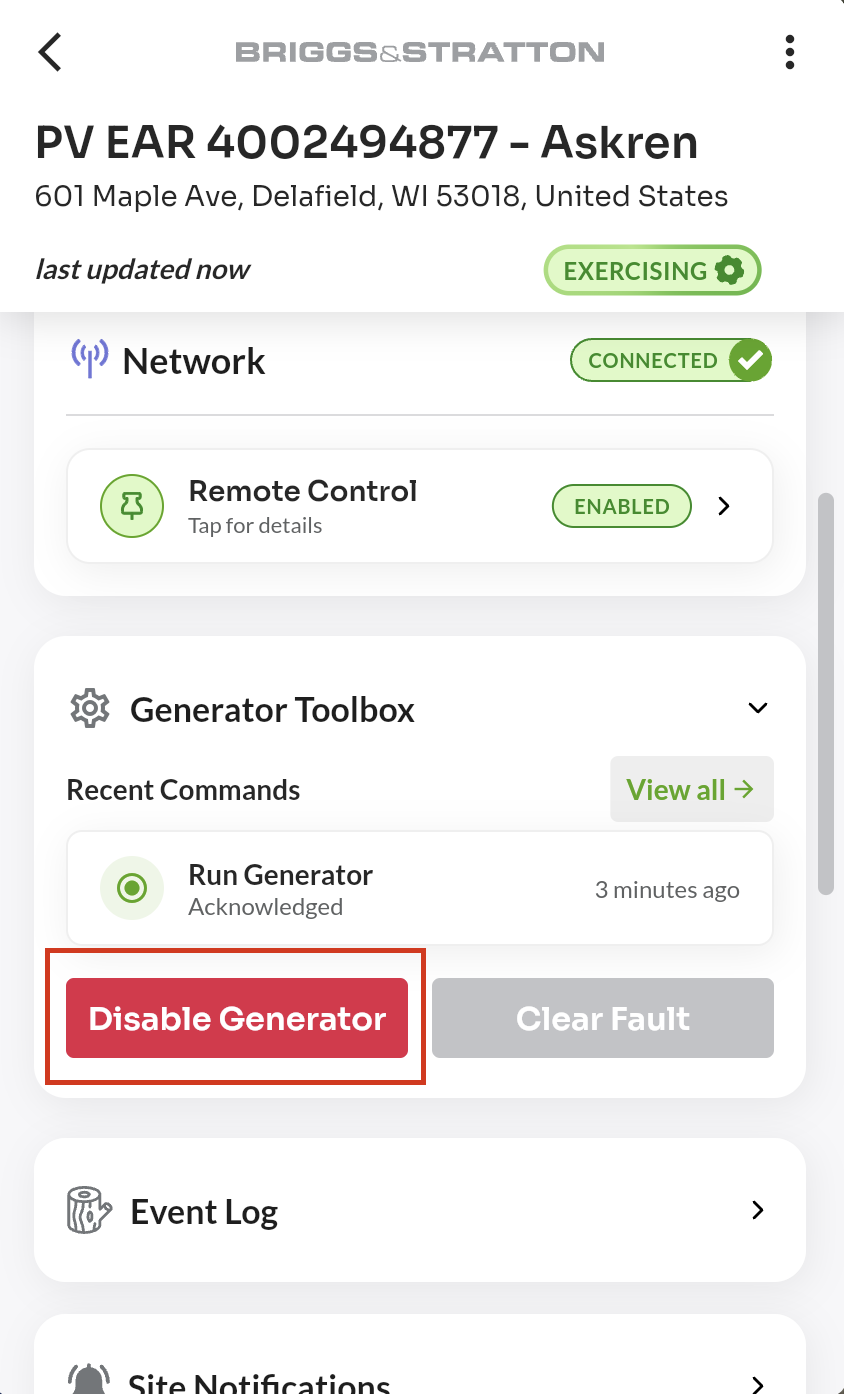
- The button shows a loading spinner while the command is being processed.
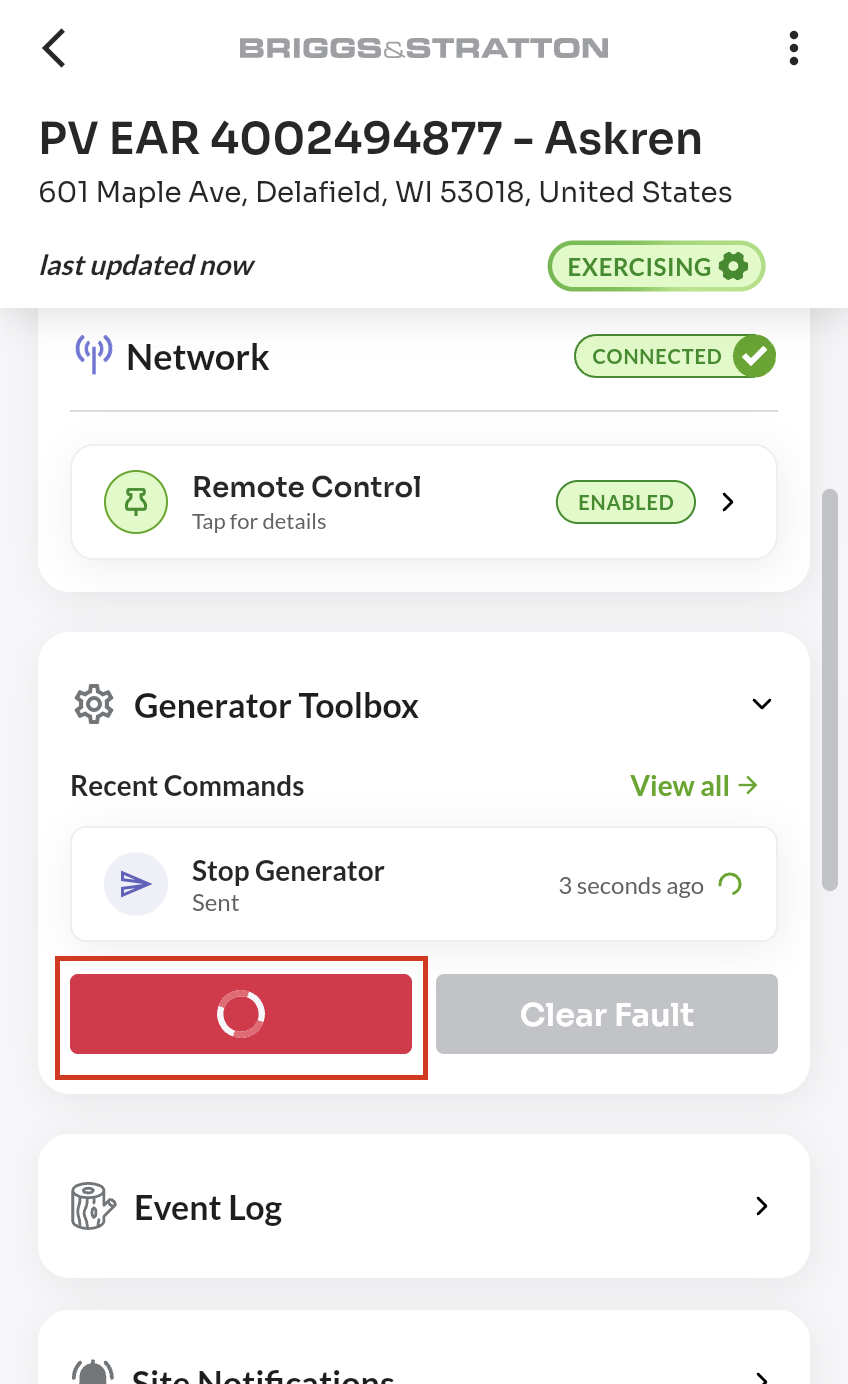
- The Recent Commands section shows the command status progressing from Queued → Sent → Acknowledged.
Important: After you remotely stop the generator, it will continue running for approximately 5–6 minutes while it completes its cooldown cycle before fully shutting down. This is normal behavior.
Step 5: Clear Fault
The Clear Fault button is used to dismiss an active fault on the generator after you have identified and resolved the underlying issue.
- In the expanded Generator Toolbox, tap the yellow "Clear Fault" button.
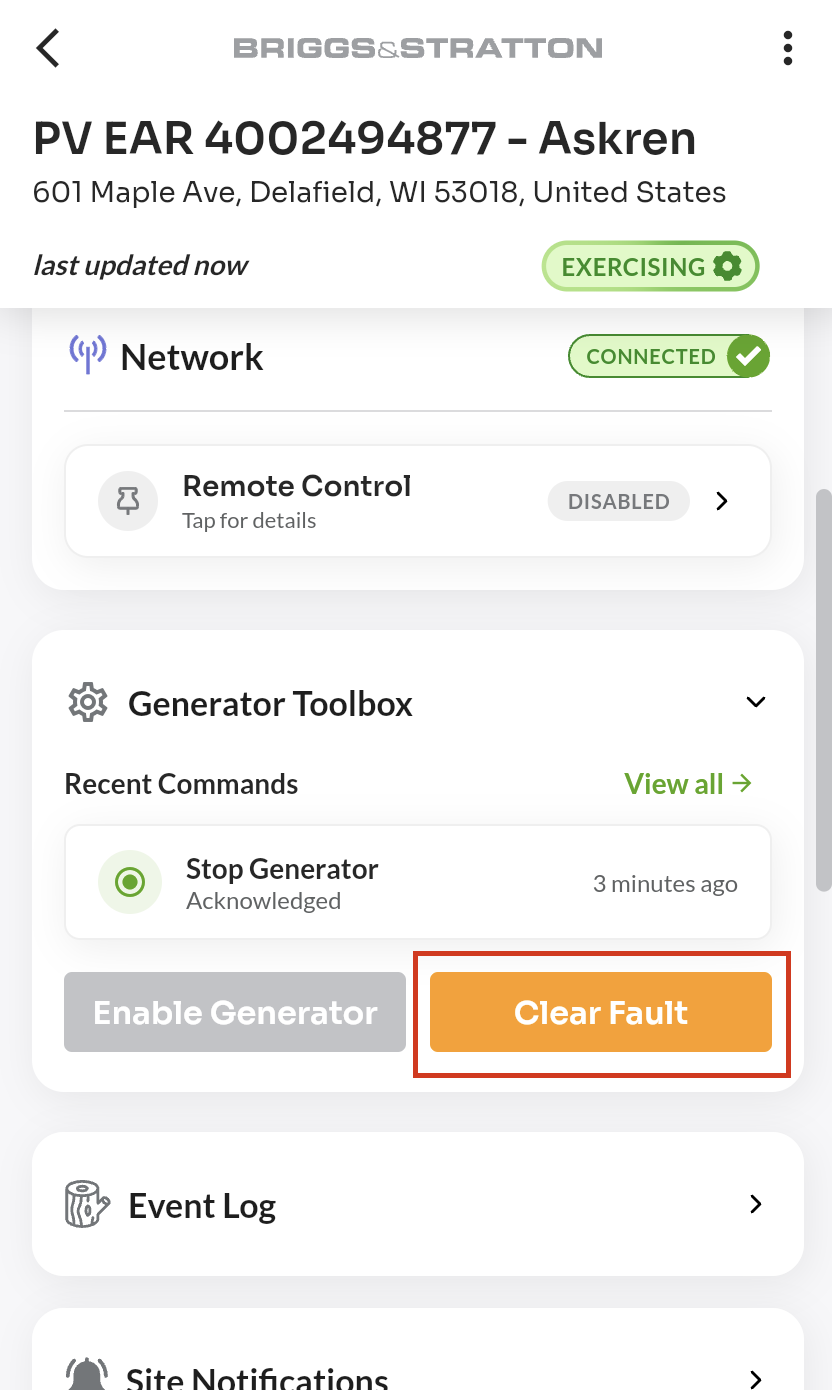
- The button shows a loading spinner while the command is processed.
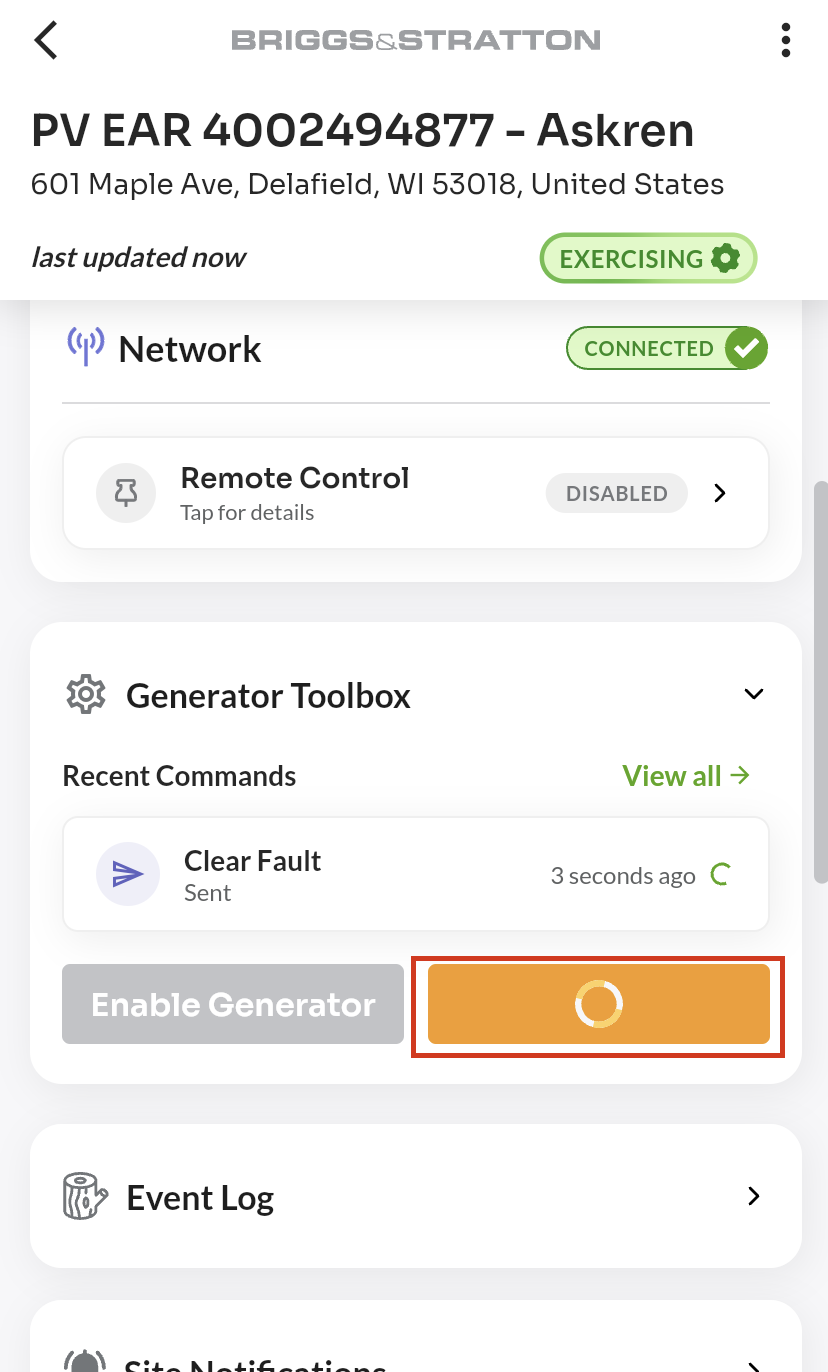
- Once acknowledged, the active fault indicator is cleared from the generator status.
Note: The Clear Fault button clears the fault signal on the device. If the underlying condition that caused the fault is not resolved, a new fault may be detected shortly after clearing.
Step 6: Tracking Command Status
Every command you issue is tracked in real time in the Recent Commands section directly below the action buttons.
Collapsed Command View
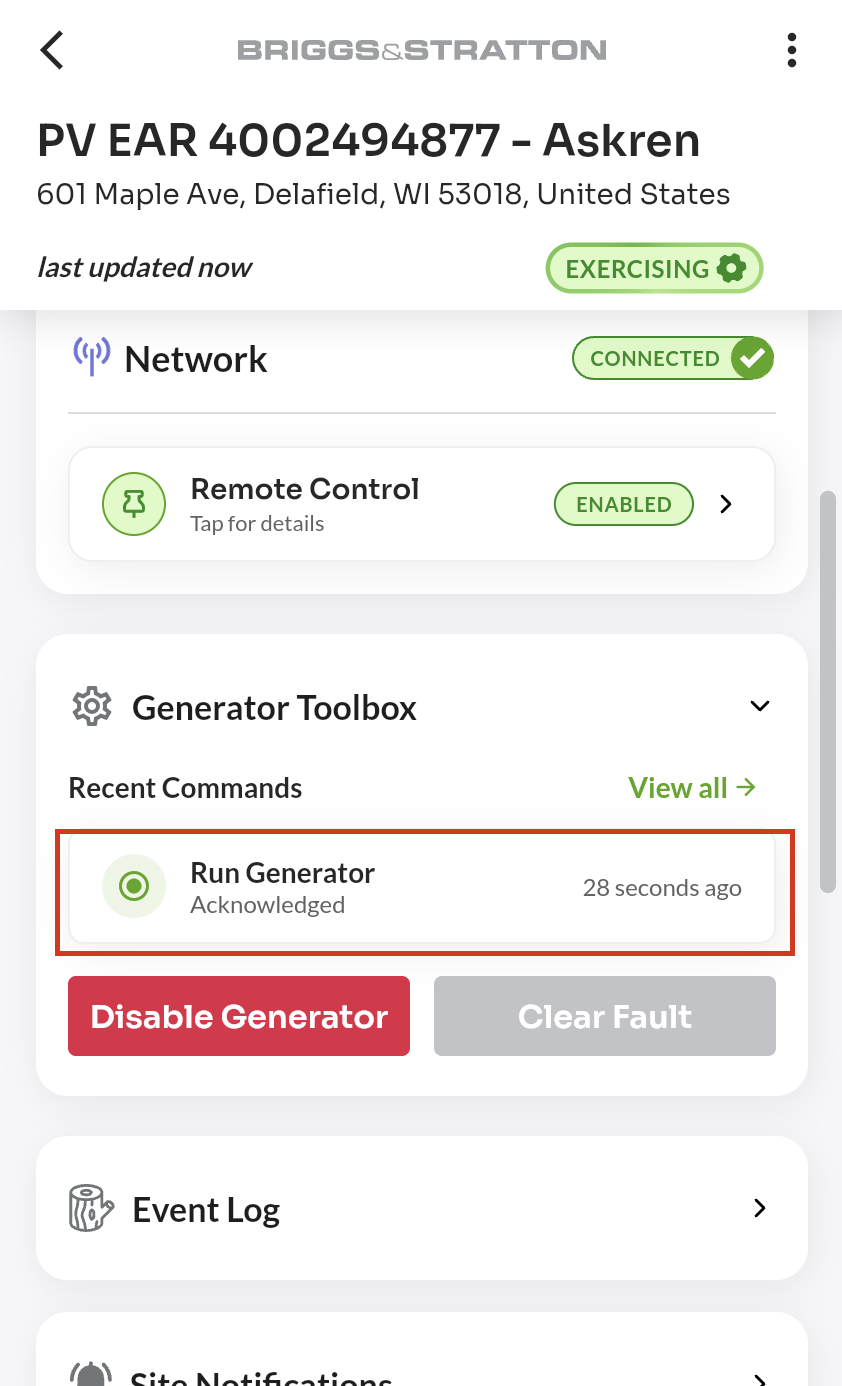
Each command tile displays:
- The command name (e.g., "Start Generator")
- The current status and time since it was issued
- A spinning indicator if the command is still in progress
Tap a command tile to expand it for full details.
Expanded Command View
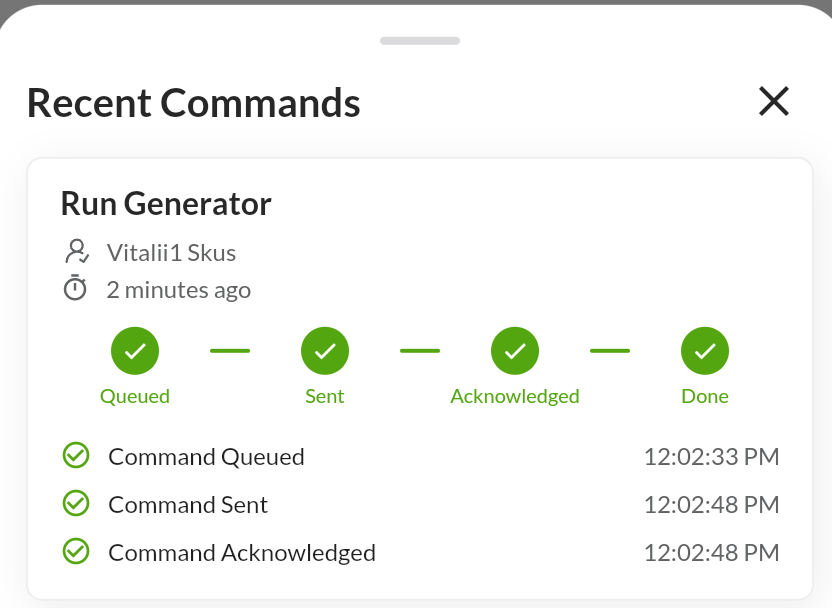
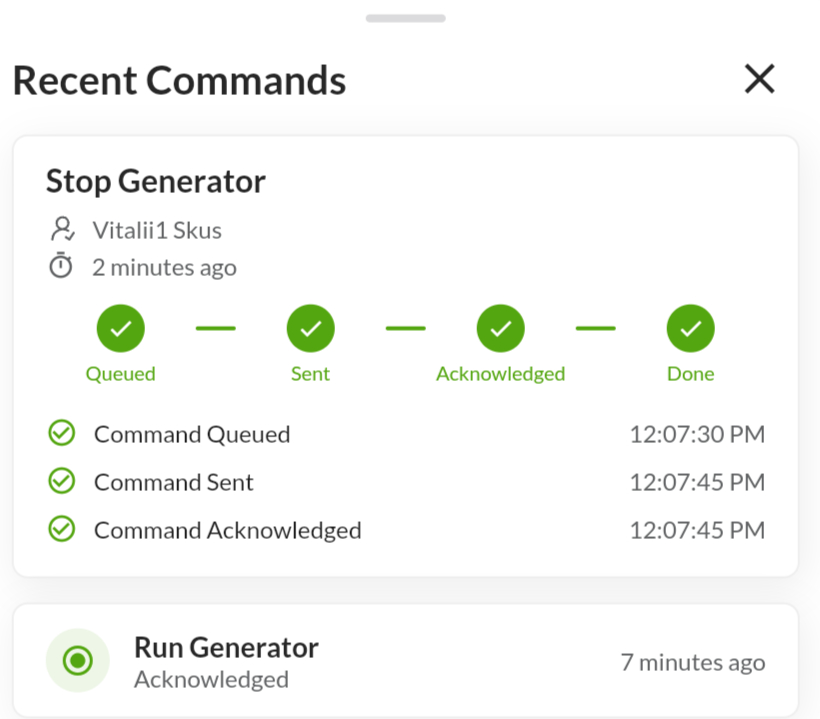
The expanded view shows:
- A 4-step progress indicator: Queued → Sent → Acknowledged → Done
- The name of the user who issued the command
- The exact time each step was completed
- A countdown timer (e.g.,
1:45) if the device is still expected to respond
Command Status Reference
| Status | Meaning |
|---|---|
| Queued | The command was received by EnergyTrak and is waiting to be sent to the device |
| Sent | The command has been transmitted to the generator monitoring device |
| Acknowledged | The device confirmed receipt and is executing the command |
| Done | The command completed successfully |
| Failed | The command could not be delivered to the device |
| Timed Out | The device did not respond within the expected time window |
If a command shows Failed or Timed Out, you can re-issue it by tapping the corresponding action button again.
Viewing Full Command History
To see all past commands for this site, tap the "View all" link in the Recent Commands header.
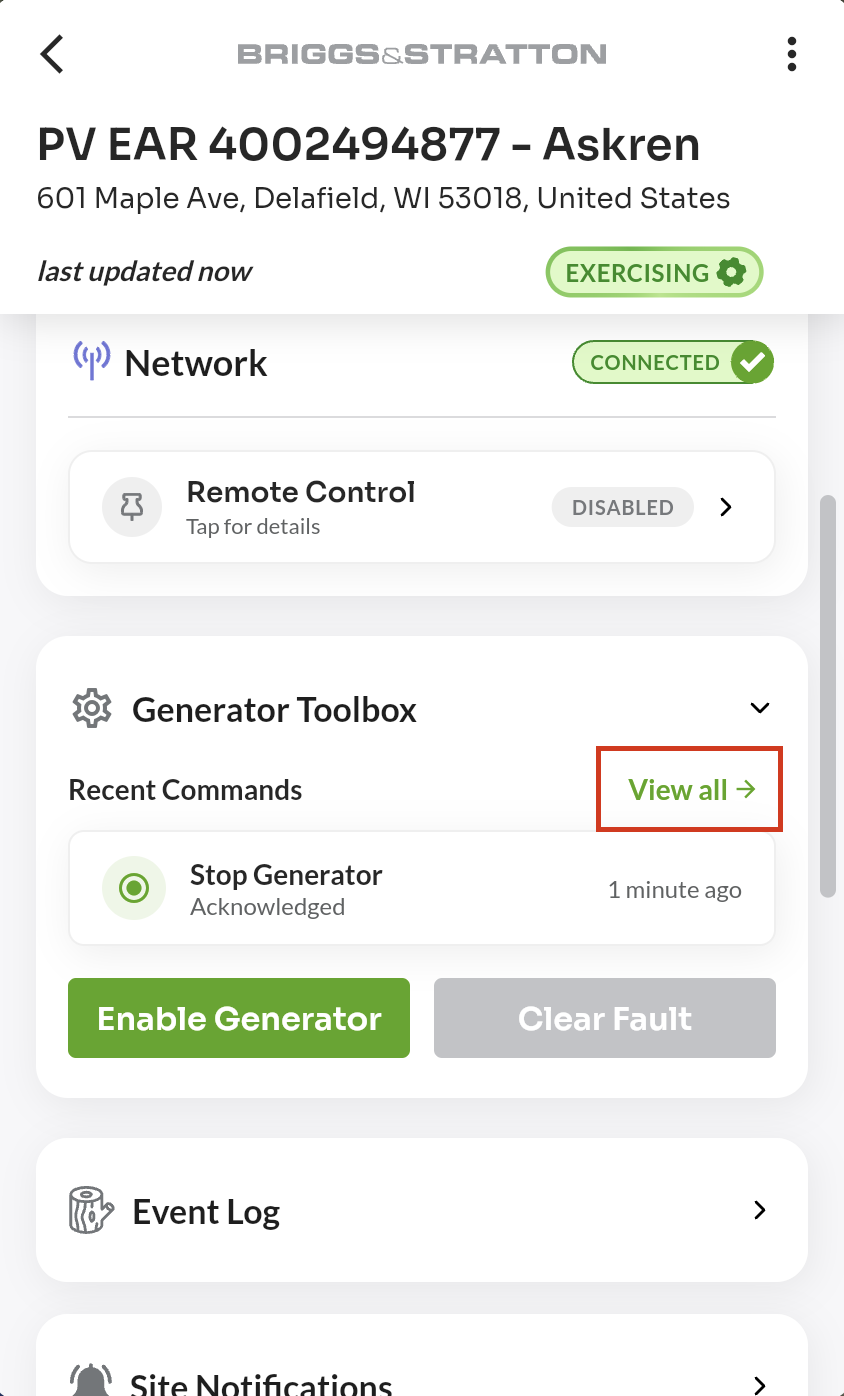
A bottom sheet opens showing the complete command history, ordered newest first. Each entry can be tapped to expand its full detail view.
Hourly Running Notifications
When a generator is started via Enable Generator (Remote Start), EnergyTrak will send you a push notification every hour the generator remains running. This reminds you that the generator is still active and was started remotely.
Notifications stop automatically once the generator is stopped or the remote start is deactivated. This applies specifically to remote start runs — notifications are not sent during standard exercise or outage runs.
Important Limitations
Manual Mode
If the generator is currently in Manual Mode, remote commands are disabled. An informational message will appear at the top of the toolbox:
"Remote Controls disabled when generator is in Manual Mode"
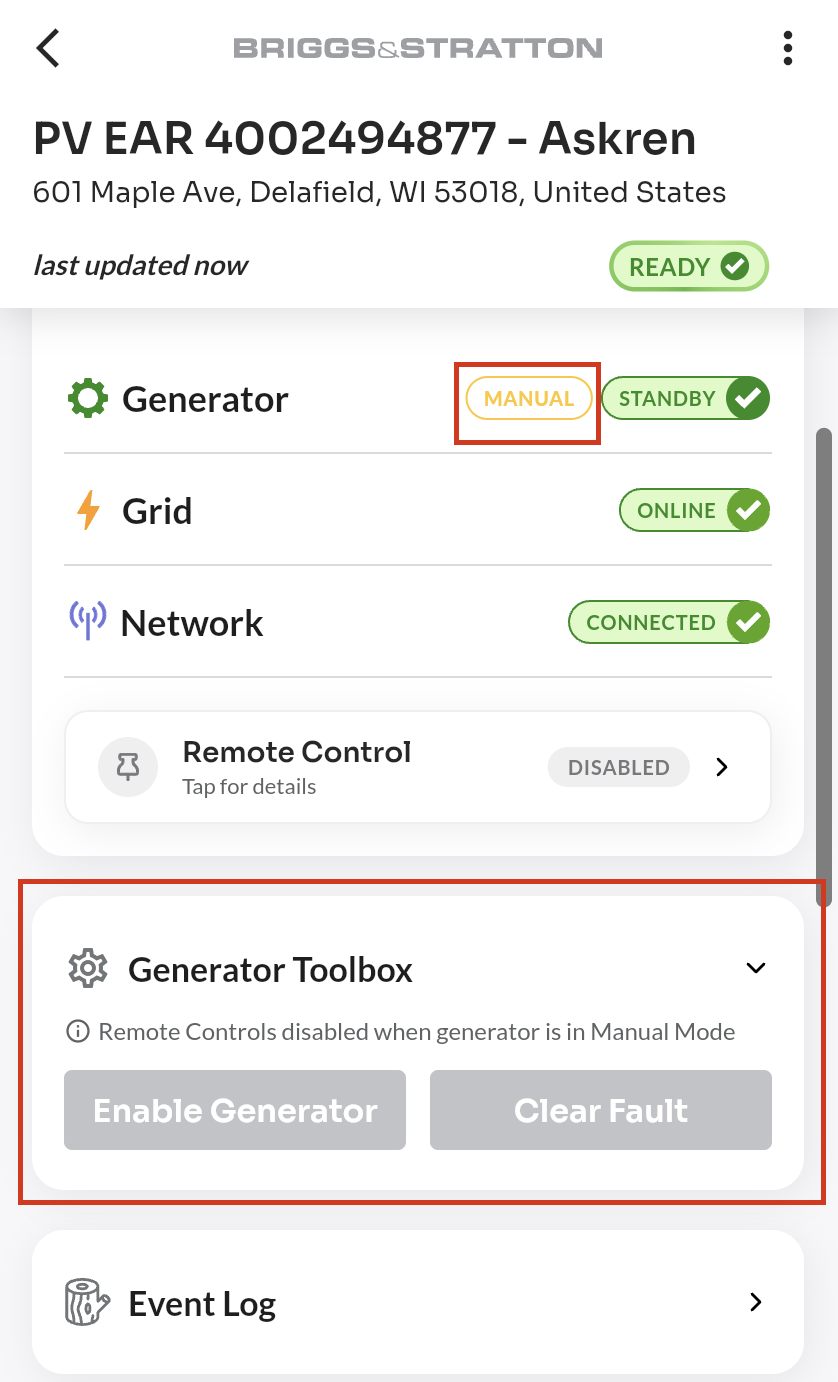
To use remote controls, the generator must first be switched out of Manual Mode at the physical unit. For a full explanation of Auto/Manual mode, what it means for your site's protection, and how to confirm the mode has changed, see Generator Operating Mode: Auto / Manual.
For information on Auto/Manual operating mode and site protection status, see Generator Operating Mode: Auto / Manual.
For information on user roles and permissions, refer to the Users page. For subscription management, refer to the Subscription Management page.