Malfunction Banners
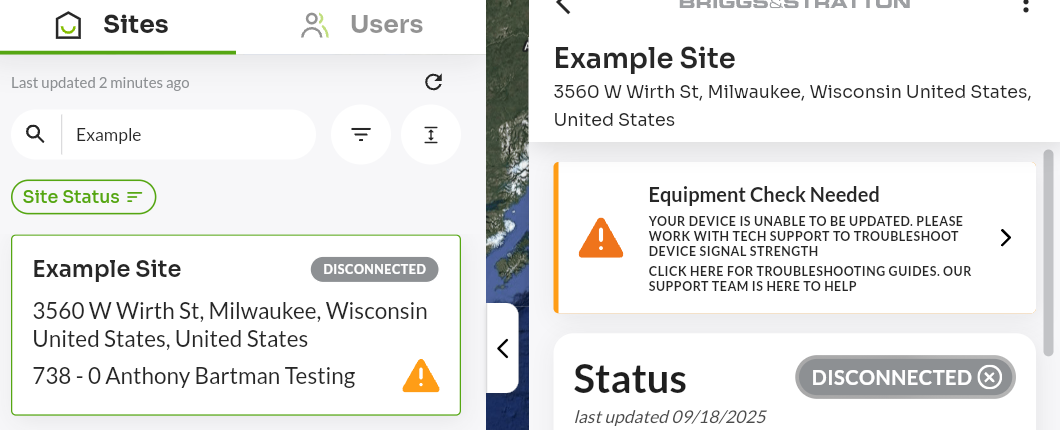
A Malfunction Banner is displayed in the EnergyTrak UI when a site has been flagged with an active issue. The banner shows a description of the problem and, where applicable, a link to support resources.
There are two sources for malfunction flags: the system (set automatically based on device telemetry or OTA update results) and support (set manually when a site requires attention).
⚙️ System-Set Malfunctions
The following flags are set automatically by EnergyTrak. When the underlying condition resolves, the system will also clear the flag automatically.
| # | Banner Message | What It Means |
|---|---|---|
| 1 | Manual configuration or update required. Please contact support for assistance. | The EnergyTrak system was not able to automatically resolve an issue. Please contact support for assistance. |
| 2 | Smart Mode Detection configuration mismatch. The configured setting does not match the device reported status. | The Smart Mode Detection setting configured in EnergyTrak does not match the status the device is actually reporting. Please contact support for assistance. |
| 3 | Unable to detect the wiring harness type. | The device requires a firmware update. Please contact support for assistance. |
| 4 | Your device is unable to be updated. Please work with tech support to troubleshoot device signal strength. | The device was unreachable during an OTA firmware update attempt, most likely due to poor cellular signal strength. ⚠️ Before calling support, please follow the steps in the device ➡️ troubleshooting guide. |
👤 Support-Set Malfunctions
Support can manually set a malfunction flag on a site when direct intervention is needed. Review the information in the description for additional details. Contact support if required.