Fleet Management
Boost your service level by addressing issues quickly and maximizing generator uptime. Pro users can monitor the status of their customer sites from the Sites screen in the EnergyTrak app.
💰 Grow your business with Premium Monitoring Services!
Many of our dealers find monitoring generators on behalf of their customers not only help to better manage customer issues through improved notification and awareness, but they turn this capability into a profitable service – often combined with annual maintenance plans – for which owners are willing to pay a premium.
Fleet Management at your Fingertips
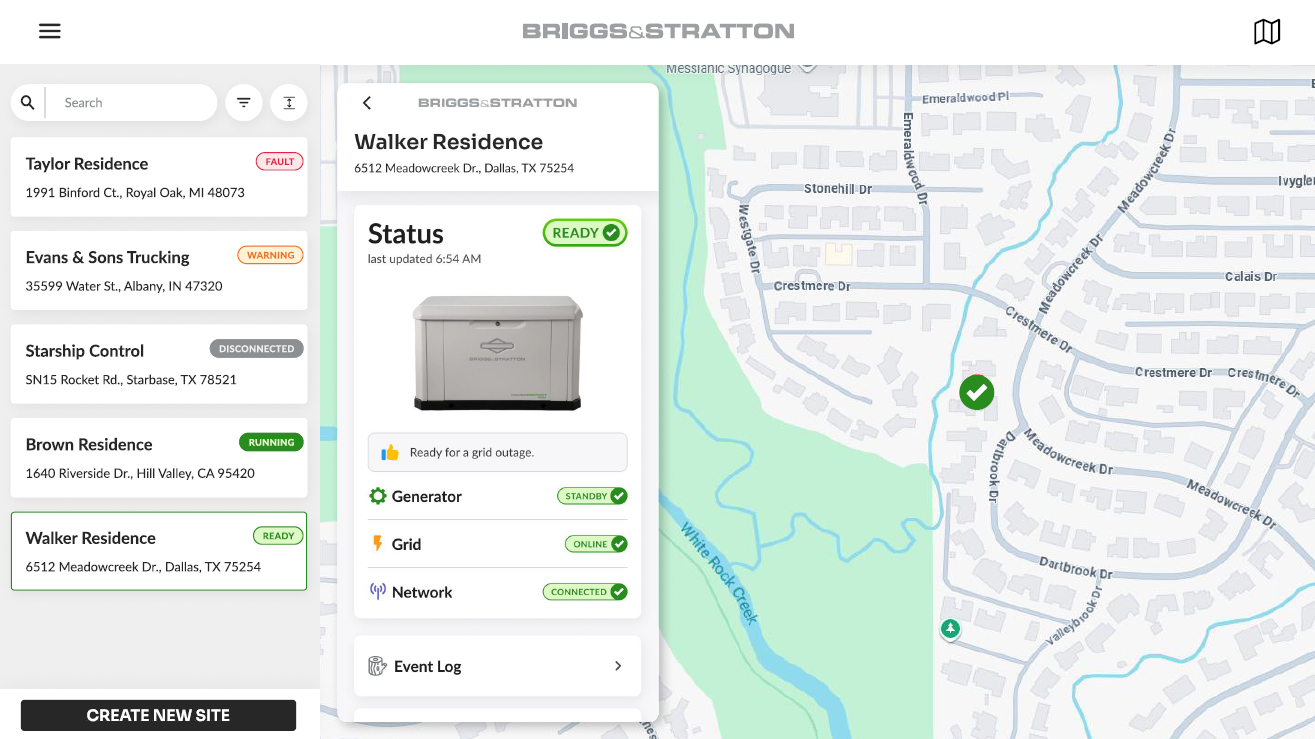
EnergyTrak offers a central Fleet Dashboard (main page found after logging in) that provides visibility into all customer installations (each represented as a Site ). This view is your central hub for monitoring real-time status and identifying service needs across your entire fleet.
Viewing the Fleet
The Sites list displays all customer installations associated with your Pro business. Each site is presented as a card with the following at-a-glance information:
- Site Name
- Location (hidden when collapsed)
- System Status: A color-coded icon indicating the overall health of the system.
- Alert Indicators: Visual icons displayed next to the site name if a Subscription is Required (❗) or an Equipment Check is Needed (⚠️).
From the Sites list, you can click on any site card to access the Site Dashboard. From here, you’ll find more detailed information on the selected site.
Filtering and Sorting
You can quickly locate installations in the Sites list by applying filters and sorting options:
- Filtering: Narrow the list by system status, equipment type (battery or generator), or by selecting Malfunction to view sites with detected equipment issues. The Malfunction filter includes three modes: Off (default), Show Only (display sites with active malfunctions), and Exclude (hide sites with malfunctions).
- Sorting: Arrange sites for easier viewing options such as:
- Recently Commissioned
- Site Name (A-Z)
- Site Name (Z-A)
Map View (Web App)
In the web app, you can view your entire fleet on an interactive map. Each site is represented by a pin that is color-coded to match the site’s current health status. This allows you to visually identify and prioritize issues based on geographic location. The map also includes red grid outage polygons to indicate utility-level power outages, helping you quickly understand regional impacts.
User Lists and Management
Pro users can manage their team and customer accounts from the Users list, which is located in a separate tab next to the Sites list.
Viewing the User List
The User list provides an overview of all active users in your Pro business. Use the built-in search bar to quickly find specific users. The list is sorted alphabetically (A-Z), and displays the following information for each user:
- User Name
- User Type (e.g., Pro Admin, Pro Technician, System Owner)
- Linked Phone Number