Navigating Subscriptions
This guide provides step-by-step instructions for managing site-level subscriptions, accessing billing information, and updating payment methods within the EnergyTrak platform.
Accessing the Subscription Management Screen
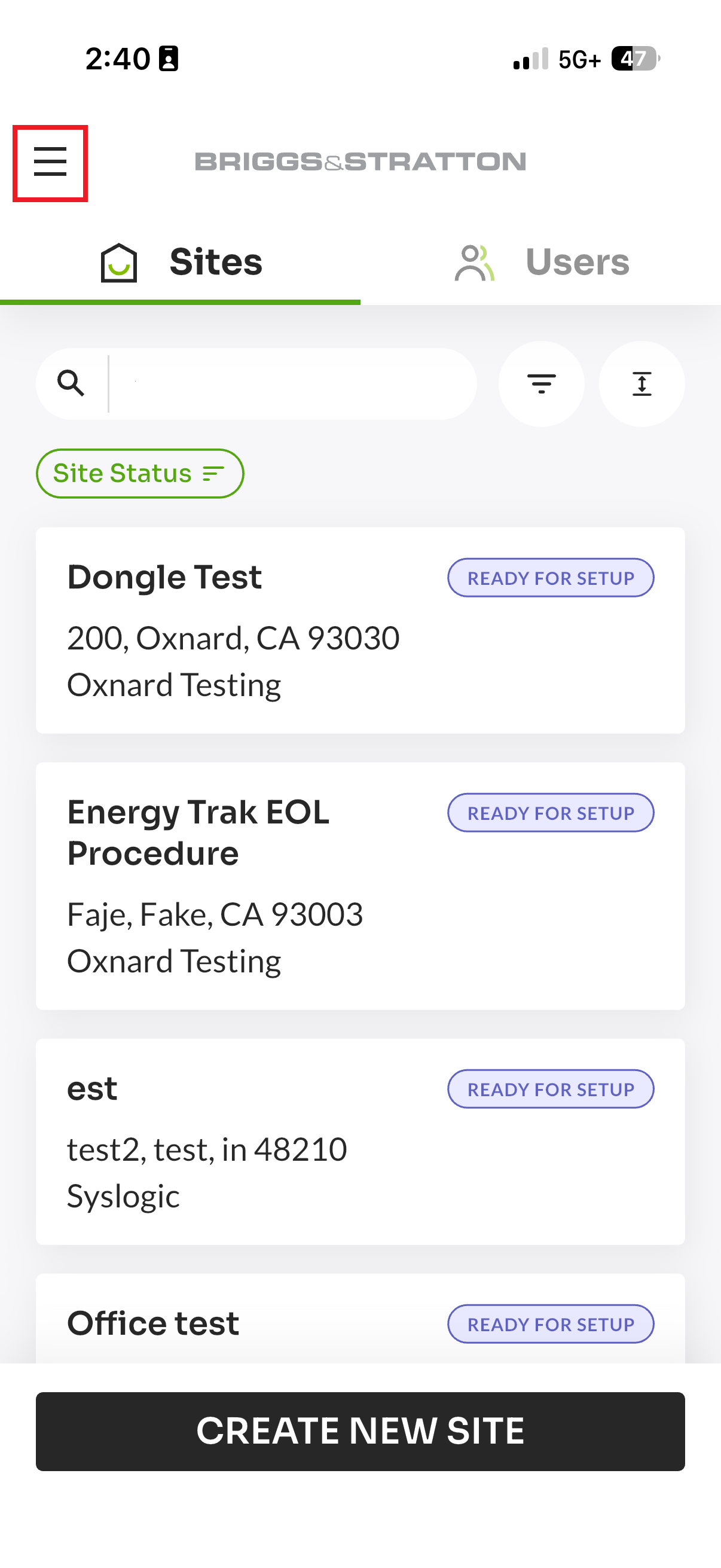
- Open the EnergyTrak app and tap the hamburger menu (three horizontal lines) in the top-left corner of the screen.
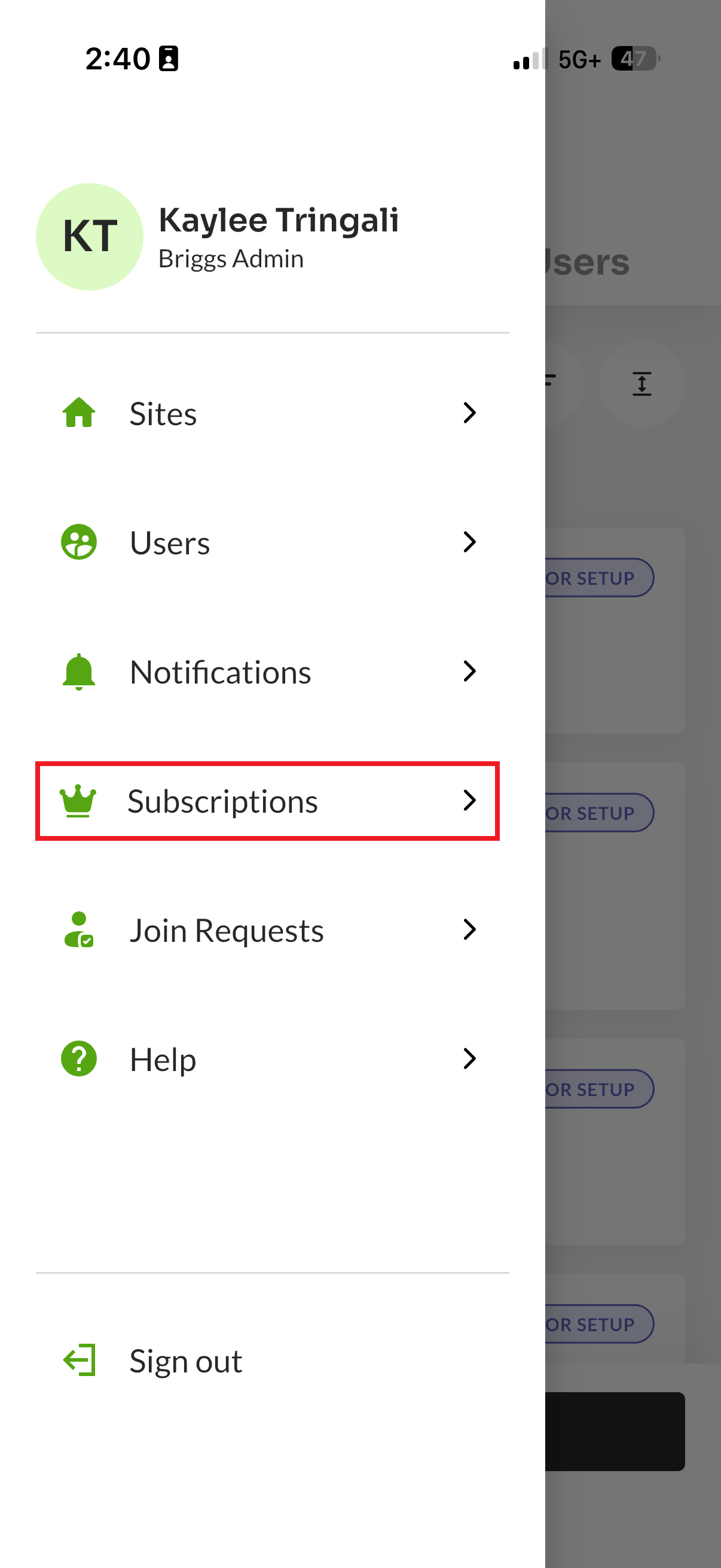
- From the side menu that appears, select "Subscriptions."
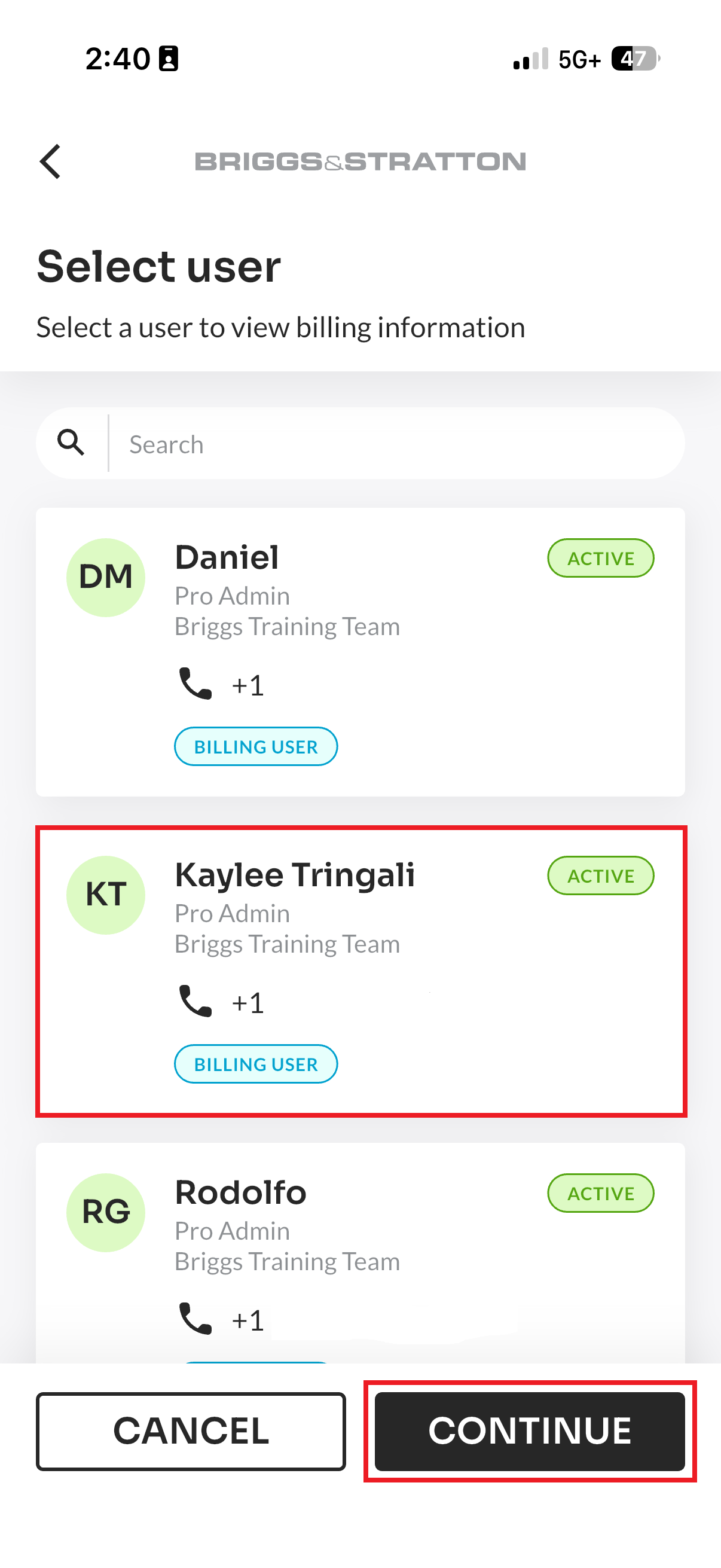
- Choose the user whose subscriptions you want to view.
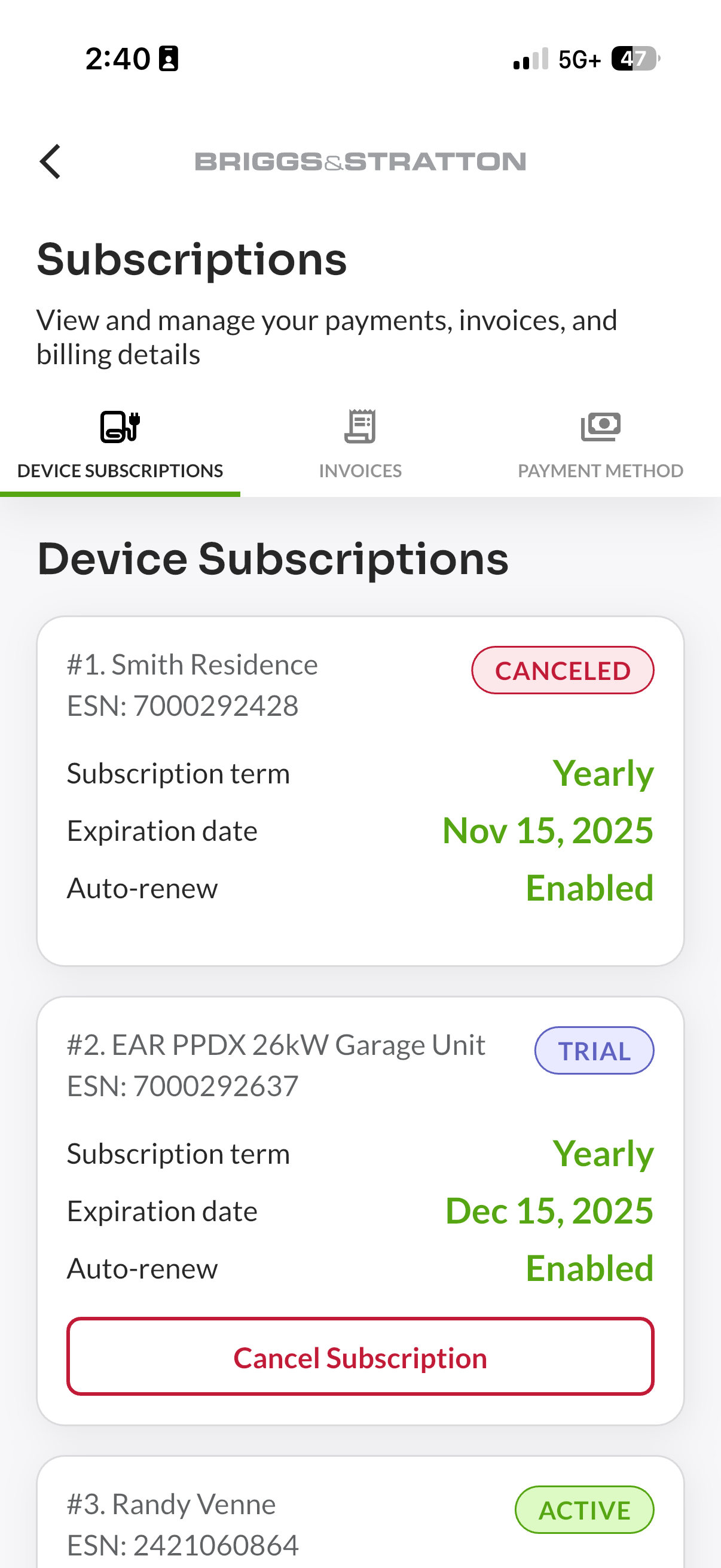
- Navigate to the Device Subscriptions tab to view and manage subscriptions associated with the selected user.
- Each row displays a Status Pill indicating the current state of the subscription (e.g., Active, Canceled, Trial).
- Subscriptions with auto-renew enabled will show a "Cancel Subscription" button. If auto-renew is disabled, the button will show "Resume Subscription." When canceling, you will be prompted to choose whether to cancel immediately or at the end of the current paid billing cycle. Please note that subscription payments are non-refundable, regardless of the cancellation timing selected.
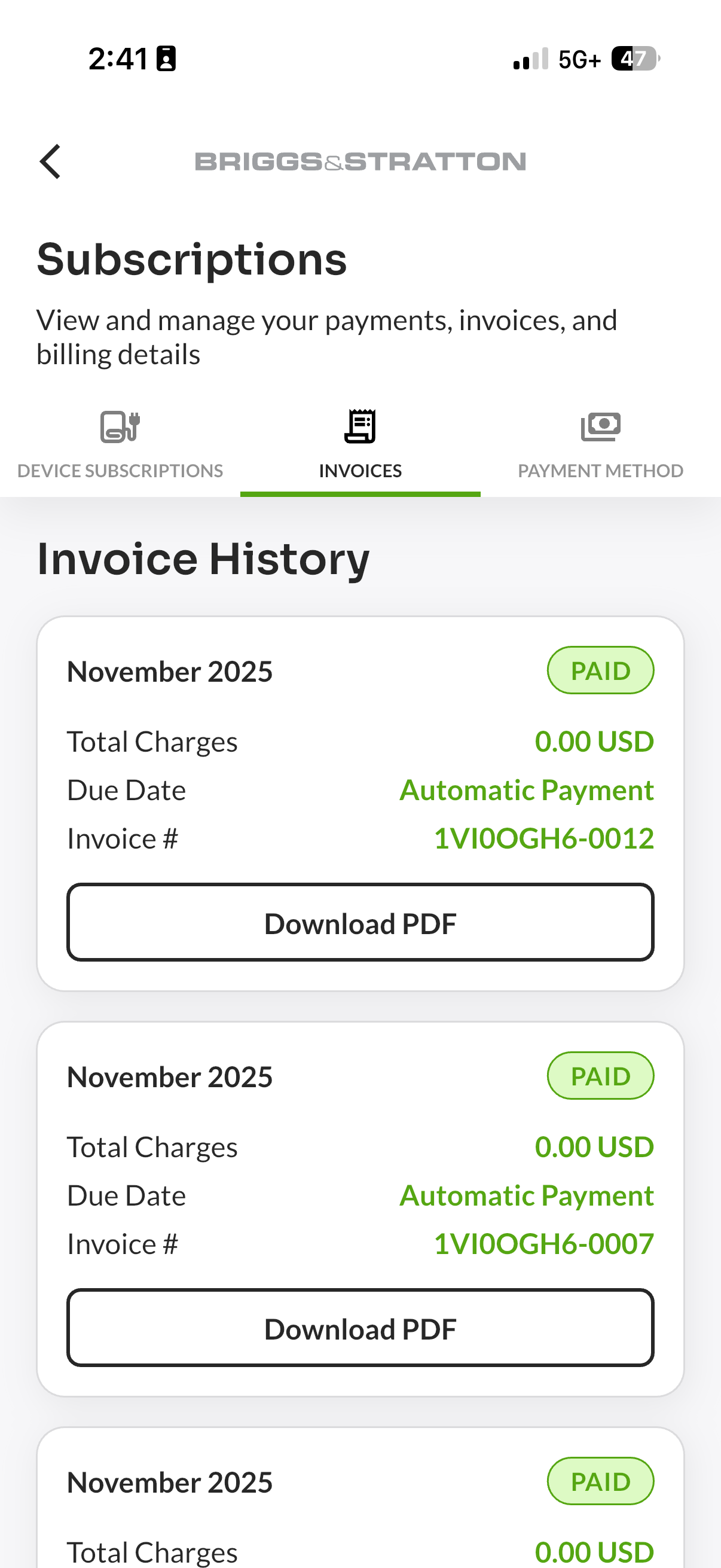
- Open the Invoices tab to review invoice history and download PDFs.
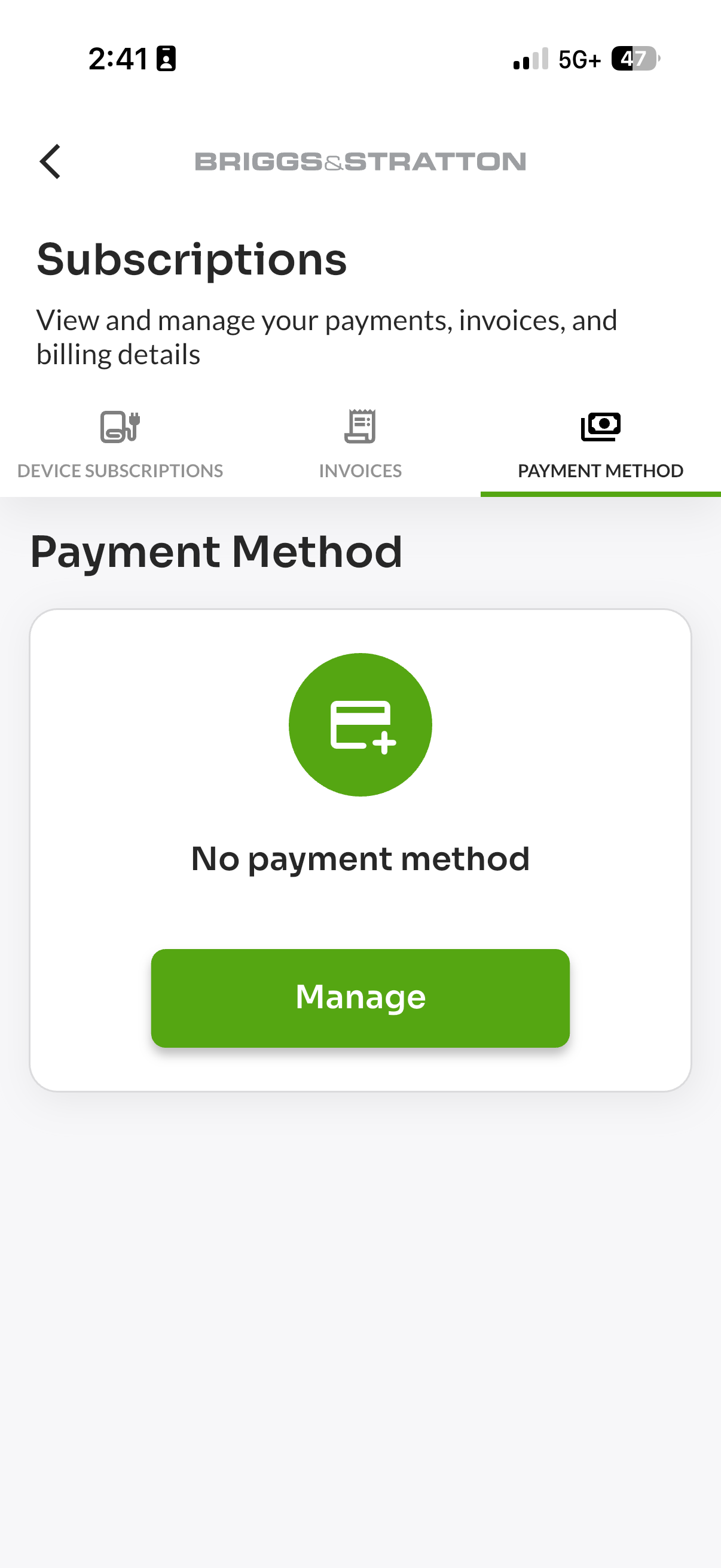
- Navigate to the Payment Method tab to manage payment methods.
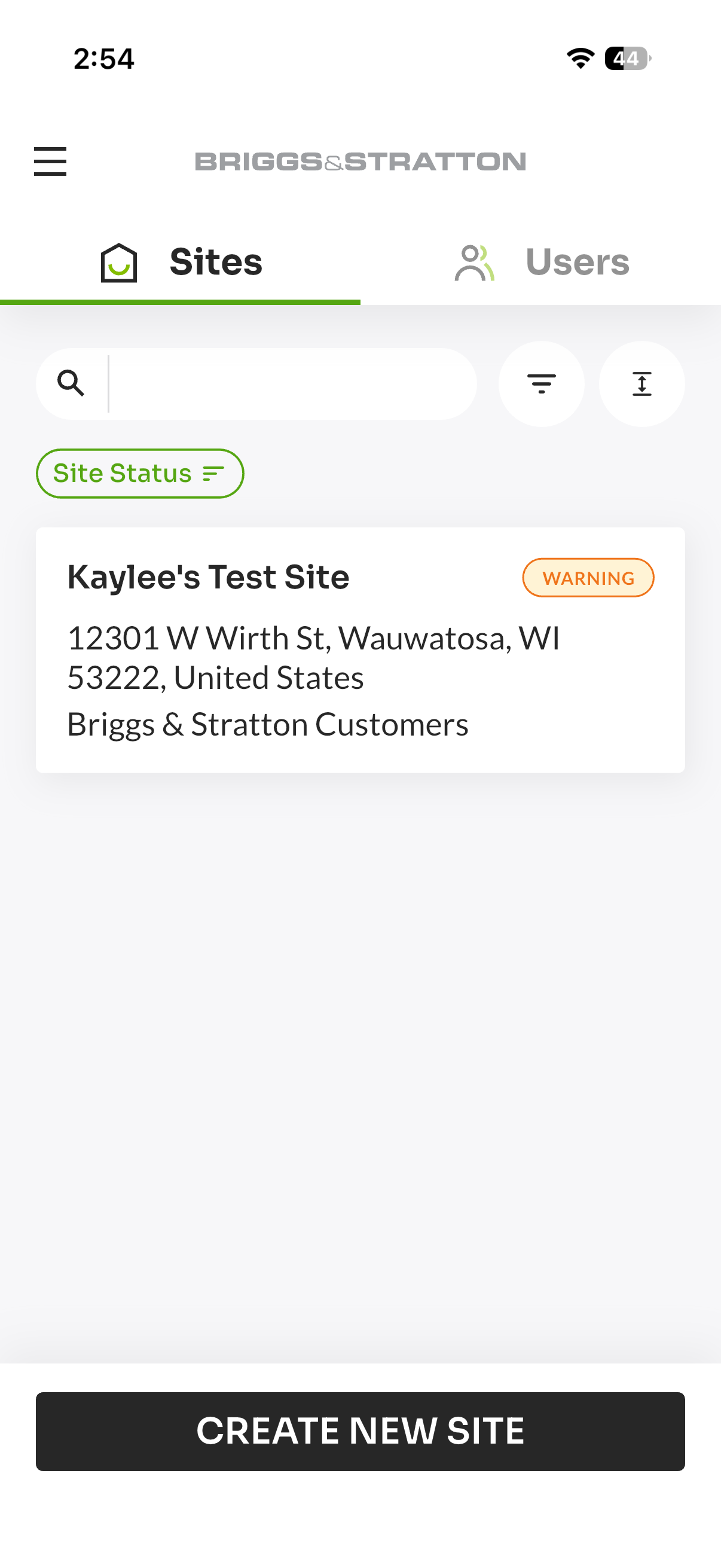
Alternatively, you can navigate to the subscriptions screen from a specific site.
- Navigate to the site you would like to view.
- Scroll to the bottom drawer and tap the Subscriptions card.
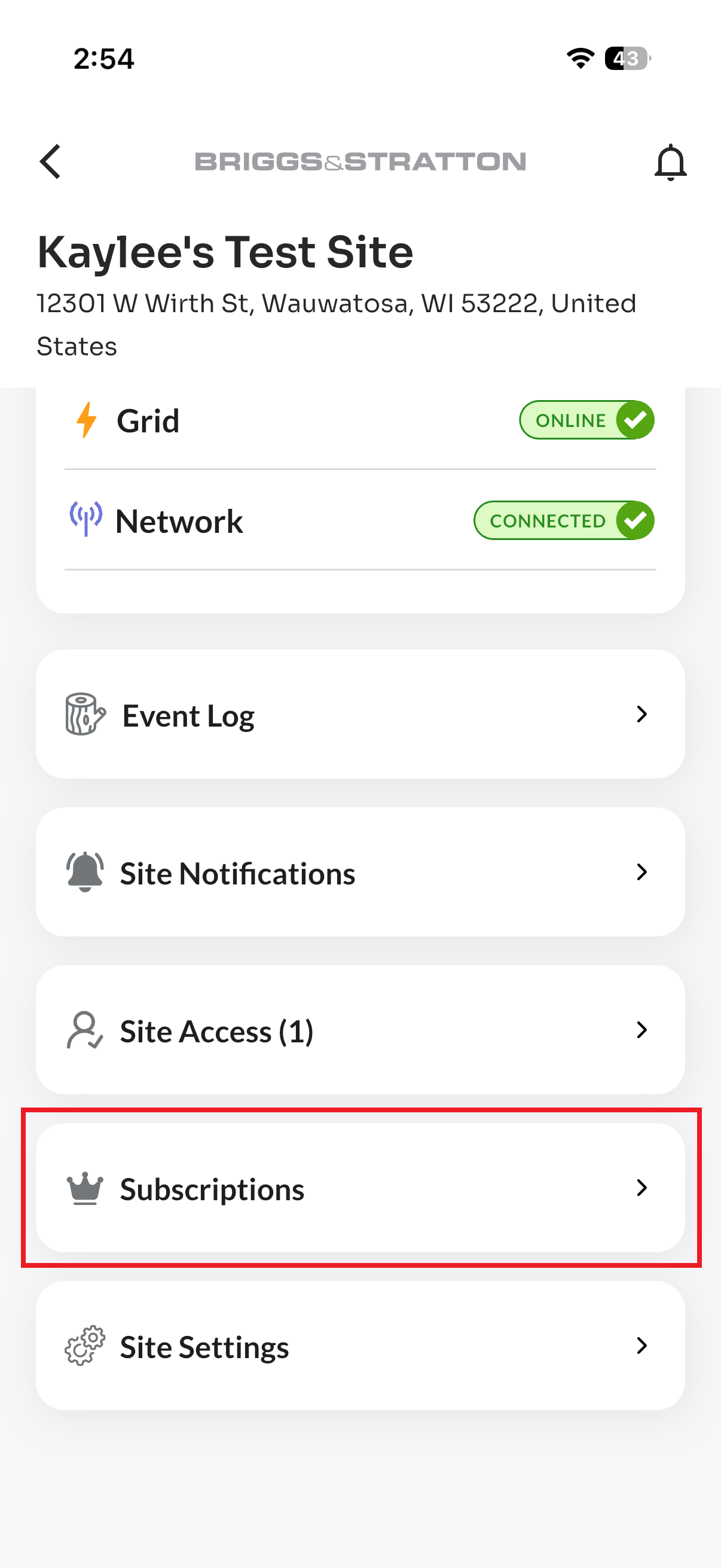
Clicking into the Subscriptions card will take you to the Subscriptions screen, where you can follow steps 3-6 from the access flow outlined above.
Subscription Banner Indicators
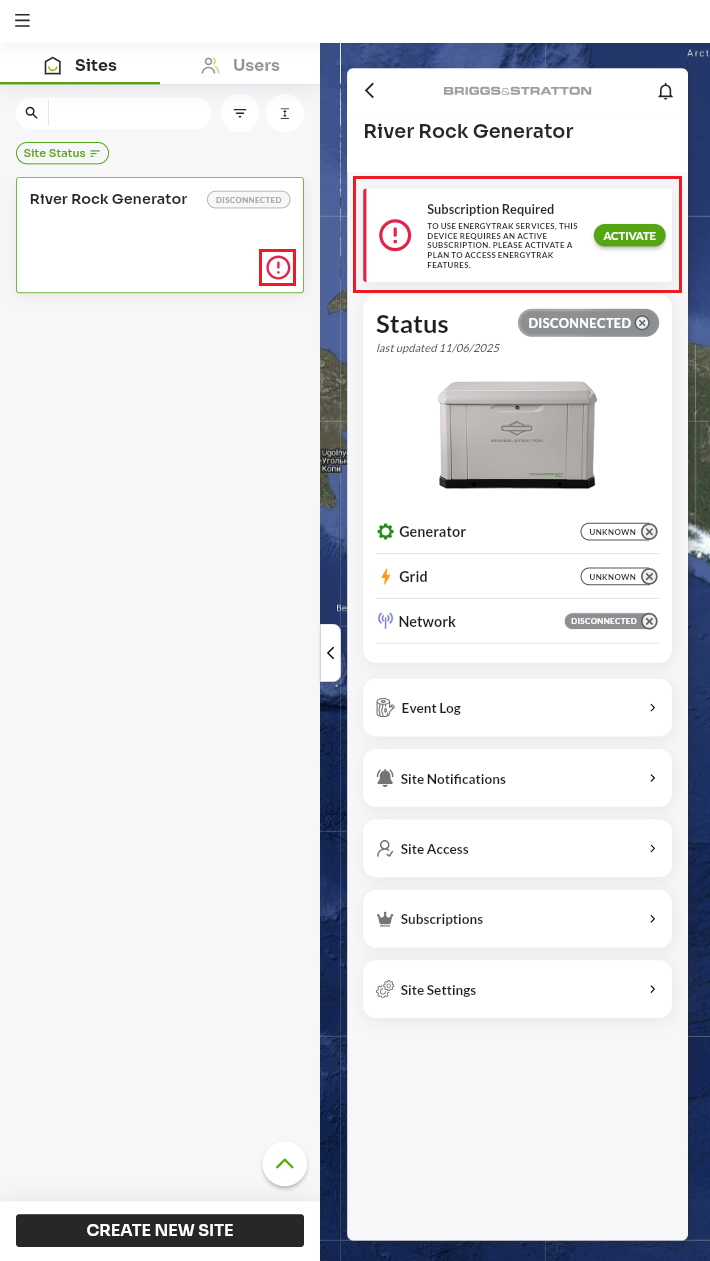
Devices that require an active subscription to access EnergyTrak features will display visual indicators if a plan is not currently active. These indicators will appear in two primary locations:
- Sites List: A red exclamation mark icon (❗) displayed next to the site name in the Sites List.
- Site Dashboard: A prominent "Subscription Required" banner at the top of the Site Dashboard screen.
Tapping the green "ACTIVATE" button within the Site Dashboard banner will immediately redirect you to the subscription setup flow for that specific device.
Subscription Banner Variations
The message and available actions within the Subscription Banner may vary based on your user role and how the subscription is billed:
- Standard View: This is the default display for System Owners managing their own payments or Pro Admins viewing a standard unpaid site. The banner displays "Subscription Required" with an "ACTIVATE" button.
- Pro Admins (Customer-Deferred Plans): If a Pro Admin views a site where the customer is responsible for payment but hasn't paid, the banner reads: "This user has not paid for a subscription yet." The button will display "Switch to dealer managed subscription."
- System Owners (Dealer-Paid Plans): If a System Owner is on a plan paid for by their dealer, the banner reads: "Contact your dealer to reactivate." No action button is displayed.
Understanding Subscription Statuses
| Status | Description |
|---|---|
| Active | Subscription is current and fully functional. |
| Trial | Subscription is in a trial period. |
| Past Due | Payment is overdue. |
| Incomplete | Subscription setup was not completed. |
| Incomplete Expired | An incomplete subscription setup has expired. |
| Canceled | Subscription has been canceled. |
| Unpaid | Payment has failed. |
| Unknown | Status could not be determined. |
In addition to the statuses depicted above, you may see "Managed by Customer" listed under the Term column. This indicates the subscription is managed directly by the end-user rather than the business.
Additional Resources
- For answers to common subscription-related questions, please visit our Subscriptions FAQ.
- For details on subscription tiers and pricing, please visit our Subscription Management page.